Special Conditions
The Special Conditions tab in Curia Contract Review allows you to manage and organise the special conditions found in a contract of sale. This article explains how to use the features of this tab.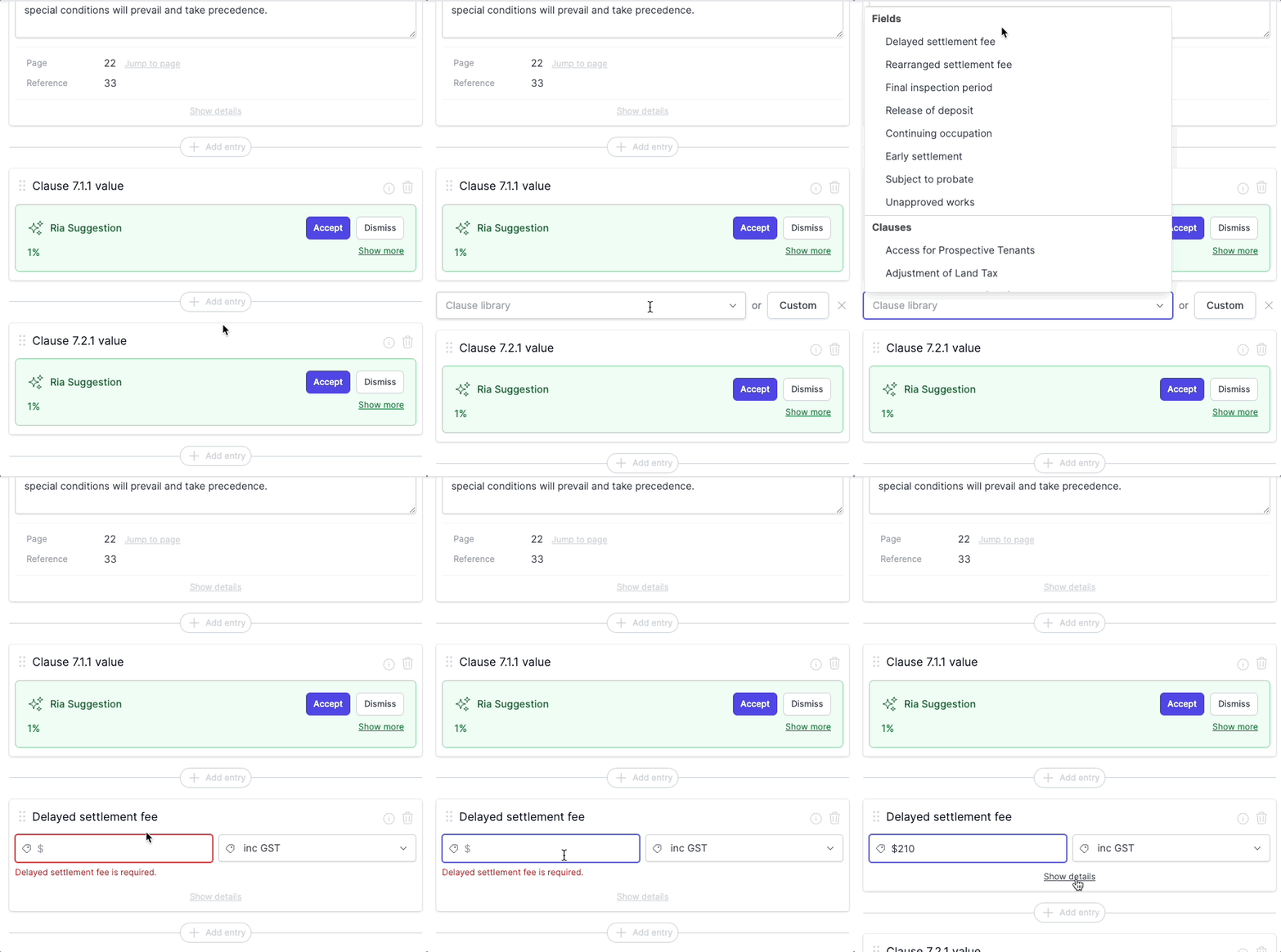
How do I remove entries?
Why are some entries displayed even though they aren't found in the special conditions?
How are entries added to the Special Conditions tab?
- Entries are pre-populated during document processing.
- Only active fields for your account and clauses from your clause library are used for pre-population.
- You can manually add entries at any time.
- The dropdown list contains all 'active' fields for your account and all clauses from your clause library.
How does pre-population work?
- Curia Contract Review uses machine learning and AI to assess the clauses in the special conditions section of the contract.
- It categorises these clauses and adds them to the Special Conditions tab.
- Pre-populated entries are assigned references and page numbers.
How are references and page numbers assigned?
- Page numbers indicate the page on which the special condition was found in the document.
- References are the clause references, for example, "25.a".
What if no entries are detected during processing?
- If no entries are detected or there's an issue during processing, only the fields marked as 'required' in your account settings (Settings -> Fields) will be displayed. You can then add, modify or remove entries as required.
How do I add entries?
- To add an entry, use the dropdown list to select from active fields or clauses in your library.
- You can insert new entries before or after any existing entry.
- Click "Add entry"
- Choose from either the dropdown list (containing Fields and library clauses), or a custom clause.
How do I remove entries?
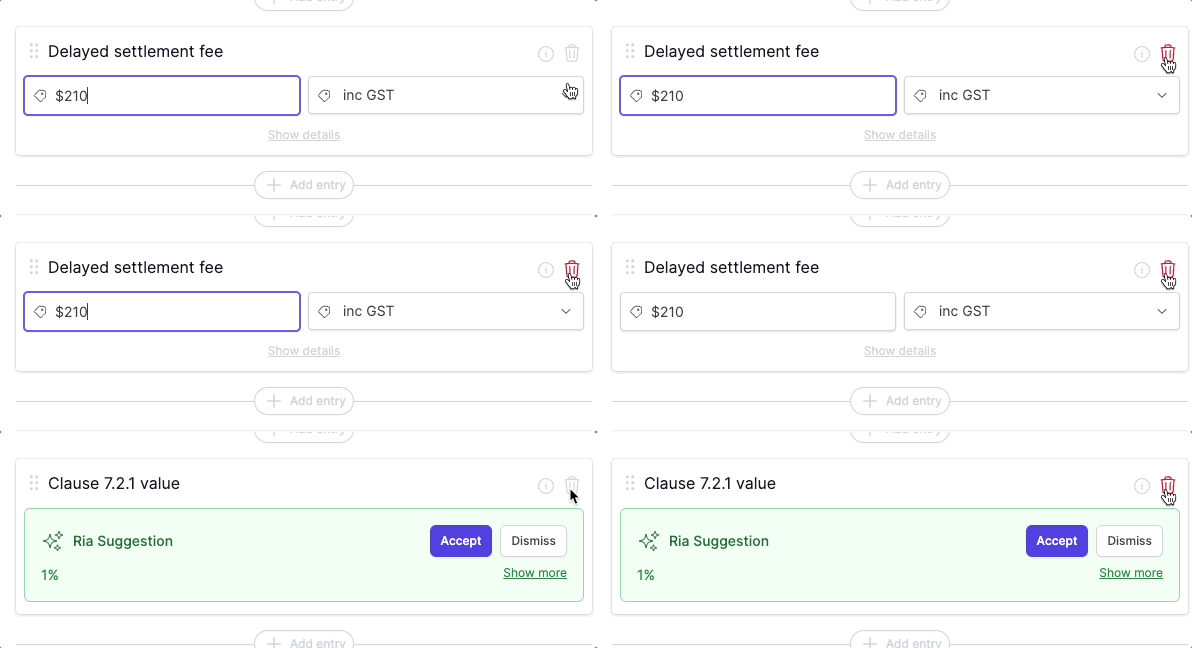
- To remove an entry, click the bin icon at the top right of an entry "card".
- Fields marked as 'required' in your account settings (Settings -> Fields) cannot be removed.
How do I reorder special conditions entries?
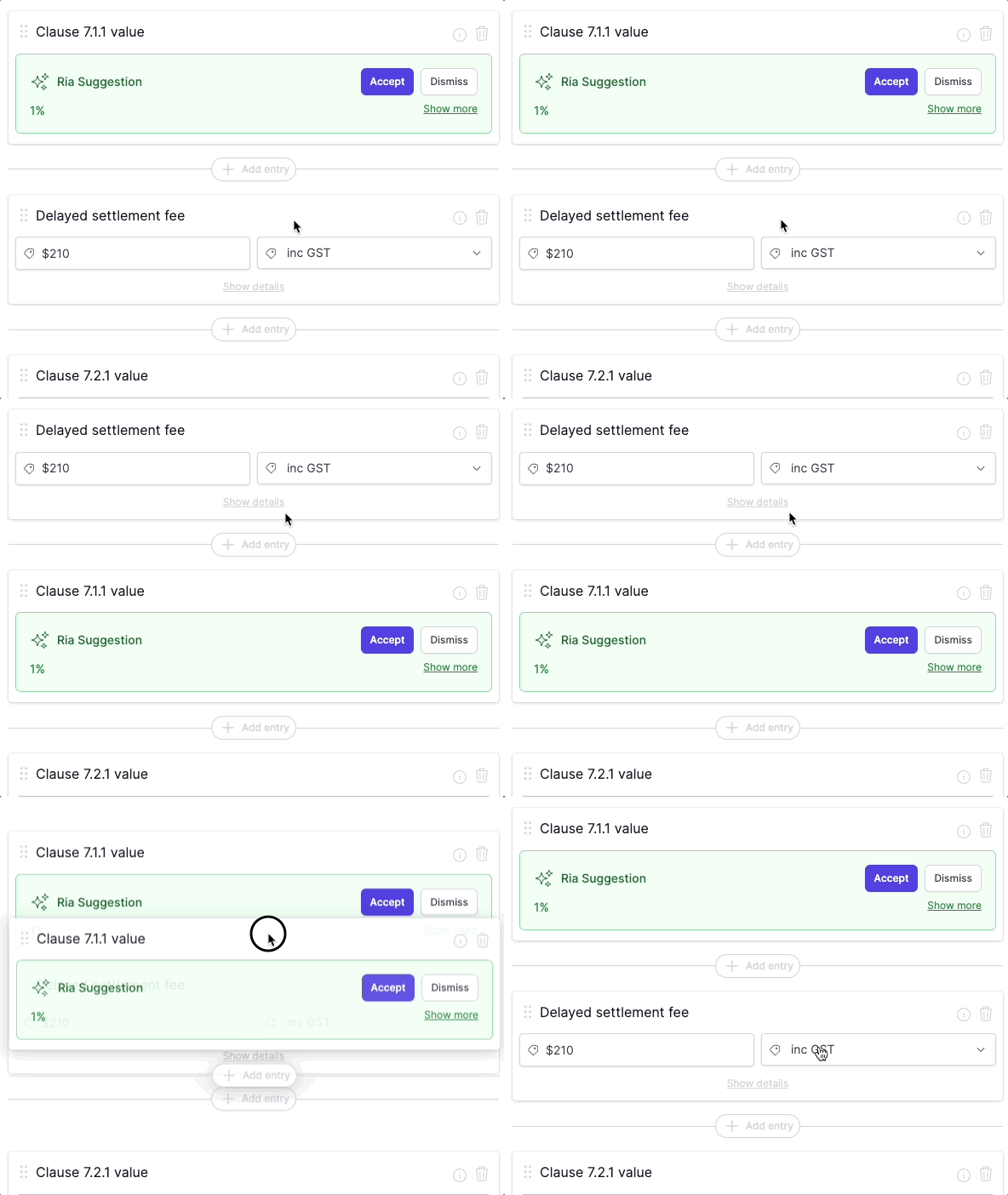
- All entries on the Special Conditions tab can be reordered.
- To reorder, simply drag and drop the entire "card" of the entry to the desired position.
Why are some entries displayed even though they aren't found in the special conditions?
Any field marked as 'required' in your account settings (Settings -> Fields) will be displayed and cannot be removed.
- Required fields will be shown at the bottom of the special conditions tab if they are not detected in the contract.
How do I add more clauses to the dropdown list?
- To add more clauses to the dropdown list, add them to your clause library.
- Once added to the library, they will be available for both pre-population and manual selection.
Related Articles
Using Curia for Off The Plan contracts
Curia Contract Review provides full support for Off The Plan contracts (also known as unregistered contracts). The system automatically detects unregistered contracts and handles their unique requirements including proposed titles, parent titles, and ...Library - Clauses
The Clauses library stores special conditions content that can be reused across multiple contract reviews. These clauses help ensure consistency in identifying and addressing common contract conditions. What are clauses? Clauses are predefined ...Using the Rescission Date field
The Contract Rescission Date field in Curia Contract Review allows you to capture when contracts may be rescinded in various scenarios including off-the-plan contracts, probate contracts, and other specific circumstances. This field automatically ...Library
The library in Curia Contract Review stores reusable content for document reviews, helping you maintain consistency and efficiency across all reviews in your account. Who can access the library? To access and manage library content, users must: Be an ...Adding content to library during review
Custom clauses and notations created during document review can be added directly to the library for reuse in future reviews. How do I add content to the library? When reviewing a document: Create a custom clause or notation Look for the green "Add ...