Managing title searches
How Curia builds title searches automatically, what each search holds, and how to add, link, or remove searches in a title's chain.
A Title Search is the detailed record for a title in the contract. While the Title carries the property identifier, the Title Search carries the information from the registry document - dealings, notations, unregistered dealings, and any entitlement fields.
Each Title has a primary Lot search and, depending on the state and the title structure, one or more parent searches.
Title Search types
The available search types depend on the state and on the Title’s plan structure.
NSW NSW: details specific to New South Wales reviews
Deposited Plan or Auto Consol titles:
- Lot
- Neighbourhood Plan
- Precinct Plan
- Community Plan
Strata Plan titles:
- Lot
- Common Property
- Neighbourhood Plan
- Precinct Plan
- Community Plan
VIC VIC: details specific to Victoria reviews
Each Title has:
- Lot
- Parent Title - one per Volume/Folio referenced as a parent
Automatic population
During processing, Curia builds title searches for each Title:
- One Lot search per Title. On VIC, titles on the same Volume/Folio share one Lot search.
- Any parent searches the title structure points at.
- Dealings, notations, and other extracted information slotted into the right search.
Review and edit the auto-populated data as needed.
Unmatched title searches
Sometimes Curia extracts a title search from the contract but can’t match it to any title on the front page - usually a typo on the front page (9/SP12345 instead of 19/SP12345), or an unrelated title search bundled into the contract PDF.
In that case an Unmatched Title Searches warning sits at the top of the Title Search tab. Each unmatched search shows its extracted title reference and a Go to page link.
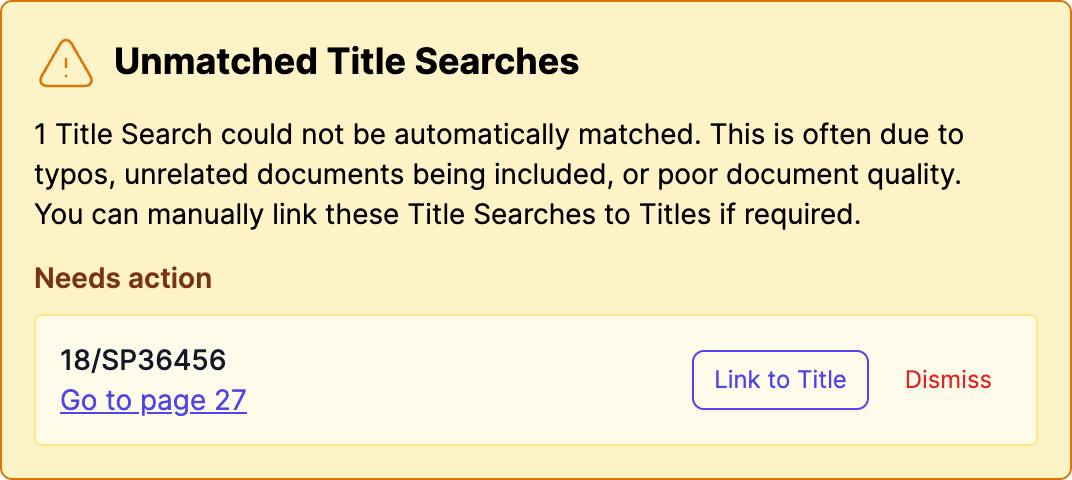
Two options for each unmatched search:
- Link to Title - pick the title to associate it with. Only titles that don’t already have a Lot search are available. If every title already has a Lot search, the button is disabled.
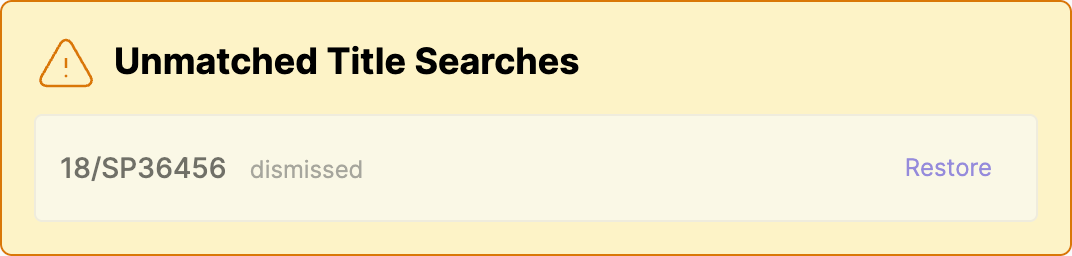
- Dismiss - remove the unmatched search from the review. Reversible.
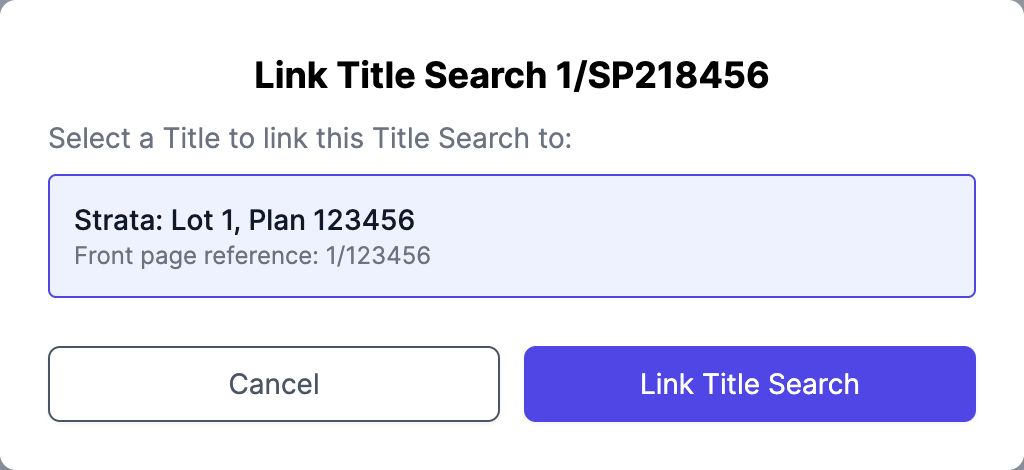
After linking, the search moves under the chosen title and carries a Manually Linked badge. All extracted data - dealings, notations, certificate date - is preserved.
A title with no Lot search displays “No title search is linked to this title.” and the Add to title chain dropdown is hidden on that title until a Lot search is in place.
Restoring a dismissed title search
While any dismissed title searches exist on the contract, a restore link sits at the top of the Title Search tab. Click it to bring the dismissed searches back along with their extracted data.
Adding a parent search
To add a parent search to a Title’s chain:
- Open the Title.
- Find the Add to title chain dropdown at the bottom of the search list.
- Pick the parent type and choose Link to existing to share a parent search with another Title, or Create new to add a fresh parent search just for this Title.
- Click Manage on the new card to fill in the details.
NSW NSW: details specific to New South Wales reviews
The parent types available depend on the Title’s plan type: Common Property (Strata only), Neighbourhood Plan, Precinct Plan, Community Plan.
VIC VIC: details specific to Victoria reviews
Parent titles are normally created automatically from the Volume/Folio references on the Lot search. The dropdown offers a single Parent Title option for manual additions.
Removing a parent search
Click the trash icon on a parent search card. The search is removed from this Title’s chain.
Sharing searches
Parent searches can be:
- Shared across Titles via Link to existing - one record, edited in one place.
- Unique to a Title via Create new - a separate record per Title.
When a parent search is shared, its card shows the other Titles it’s shared with. An open shared search shows a “This title search is shared with:” note listing them. Edits to a shared search affect every Title linked to it.
VIC VIC: details specific to Victoria reviews
A Lot search is shared automatically when several Titles sit on the same Volume/Folio. It appears under each of those Titles.
NSW NSW: details specific to New South Wales reviews
Common Property searches
Common Property searches represent the shared areas in a strata scheme. They’re only available on Titles with the Strata plan type. They can be shared across multiple strata Titles with Link to existing, and they carry the unit entitlement fields (lot entitlement, aggregate units, lot count).
Fields on a Title Search
Depending on the search type and the account configuration:
NSW NSW: details specific to New South Wales reviews
- Certificate date.
- Dealings - report title, report content, dealing number, visibility, page location.
- Notations - title, description, reference.
- Unregistered dealings - title, description, reference.
- Unit entitlement - lot entitlement, aggregate units, lot count (Common Property only).
VIC VIC: details specific to Victoria reviews
- Register Search date.
- Dealings - report title, report content, dealing number, visibility, page location.
- Notations - title, description, reference.
- Unregistered dealings - title, description, reference.
Unregistered contracts
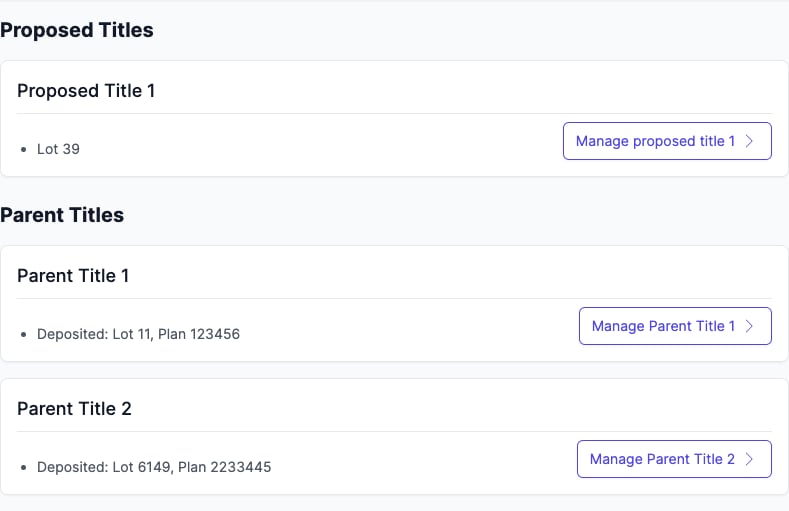
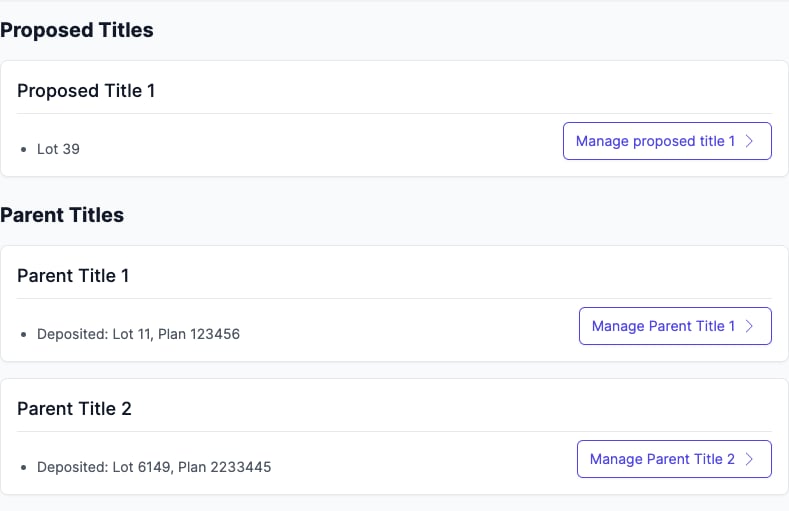
On an off the plan review, Title Searches are split into two sections:
- Proposed Titles - searches for the lots being purchased.
- Parent Titles - searches for the registered lots that will be subdivided.
The rest of the structure works the same way. Click Manage to open any title search. See Using Curia for off the plan contracts.
Navigating between searches
- Single-title contracts - search cards appear directly under the Title. Click Manage to open one.
- Multi-title contracts - open Titles to see every Title, click Manage title [number] to drill in, then Manage on a search card. Breadcrumbs at the top let you jump back to any level.
FAQ
Why can’t I remove a Lot search?
Lot searches are the foundation of each Title’s chain. You can remove parent searches, not the Lot search.
Why is Common Property not available for my Title?
Common Property is a NSW Strata concept. It’s only available on Strata titles. Deposited Plan and Auto Consol titles don’t have a Common Property search.
What does Unmatched Title Searches mean?
Curia extracted a title search from the contract but couldn’t tie it to any title on the front page - usually a typo in the title reference, or an unrelated title search bundled into the contract. Use Link to Title to attach it to the right title, or Dismiss to drop it.
Why is Link to Title disabled?
Every title in the contract already has a Lot search. Either dismiss the unmatched search, or add a new title first and then link the search to it.
What happens when I share a parent search?
Edits to that search affect every Title it’s linked to. Removing it from one Title leaves it intact on the others.