Understanding your report template
How a report template is structured, what you can and can't customise, how an item's review field works, and how template settings shape the output.
Template structure
A template is organised into three levels:
- Sections - the top-level headings in the report (Property, Exchange, GST, Planning, and so on).
- Groups - sub-headings inside a section. Not every section has groups.
- Items - the individual content blocks, each carrying the text, merge tags, and conditional content that goes into the report.
Navigating the editor
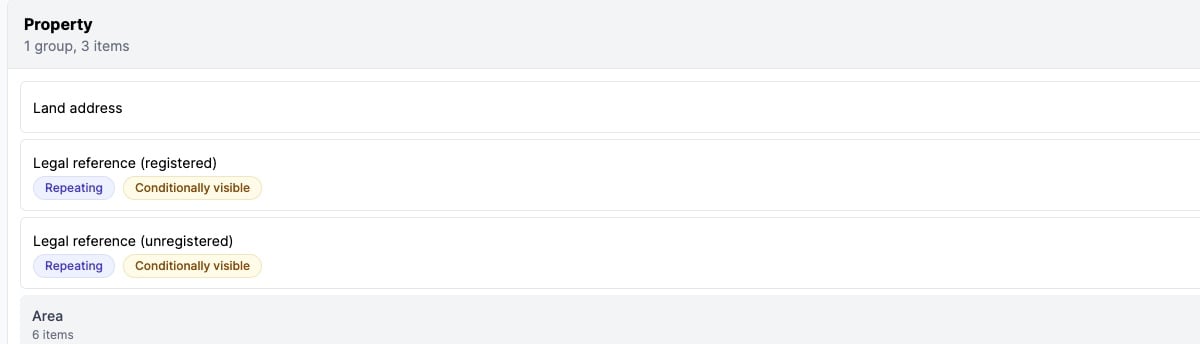
The Report Items tab lists every section as a collapsible panel. Click a header to expand or collapse it.
Each section header carries:
- The section name.
- A count of the groups and items inside.
- Badges marking special properties (see below).
Badges
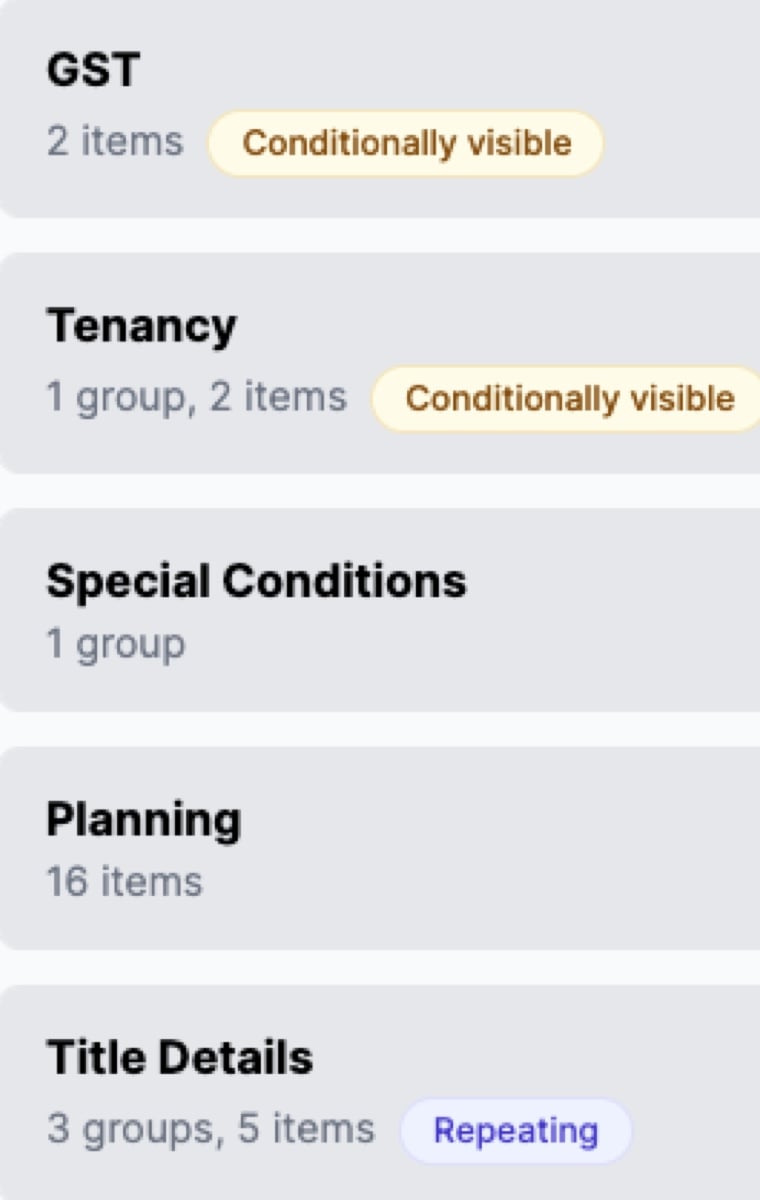
Badges on sections, groups, and items mark special behaviour:
- Custom element - you created this element; it’s not part of the default template.
- Modified - you’ve changed this element from the default (renamed it, edited its content, and so on).
- Conditionally visible - the element only appears in reports when its conditions are met. Hover over the badge to see the conditions.
- Always visible - the item prints even when the field it reports on is hidden during a review.
- Repeating - the element repeats for each entry in a list (once per title search, for example).
- No metadata - the item doesn’t report on a review field, so nothing is appended to its content.
What you can change
- Content - the text, formatting, merge tags, and conditional blocks inside any item.
- Order - drag and drop to reorder sections, groups, and items.
- Names - rename sections and groups.
- Visibility - add visibility conditions so a section, group, or item only appears when relevant.
- Item settings - the review field an item reports on, what a reviewer can add to it, and whether it prints when the field is hidden.
- Required fields - which fields a reviewer must answer, on the Fields tab. See The Fields tab.
- Custom content - add entirely new sections, groups, and items.
What’s fixed
- Default sections and groups can’t be deleted. You can exclude individual items, but the default section/group structure remains available. Excluded items can be re-added from the Excluded items tab.
- Repeating behaviour is built in. Some sections repeat automatically for each entry in a list - the Title Details section repeats once per title search, the Pool Details group repeats once per pool. You can’t switch the repetition on or off.
- Field metadata is appended automatically. When a report item reports on a review field (see below), the comment, location reference, recommendation, risk, and images attached to that field are included in the report automatically. You don’t need to add merge tags for them.
The field an item reports on
Most report items are about a single review field, set as This item reports on in the item’s Settings tab. It does two things:
Automatic metadata
The report appends the field’s metadata - comment, location in contract, recommendation, risk, images - after the item’s content. You don’t need merge tags for any of this; it goes in automatically. Use Display settings in the item’s Settings tab to choose which of these a reviewer can add and which print.
Default visibility guard
The field also acts as a built-in visibility guard. If a reviewer marks the field “not visible” during the review, every template item that reports on that field is hidden from the report. Items follow the reviewer’s decisions about what’s relevant without you having to set visibility conditions for every one.
Printing when the field is hidden
To keep an item in the report even when its field is hidden, turn on Print even when the field is hidden in review in the item’s Settings tab. This overrides both the field guard and any visibility conditions.
A common case: an “Environmental and Heritage Protections” item that should display “No environmental or heritage protections apply” when the reviewer determines none apply. Without the setting, the item would be hidden along with its field. With it on, the item renders and a conditional block inside it can produce the “none apply” message instead of silence.
The Excluded items tab
The Excluded items tab is your Content Library - default content removed from the template but not deleted. Browse the library and re-add any item at any time.

Template settings
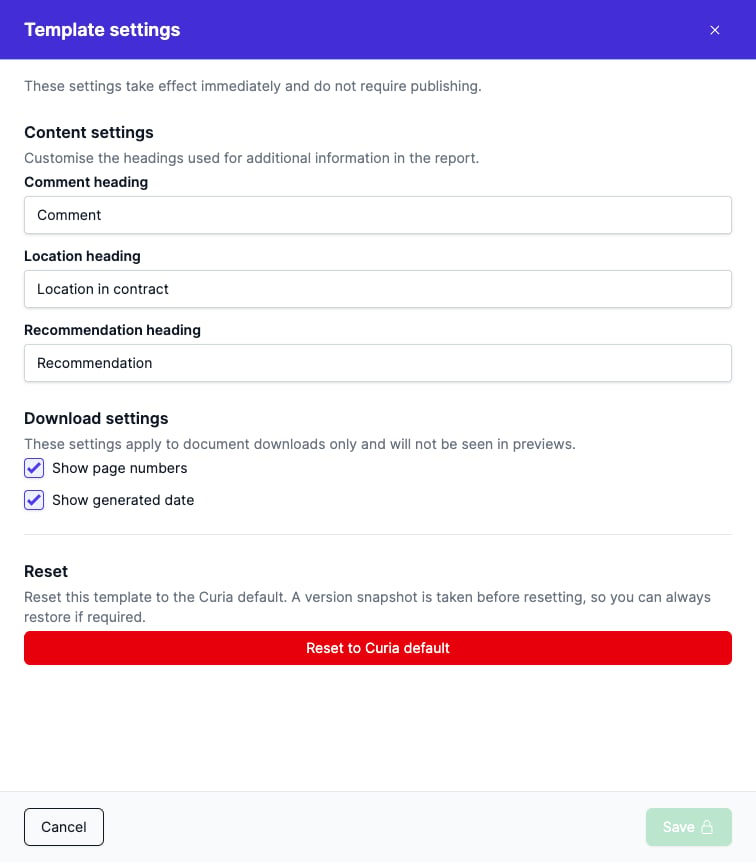
While you’re editing a draft, select Settings from the ’…’ menu in the header to open template settings. They take effect as soon as you save and don’t need publishing.
Content settings
Comment heading, Location heading and Recommendation heading set the wording used for the metadata appended to each item. Change them to match your firm’s terminology, “Recommendation” to “Advice”, for example, or “Location in contract” to “Contract Reference”. These headings appear in both the on-screen preview and the downloaded document.
Download settings
Show page numbers and Show generated date put each in the footer of the generated report.
Reset
Reset to Curia default returns the whole template to the Curia default. A version snapshot is taken first, so you can restore the previous template from Version history.