Branding your reports
Set firm-wide branding for every report, plus report colours, letterhead, margins and Word download typography.
Branding settings apply across every report template on the account. They sit on three tabs: Brand for the firm identity, Report for the colours and alignment used in the report, and Word Downloads for settings that only affect the exported Word document.
Opening branding settings
Navigate to Settings > Branding.
Brand tab
The firm’s identity: the logo, the brand colours, and the font.
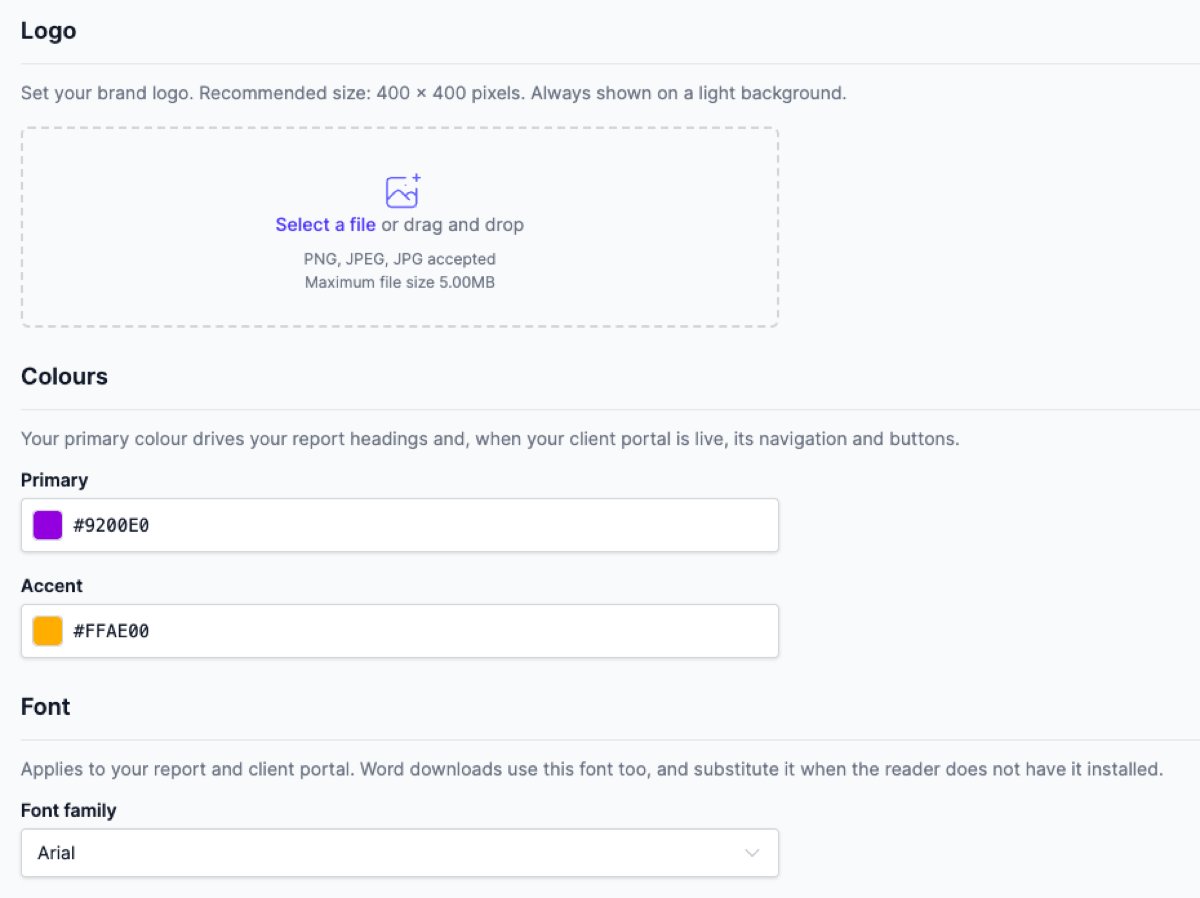
Logo
Upload the firm logo here. Where it appears on a Word download is set on the Word Downloads tab.
To upload a logo:
- Click Select a file, or drag an image onto the upload area.
- Click Save at the bottom of the page.
To remove the logo, click Remove logo under the preview, then save.
Recommended size: 400 × 400 pixels. Accepted formats: PNG, JPEG. The logo is always shown on a light background, so a logo drawn for a dark background won’t read.
Colours
Two colours, Primary and Accent. Click either swatch to open the colour picker.
The primary colour drives the report headings. Setting it here is enough to brand a report. The Report tab is where you override the heading colours if the report needs a different palette.
Font
The Font family dropdown sets a single font for the report. Word downloads use it too, and Word substitutes a different font if the reader doesn’t have it installed. To use a font that isn’t in the list on Word downloads, set a custom download font on the Word Downloads tab.
Report tab
Colours and text alignment for the report itself, on screen and in the Word download.
Report colours
A Colour mode dropdown chooses between Same as brand colours and Set colours manually.
On Same as brand colours, the heading colours are worked out from the primary colour on the Brand tab, and the item content colours use Curia’s defaults. The colour pickers stay hidden.
Choose Set colours manually to open the full palette, for a report that uses a different set of colours to the firm’s own.
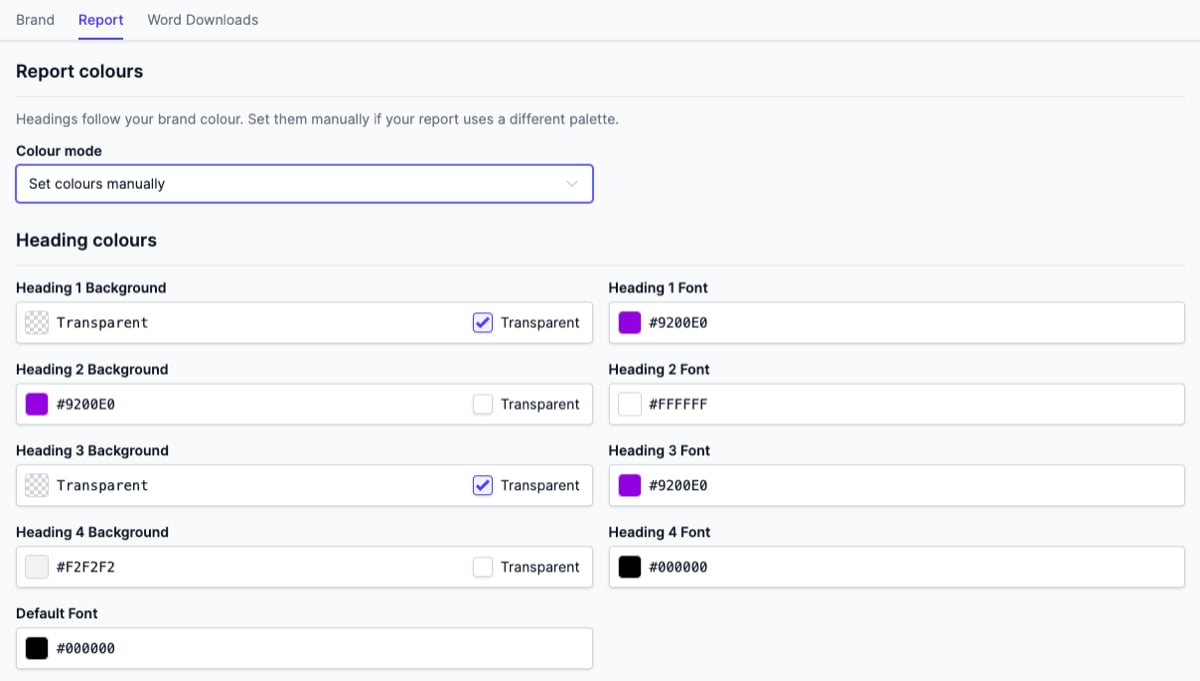
Heading colours
Shown when the palette is set manually.
- Heading 1 Background and Heading 1 Font - section headings.
- Heading 2 Background and Heading 2 Font - group headings.
- Heading 3 Background and Heading 3 Font - item headings.
- Heading 4 Background and Heading 4 Font - metadata headings (Comment, Location in contract, Recommendation, Risk).
- Default Font - body text colour throughout the report.
Each heading background also has a Transparent checkbox. Tick it to leave that heading’s background with no fill, so the report page shows through behind the heading text. This option is on the heading backgrounds only; the font colours and Default Font are always a solid colour.
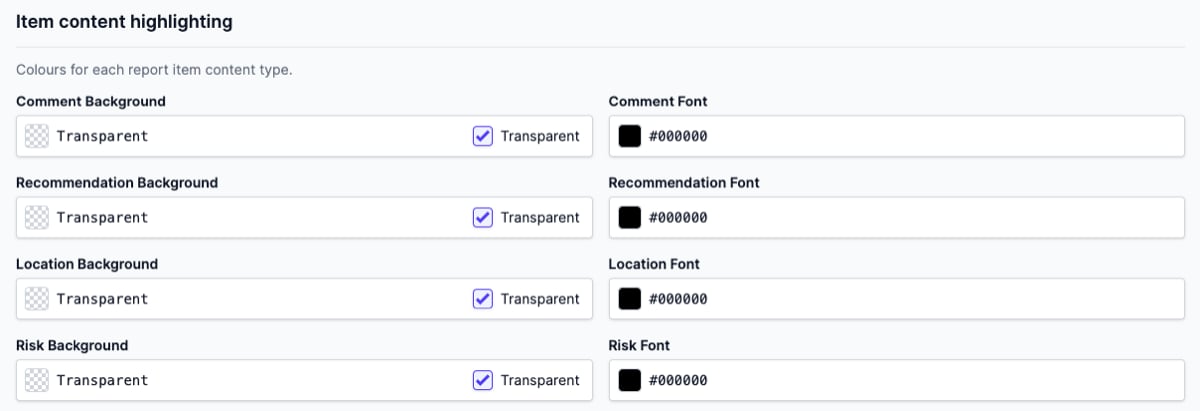
Item content highlighting
Shown when the palette is set manually. A report item can show a comment, a recommendation, a location in the contract, and a risk, each under its own heading. The heading colours above style those headings; these settings colour the value text beneath them, so you can give every risk, or every recommendation, its own colour.
Each of the four has a background and a font colour, and each background has a Transparent checkbox. Out of the box every background is transparent and the font is black, so the value text reads as ordinary body text until you set a colour.
Typography
A Text alignment dropdown sets the default body text alignment for report content. Changes made to individual template elements override this default.
Word Downloads tab
These settings apply to the downloaded Word document only.
Page branding
A Page branding dropdown chooses how each page of the Word download is branded: Firm logo or Letterhead images.
With Firm logo selected, a Logo placement dropdown controls where the firm logo (uploaded on the Brand tab) sits on the page.
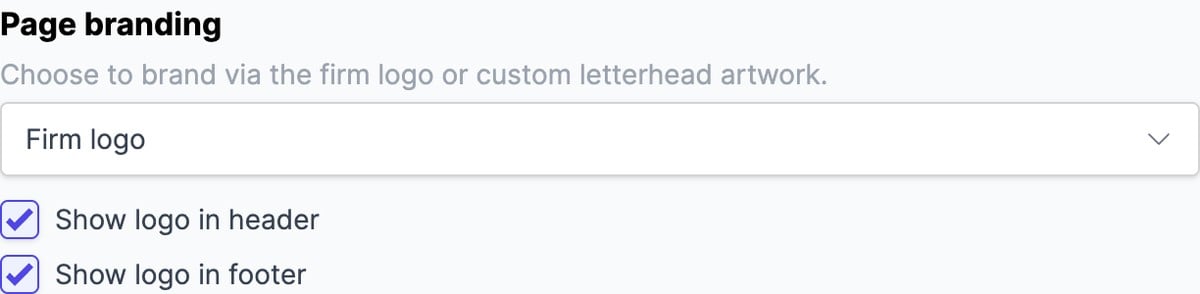
With Letterhead images selected, Logo placement is replaced by the letterhead upload sections below, and the firm logo isn’t placed on the page. Upload A4 artwork; recommended size 2480 × 3508 pixels (300 DPI). Off-aspect images distort.
Letterhead
Shown when Letterhead images is the page branding mode. The artwork is applied to every page of the Word download.
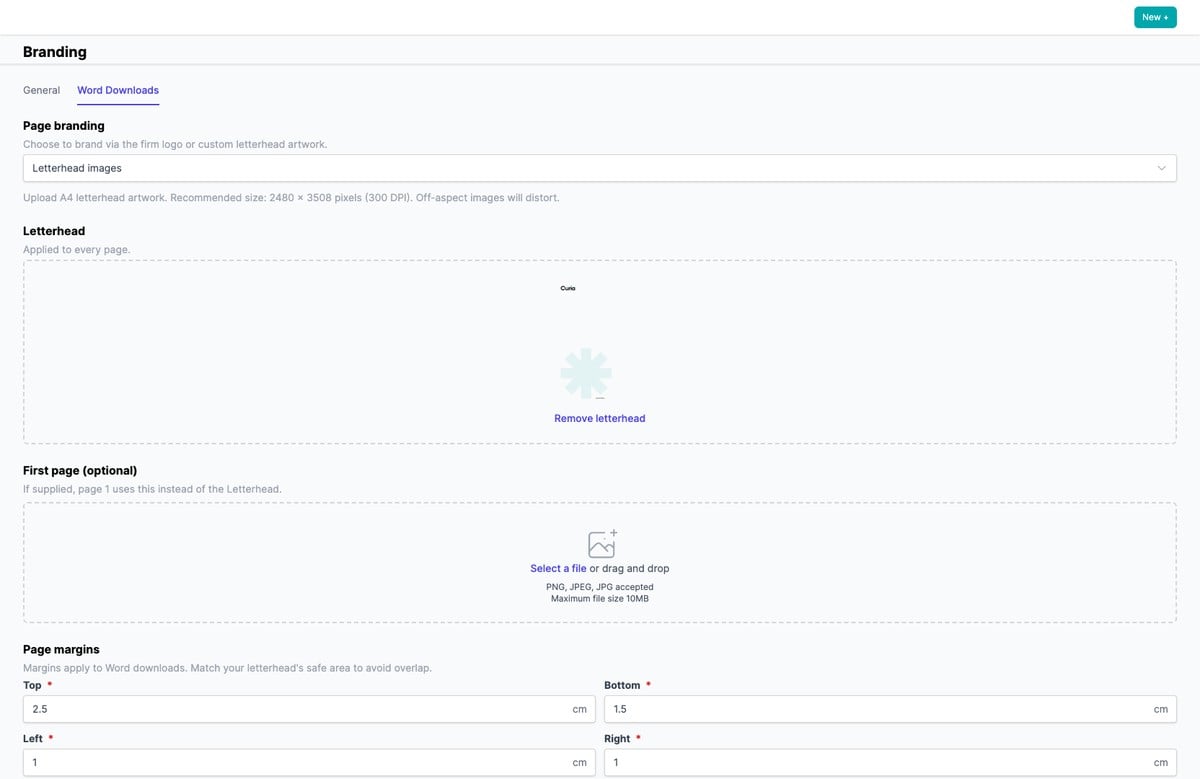
To remove it, click Remove letterhead under the preview, then save. Removing and saving clears that artwork from later Word downloads.
First page (optional)
Also shown in letterhead mode. Artwork uploaded here is used on page 1 in place of the main letterhead. Leave it empty to use the main letterhead on every page. To remove it, click Remove first page letterhead under the preview, then save.
First page footer
By default the footer appears on every page of the Word download. Set the Footer on the first page dropdown to hide it on page 1 only, so a full-page first page letterhead isn’t interrupted by footer content. The footer still appears on every page after the first.
Page margins
Set the Top, Bottom, Left, and Right margins in centimetres. When using letterhead artwork, match the margins to the letterhead’s safe area so report content doesn’t overlap it.
Typography for Word downloads
Font and sizing for the Word download. The Download font dropdown lets a Word download use a font that isn’t in the Brand tab’s list, such as your firm’s own font. It defaults to Same as brand font.
To use a custom font, set Download font to Custom font, then enter the font’s family name in Custom font name exactly as it’s installed on your computer. Use the family name, for example Brandon Grotesque, not a single style or weight like Brandon Grotesque Bold; Word applies bold and italic itself.
To find the family name:
- On a Mac, open Font Book, select the font, and use the name its styles are grouped under.
- On Windows, open the Settings app and go to Fonts (or open the Fonts control panel), then use the name its styles are grouped under.
A custom font applies to the Word download only. The on-screen report keeps using the font from the Brand tab, so the preview won’t match the downloaded document.
A Sizing and spacing dropdown chooses between Basic and Advanced.
Basic shows a single Body text size dropdown. Headings and lists size themselves from it, so raising the body size raises everything.

Advanced replaces it with a grid: a row for each element in the document, from body text through the four heading levels to bulleted lists, and a column for each property, from size through line spacing, the space above and below, and the left indent.
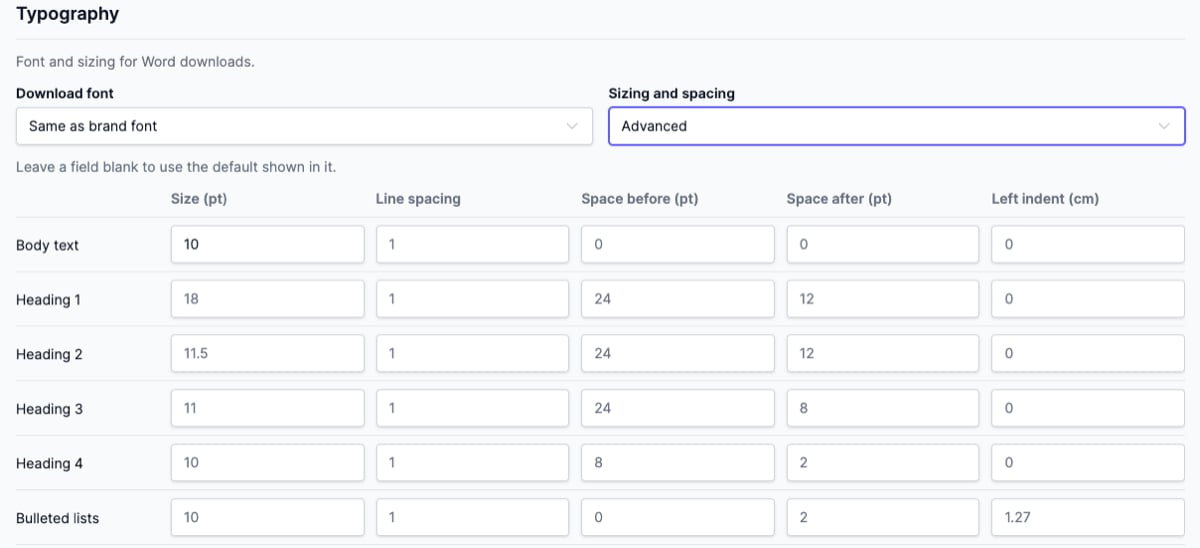
Every field can be left blank. A blank field uses the default shown in it as placeholder text, so you only fill in the properties you want to change. Clear a field to hand it back to the default.
Blank sizes track the body size: leave Heading 1 blank and it stays a set amount larger than Body text, so changing the body size moves it too. Type a size into Heading 1 and it stays at that size regardless.
Left indent doesn’t apply inside tables. Text in a table cell sits against the cell edge, and bullets in a cell keep a fixed indent, so a narrow column doesn’t lose width to an indent set for the body of the report.
Table of contents
The report’s table of contents links to each section in the Word download, and the links are always clickable. Set the Page numbers in the table of contents dropdown to show a page number against each entry.
Page numbers are hidden by default. Word doesn’t always fill them in reliably, so when they’re shown they can all appear as 1 until updated by hand. With them hidden, the table of contents stays correct with no field update needed. See Opening exported reports in Microsoft Word for how to refresh page numbers when they’re enabled.
Saving changes
Click Save in the bar at the bottom of the page to apply. Settings on all three tabs are saved together. Cancel discards your unsaved changes and returns the page to the last saved settings.
Branding changes take effect on every report generated after the save, and on any saved report version you reopen in Curia. A Word document already downloaded keeps the branding it was exported with.