Finding a lot on the plan
The Find on plan control jumps the PDF viewer to the plan pages where a purchased lot was found, from the Area, Title, and Title Search tabs.
When Curia finds a purchased lot on the plan pages, it shows a Find on plan control next to the title so you can jump straight to those pages and read off the lot’s area and dimensions.
Where the control appears
Find on plan is shown wherever you work with a lot:
- The Area tab, next to each title.
- The Title tab, next to each title.
- The Title Search tab, when you open a title search.
The control is marked with a pin icon and a count of the pages where the lot was found.
Jumping to a plan page
Hover over Find on plan to open a panel listing each page. Click a page in the list to jump the PDF viewer to it.
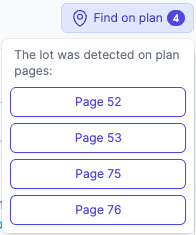
You can also click Find on plan itself to jump to the first page. Click it again to step to the next page, looping back to the first after the last.
FAQ
Why don’t I see Find on plan for a title?
Curia shows the control only when it finds the lot on the plan pages. If it doesn’t find the lot, no control appears. You can still navigate to the plan with the PDF page controls.
The same lot number is on two of my titles. Will the pages get mixed up?
No. Each title’s control lists only the pages of its own plan, so a lot number that recurs across different plans still jumps to the right pages.