Special merge tags
Three merge tags that pull in non-field content - the firm logo, an automatic table of contents, and the list of amendment requests.
Alongside the review-data fields, the merge tag picker carries three special tags. Each one serves a specific role in the report.
Account Logo
The Account Logo merge tag drops your firm’s logo image into the body of the report wherever you place the tag. The image comes from the account’s Branding settings - see Branding your reports. Useful for a cover page or other content placement separate from the header/footer logo controlled by document settings.
Amendment Requests
The Amendment Requests merge tag inserts a compiled list of every amendment the reviewer flagged during the review. Entries are added automatically as the reviewer flags them.
Table of Contents
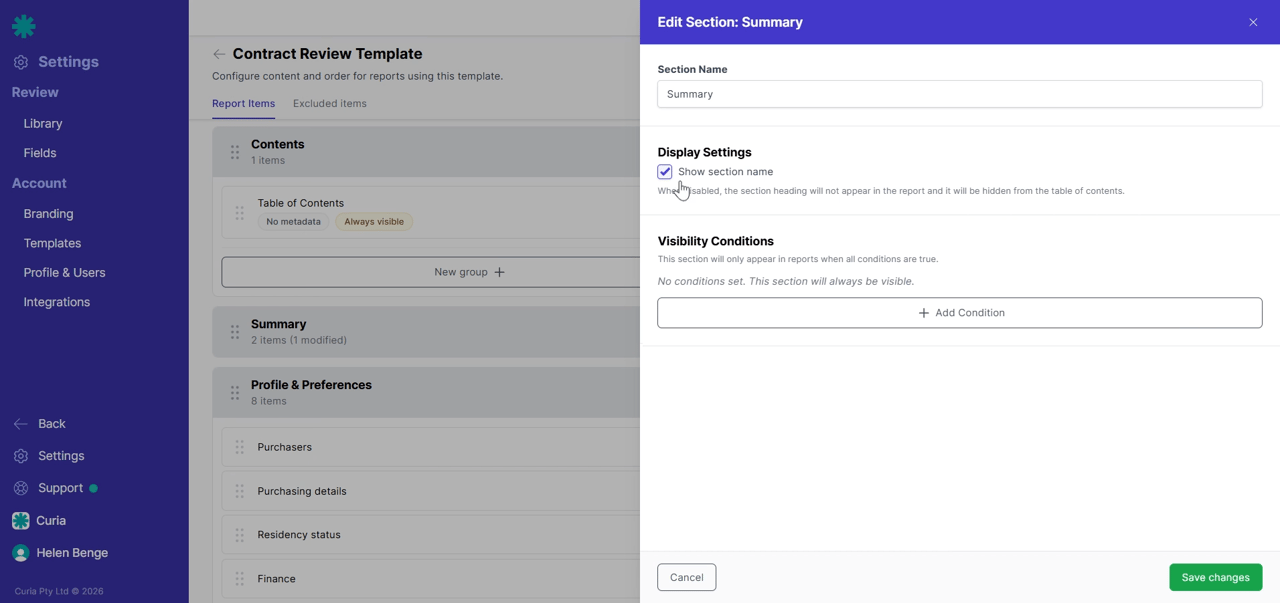
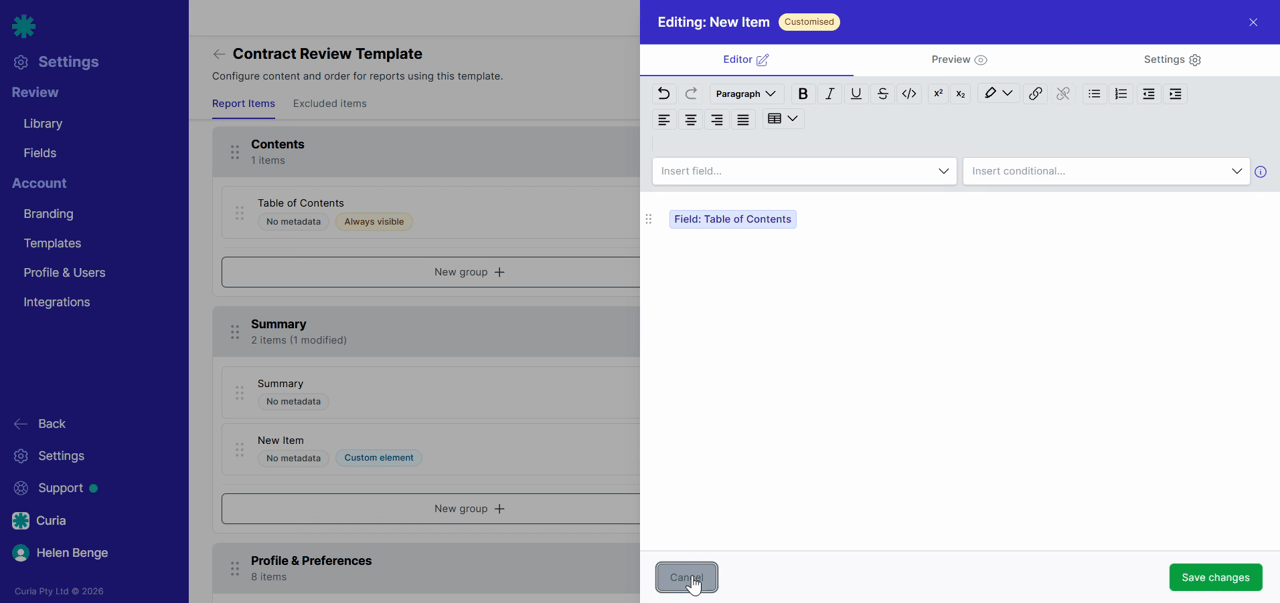
The Table of Contents merge tag generates a TOC from the sections in the template. Only sections with Show section name turned on appear in it. Place the tag in its own item at the start of the template (or wherever else you want the table of contents).
Controlling what’s in the Table of Contents
Open the settings for any section and turn Show section name off to keep that section out of the TOC. With it off, the section’s content still appears in the report, just without a heading and without a TOC entry.