Review navigation
How the review screen is laid out, how to move between tabs, and the hotkeys for getting around without leaving the keyboard.
Layout
On desktop, the review uses two columns: the form on the left, where you enter and check field values, and the PDF viewer on the right.
An optional notes panel can be opened next to the PDF viewer. It is collapsed by default; see Internal notes for how to open it.
On mobile, the form and the PDF are split across separate tabs so each has the full screen. Internal notes are not available on mobile.
Review actions
The review header carries a menu icon holding the actions you can take on the review as a whole, without going back to the Reviews page:
- Assign to user - see Reassign a review to another user.
- Link to matter on a review with no matter, or Change matter and Unlink from matter once it has one - see Changing a review’s matter.
- Download original - download the contract PDF that was uploaded.
- Close review on a Ready or In review review, or Reopen review on a closed one - see Understanding review states.
- Reset all data on an In review or Completed review - see Reset review data.
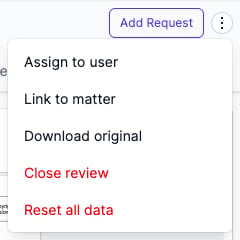
On a smaller screen the same menu also carries Add Request, on reviews that are still in progress.
Moving between tabs
The review is organised into tabs along the top of the screen, grouping related fields by area of the contract (parties, title, special conditions, and so on). The tabs you see depend on your account’s field configuration and the contract type.
There are two ways to move between tabs:
- Click any tab name at the top of the screen.
- Use the navigation buttons at the bottom of each tab to step backwards or forwards through the review. The button label is the name of the tab you’ll move to, so you can see where you’re about to go before you click.
The bottom navigation buttons are not shown on the Preflight tab and on some title-search subviews.
Tab badges
A number on a tab is the count of items still outstanding on it: required fields with no value, and entries that fail validation. The number falls as you work through the tab and disappears once nothing is left, so a tab bar with no numbers on it means the review is ready to finalise.
The same items are listed, grouped by tab, in the Validation summary on the Finalise tab. See Finalising and downloading your report.
Numbers are not shown on the Preflight or Finalise tabs, on a contract still in Preflight, or on a review that has been finalised.
PDF viewer
The PDF viewer supports the usual tools: scroll, zoom, text search, and a thumbnail sidebar. A rotate button in the viewer header rotates the current page clockwise.
Text search only finds text that exists in the PDF’s text layer. Scanned contracts have no text layer, so search returns no results on them.
Document map
Below the PDF viewer, the document map dropdown lists every section Curia has identified in the contract. Select an entry to jump the PDF to that page. Each entry follows the format Page: Type - Reference (Details), for example 50: Dealing - A123456 (Mortgage).
For a full guide to the document map, see Using the Document Map.
Hotkeys
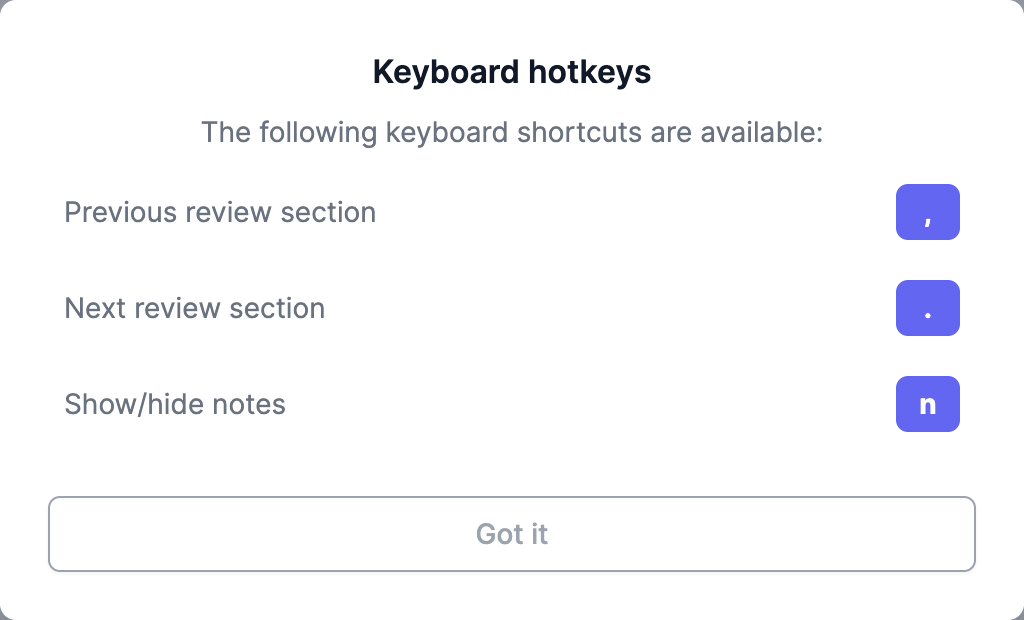
Three keys move you around the review without leaving the keyboard:
,go to the previous review tab.go to the next review tabntoggle the internal notes panel
A Hotkeys link in the left navigation opens a dialog titled ‘Keyboard hotkeys’ listing the same shortcuts.
FAQ
Why doesn’t the n hotkey work?
The hotkey is lowercase n only. Capital N (Shift held down) does not trigger it. The hotkey is also ignored while your cursor is in a form field.
Can I open the document map on a VIC review?
Yes. The document map works in all states.