Managing images
Attach images to fields in a review to support findings and recommendations. Capture a page from the contract or upload your own, annotate, and reorder.
Many fields support images, including those on the title, area, planning and special conditions tabs, and dealings inside a title search.
Supported formats and size
- PNG and JPEG (
.jpgor.jpeg). - Up to 10MB per image.
- Multiple images per field.
Adding an image
Open the field’s options to reach the Image row, either by hovering the field or by clicking the button at the bottom of it. You can then add an image two ways.
Capture from the contract
Click Capture & edit page 7 image, which names the page currently shown in the PDF viewer. The editor opens on the captured image.

Upload a file
Click or upload an image to pick a PNG or JPEG from your computer.
Editing and saving
The editor opens on a newly captured or uploaded image, and you can reopen it later by clicking Edit on any image.
The toolbar offers:
- Highlight, eraser, path, line and arrow.
- Rectangle and ellipse.
- Text.
- Crop, which also handles resizing.
- Five placement markers, numbered 1 to 5, for cross-referencing.
Click Save image to keep your changes. To discard them, click the X at the top right of the editor or click the backdrop behind it.
Cross-referencing with markers
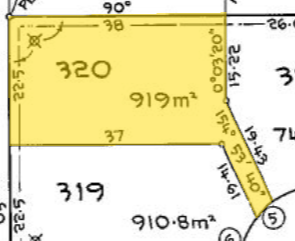
The five numbered markers are for pointing at a specific spot on the image from your field comment or recommendation. Open the editor, drop a marker on the image, save, then reference the number in your comment, for example “Marker 1 shows the sewer connection point”.
Reordering images
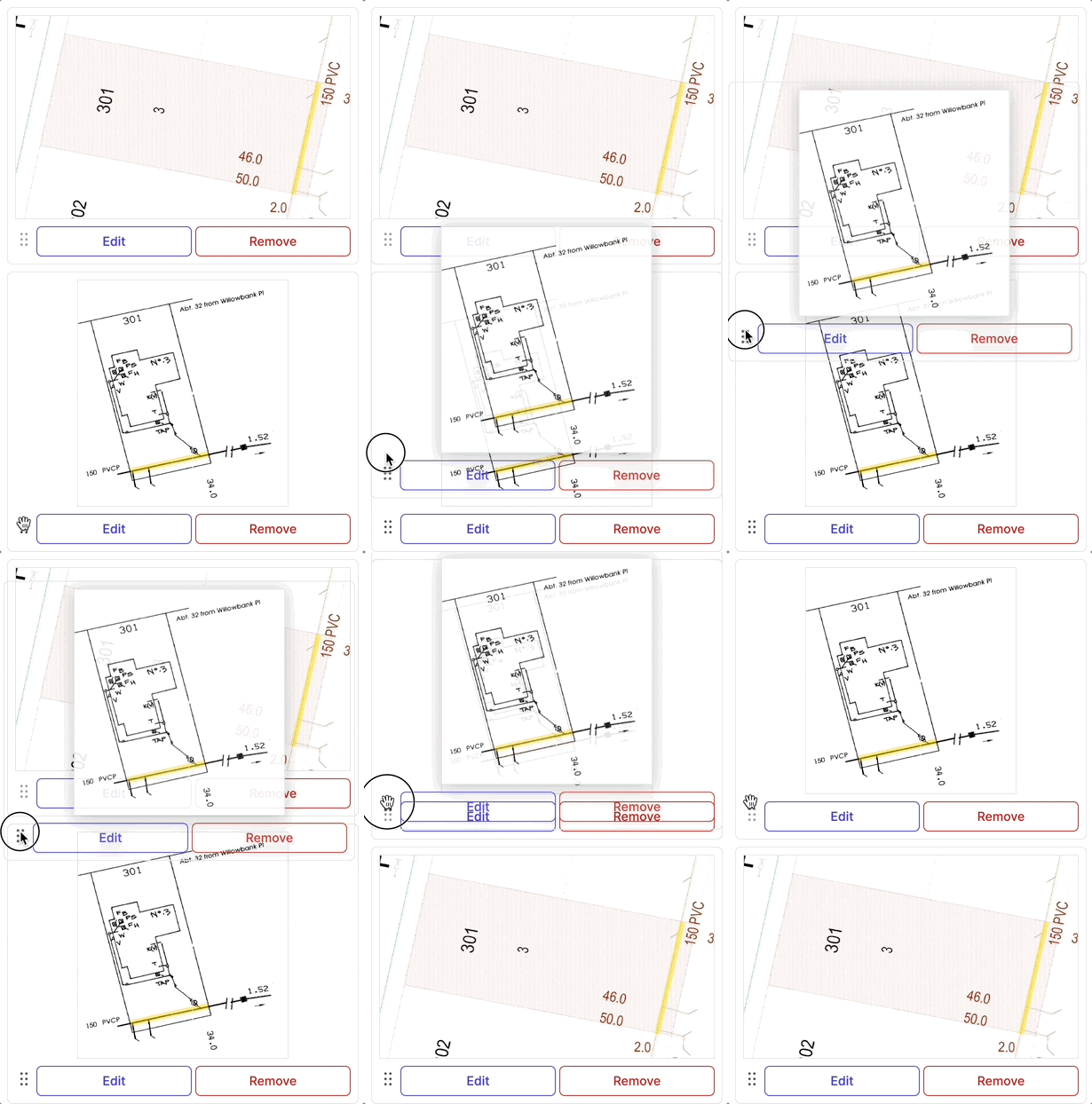
Open the field’s options, then drag an image by its handle icon to a new position. The order is saved automatically and is the order the images appear in the report.
Removing an image
Click the bin icon next to Edit on the image, then click Confirm. The image is removed. This can’t be undone.
FAQ
Can I add multiple images to one field?
Yes. Each image appears as a separate thumbnail and can be reordered.
Do images appear in the report?
Yes. Images appear in the generated report in the order you arranged them.
Can I undo edits to an image?
While the editor is open you can undo your changes. Once you click Save image, the annotations are baked in. To start over, remove the image and add it again.