Understanding Preflight
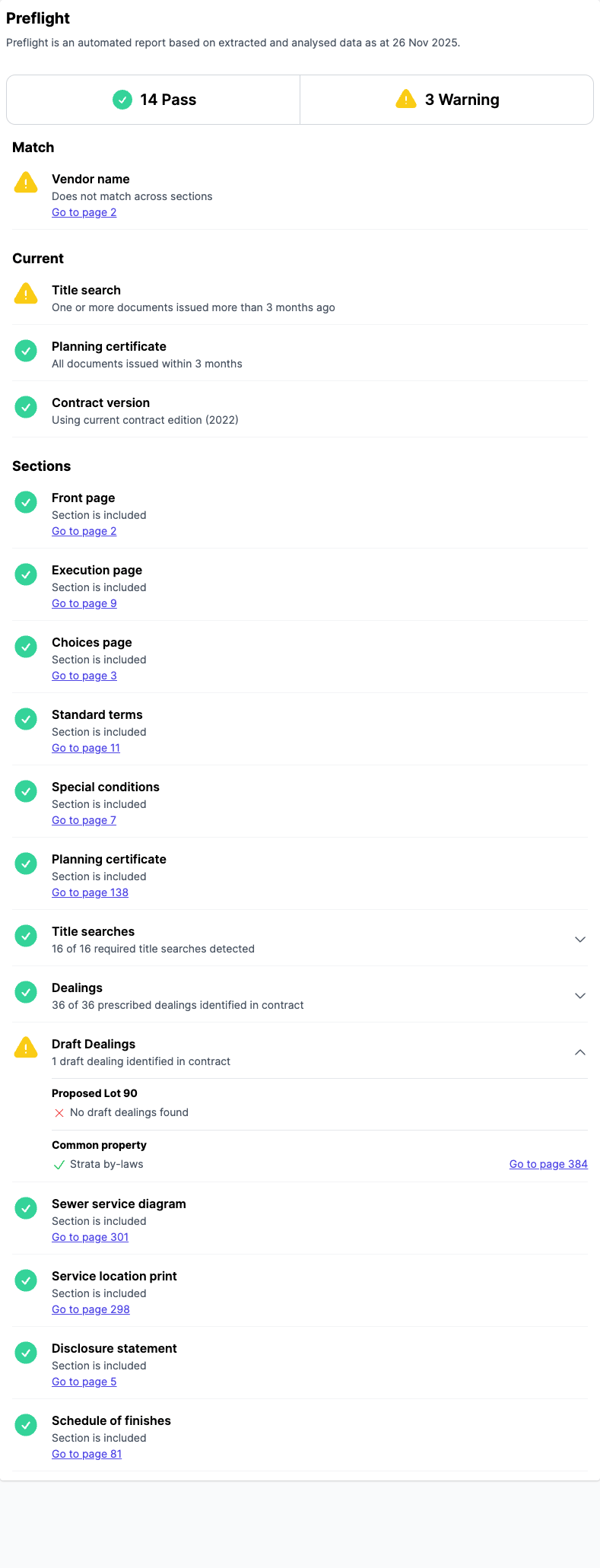
Preflight is the automatic first pass on every uploaded contract. It checks consistency, currency, and completeness so you can decide whether the file is ready for review.
When Preflight runs
Preflight runs automatically when a contract is uploaded and processed. It is the first tab of the review, so you land on it as soon as the contract is ready. You can read the results and the contract PDF side by side.
flowchart TD
  A[Contract uploaded & processed] --> B[Preflight runs three check groups]
  B --> M[Match]
  B --> C[Current]
  B --> S[Sections]
  M --> P["Each row:\nPass or Warning"]
  C --> P
  S --> P
  P -->|Close| X[Review closed]
  P -->|Start| R[Review begins]
What Preflight checks
Preflight runs three groups of checks on every contract.
Match
Curia cross-checks data on the contract against the registry-issued documents (vendor names, land address, title references). In VIC, Curia also checks the planning details on the planning certificate or property report against the Section 32 vendor statement. For the full list of rows and what each checks, see Preflight - Match and currency checks.
Current
Curia checks that each registry document is recent enough to be relied on. See Preflight - Match and currency checks for the currency window and per-document rows.
Sections
Curia checks that the documents the contract requires are present. See Preflight - Document sections for the section rows by state and the expandable per-title breakdowns.
What Pass and Warning mean
Each row shows a status:
- Pass - the check succeeded
- Warning - Curia detected something worth a manual look
A warning does not block the review. It is a prompt to verify, not a verdict. Curia identifies documents in the contract automatically when it is processed; misidentification is rare but possible. If a row shows a warning and you can see the document in the contract, open the document viewer and check that Curia has identified the right page.
VIC VIC: details specific to Victoria reviews
A row shows Fail when the Section 32 vendor statement is missing, and the Preflight summary adds a Fail count. A fail does not block the review either. Like a warning, it becomes an amendment or question when you start the review. If you can see the vendor statement in the contract, open the document viewer and check that Curia has identified the right page.
Some rows are conditional on the contract data, so the set of rows you see varies from one file to the next.
Starting or closing the review
Once you have read the Preflight results, you decide whether to proceed.

Click Start review to proceed. You will be charged the full review fee, the review moves to In review, and Curia opens the next tab.
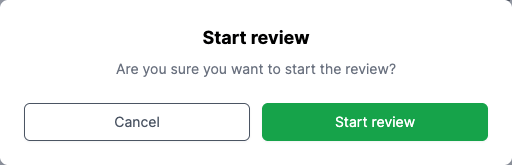
When you start the review, Curia turns the Preflight warnings into amendments and questions for the vendor’s solicitor. They appear in the Amendments and Questions lists on the Finalise tab, where you remove any you don’t want. See Amendments and questions.
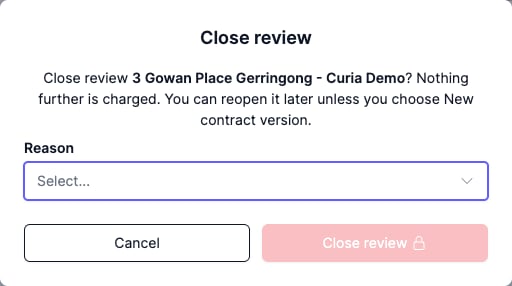
Click Close review to close the file without starting it. Pick a Reason and click Close review to confirm. Nothing further is charged beyond the Preflight fee, and the review status changes to Closed. You can reopen it later and the Preflight results will still be there. See Understanding review states.
Preflight data after you start the review
Preflight runs once when the contract is processed. After you move past the Preflight tab, the results are held as a snapshot from upload: they may still be correct, but they will not reflect any changes you make during the review, and they cannot be reset.

Off the plan contracts
Preflight handles unregistered (off the plan) contracts differently. See Preflight - Off the plan contracts.
FAQ
What happens during Preflight?
Curia processes the contract, extracts the data needed for the review, and runs the Match, Current, and Sections checks. The results appear on the Preflight tab when processing is complete.
Can I skip Preflight?
Preflight runs automatically on every contract and cannot be turned off. You can proceed to the full review as soon as processing finishes by clicking Start review.
What if Preflight detects issues?
Open the document viewer and check the source documents. Warnings are a prompt to verify, not a block; proceed when you are comfortable, or close the review if the issues are significant.
Can I continue a review I closed at Preflight?
Yes, unless you closed it as New contract version. Open it from the Closed reviews tab, click Reopen review, then click Start review on the Preflight tab. The original Preflight results are still available.
Why can’t I reset Preflight data?
Preflight runs once when the contract is first processed. Once you start the review, changes you make to the file would no longer match the original Preflight results, so the data is held as a snapshot rather than refreshed.