Finalising and downloading your report
How to generate a report from a review, edit the report draft, download it as Word, reopen the review, or reset the report.
The Finalise tab
The Finalise tab runs the report through three steps: Add requests, Edit report draft, and Download.

Once you have downloaded, you can click between Edit report draft and Download in the step bar. Going back to Add requests means reopening the review, so Curia asks you to confirm first.
Add requests
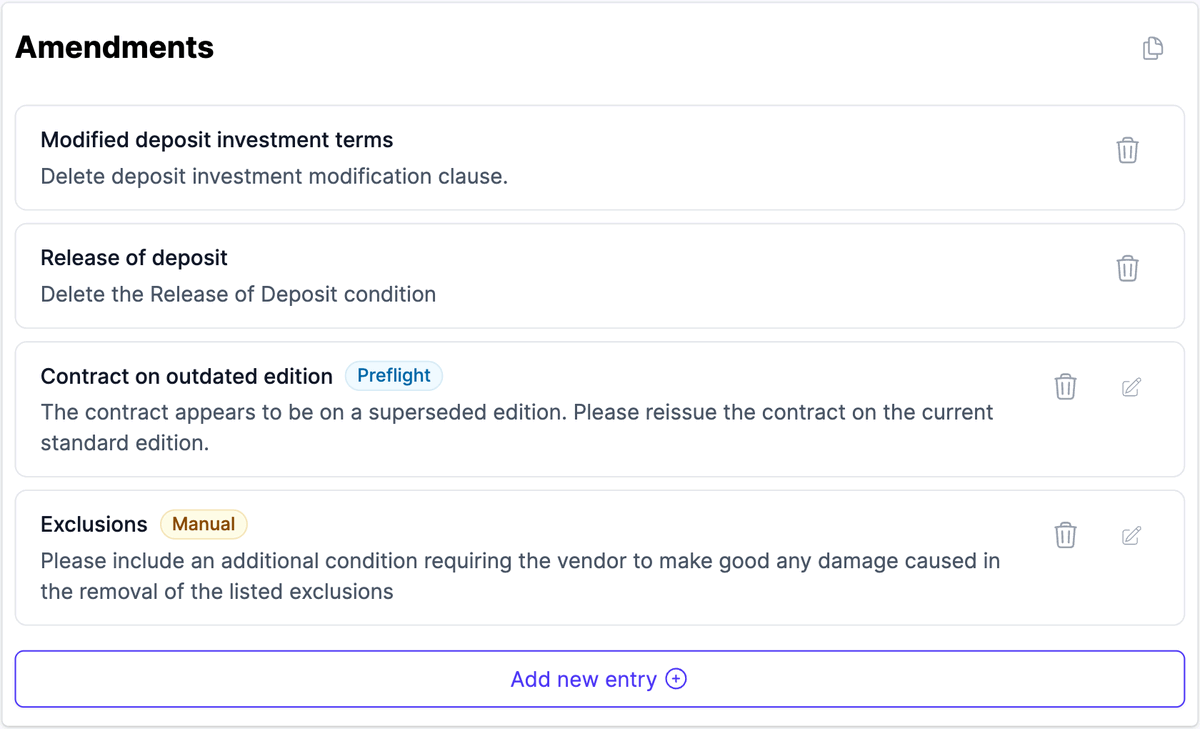
The first step holds the Amendments and Questions lists, where you raise and review requests to the vendor’s solicitor. You can add, edit, and remove items here, and copy either list for an email. See Amendments and questions. Copy amendment requests and questions copies both lists at once.
A Validation summary lists any field that is still incomplete or invalid, with a link to each one.
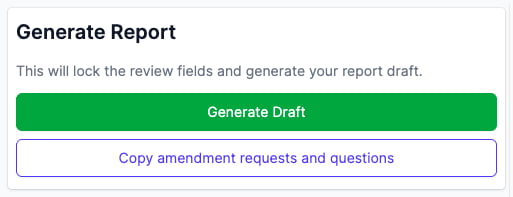
Click Generate Draft when every required field is complete. Until then the button is unavailable. Generating locks the review fields, moves the review to Completed, and builds the report draft.
Edit report draft
The report draft is fully editable, with a formatting toolbar above it. On a wide screen, a contents panel beside the draft lists its headings.

Make your edits here rather than in the downloaded Word document. The draft is saved against the review and is what Curia captures when you download; an edit made in Word exists only in that one file.
Autosave
The report draft is autosaved every 30 seconds when there are unsaved changes.
Manual save
Click the menu icon on the right of the toolbar and choose Save to save immediately.
Download
Clicking Download Word Document on the draft exports the report and moves the tab to the Download step. You don’t need to save first. The downloaded file uses the document settings from the template. See Understanding your report template.
The Download step confirms the review is complete and locked. Copy amendment requests and questions copies both lists for an email.

Your download is captured here as a version you can read or download again at any time. See Report versions.
Reviews with no stored report
Curia keeps the report generated against a review, so opening a completed review later shows the report as it was produced. A review completed some time ago may have nothing stored. Its Finalise tab shows a Review complete card in place of the draft.
What the card offers depends on the review data:
- Where the review holds everything a report needs, a No stored report warning explains that what you generate now may not match the file the client received. Generate report builds one from the current review data and template.
- Where data a report needs is missing, a Missing data list names each element with a link to it. Reopen the review and complete them before generating.
Reopen review and make changes is offered either way.
Reopening the review
To change the underlying review data after generating the report, click Reopen review and make changes on the Download step. You can also reach it from the menu icon in the draft toolbar, or by clicking any of the review data tabs on a locked review.

Reopening:
- Unlocks the review fields.
- Discards the current report draft (edits to the generated report are lost).
- Keeps every version already captured.
Once you have reopened a review that has versions, check the review data before you download again. Curia and your account settings may have changed since the last version was captured, and those changes flow into the new report. The changelog lists what has changed recently.
Resetting the report
To regenerate the report from the template without reopening the review, that is, to throw away report edits but keep the review data as-is, click the menu icon in the draft toolbar and choose Reset Report.
The report draft is regenerated fresh from the template with the current review data. The review fields stay locked and existing versions are kept.