Setting up two-factor authentication
How to turn on two-factor authentication on your Curia account using an authenticator app, and what to do if you lose access to it.
Before you start
Install an authenticator app on your phone. Curia works with any app that supports time-based one-time passwords, including Google Authenticator, Microsoft Authenticator, Authy and 1Password.
Turning on two-factor authentication
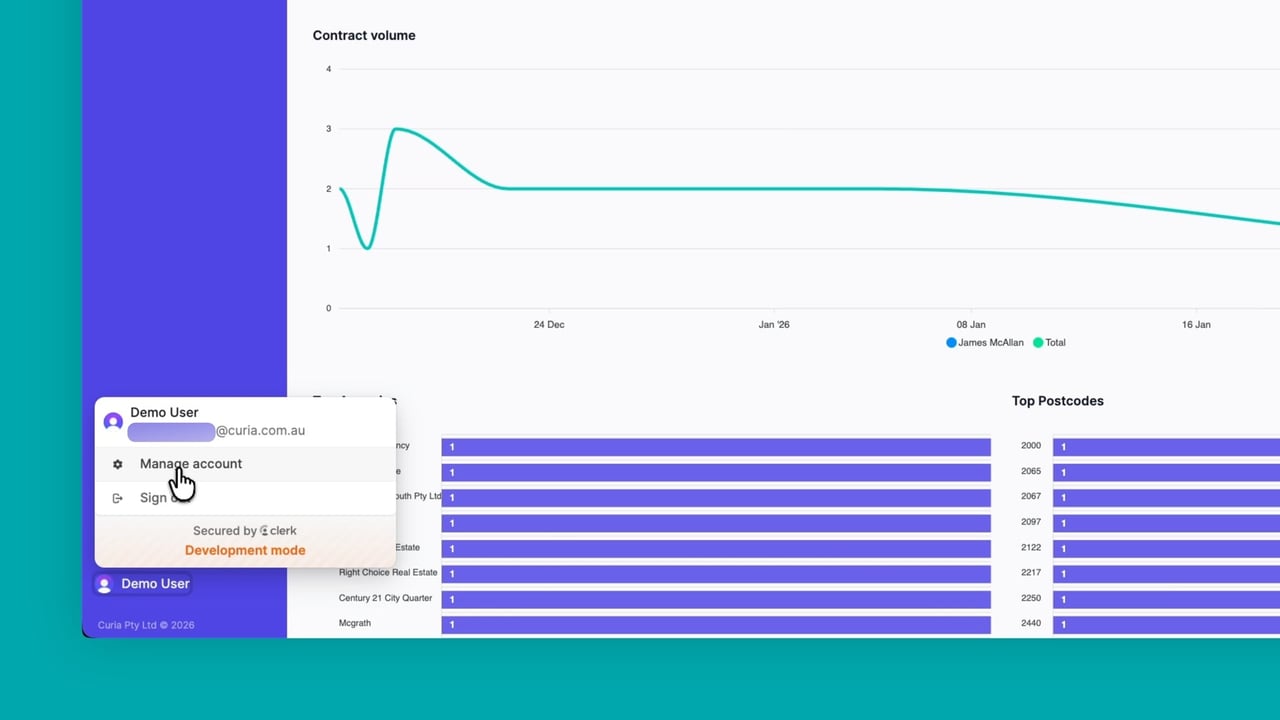
- Click your profile button at the bottom of the sidebar.
- Click Manage account.
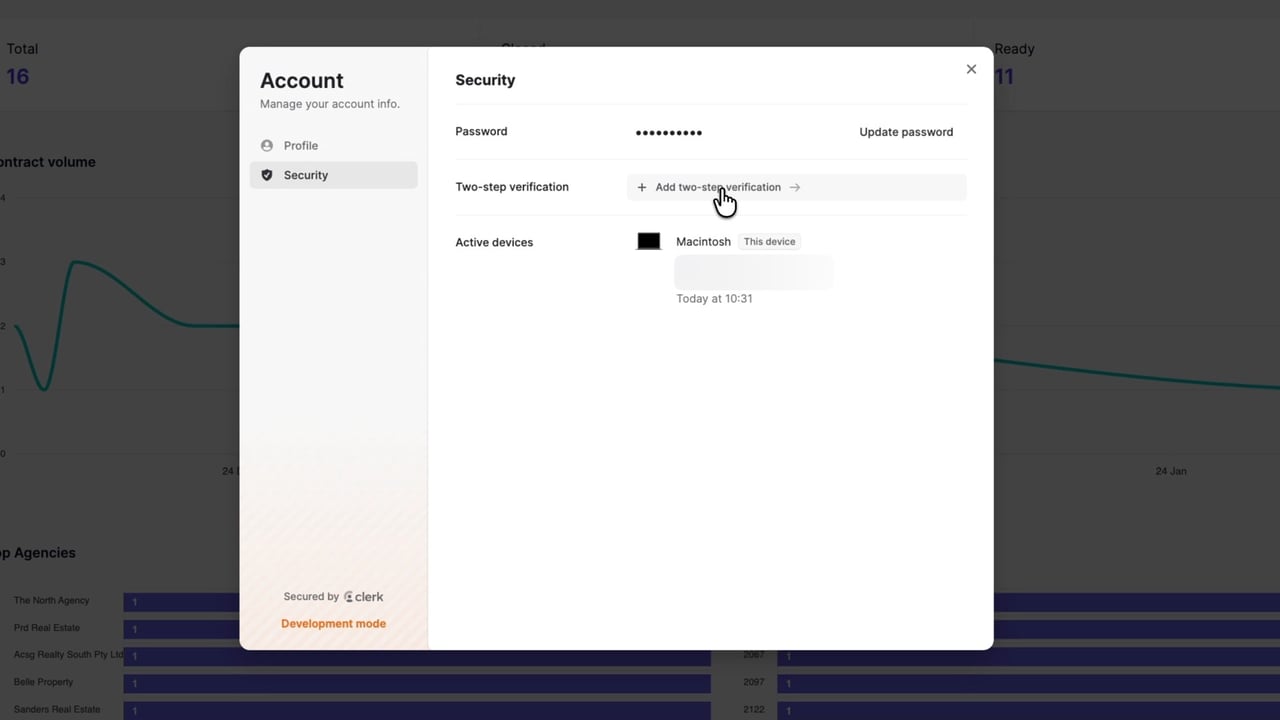
- Open the Security tab.
- Under Two-step verification (Curia’s account screens use this label for two-factor authentication), click Add two-step verification.
- Scan the QR code with your authenticator app.
- Enter the code shown in the app and click Verify.
After setup, signing in will ask you for a code from your authenticator app after your password.
Backup codes
After setup, save the backup codes shown on screen somewhere safe (a password manager works well). They are the way back in if you lose access to your phone.
Turning off two-factor authentication
Open Manage account > Security and remove two-step verification from the same section you used to add it.
FAQ
Can I use SMS instead of an authenticator app?
No. Curia supports authenticator app codes only.
Which authenticator apps work?
Any app that supports time-based one-time passwords, including Google Authenticator, Microsoft Authenticator, Authy and 1Password.
What if I lose access to my authenticator app?
If you have your backup codes, use one to sign in and then set up the app again from Manage account > Security. If you don’t have them, contact Curia support and we’ll reset two-factor authentication on your account.
Can I turn two-factor authentication off later?
Yes, from Manage account > Security.