Signing in with Microsoft
How to sign in to Curia with a Microsoft work, school or personal account, and what to do if your IT administrator blocks the sign-in.
You can sign in to Curia with a Microsoft account (Microsoft 365, work, school or personal Outlook) instead of a password. The email address on the Microsoft account must match the email address on your Curia account.
You need a Curia account first
Microsoft sign-in is a way to get into a Curia account that already exists. It is not a way to create one.
- You can’t sign up for a brand new Curia firm just by clicking the Microsoft option. New firms are set up through Curia, not through Microsoft.
- You can’t join an existing Curia firm by signing in with Microsoft unless someone at that firm has already invited you. Until the invite is sent and your Curia user exists, Microsoft will sign you in to its own service but Curia won’t know who you are.
If you need to be added to your firm’s Curia account, ask whoever administers it to send you an invite. Once your Curia user exists, the Microsoft sign-in steps below will work.
Signing in with Microsoft
- Go to app.curia.com.au.
- Click the Microsoft option on the sign-in screen.
- Sign in with your Microsoft account on the Microsoft sign-in screen.
- The first time you sign in, Microsoft shows a permissions screen for Curia. Click the accept button.
- Microsoft returns you to Curia and you are signed in.
After the first sign-in, Microsoft remembers your consent and signs you straight in.
The Microsoft permissions screen
The first time you sign in, Microsoft asks you to allow Curia to read your basic profile. The screen shows Curia with a blue verified publisher tick next to CURIA PTY LTD.
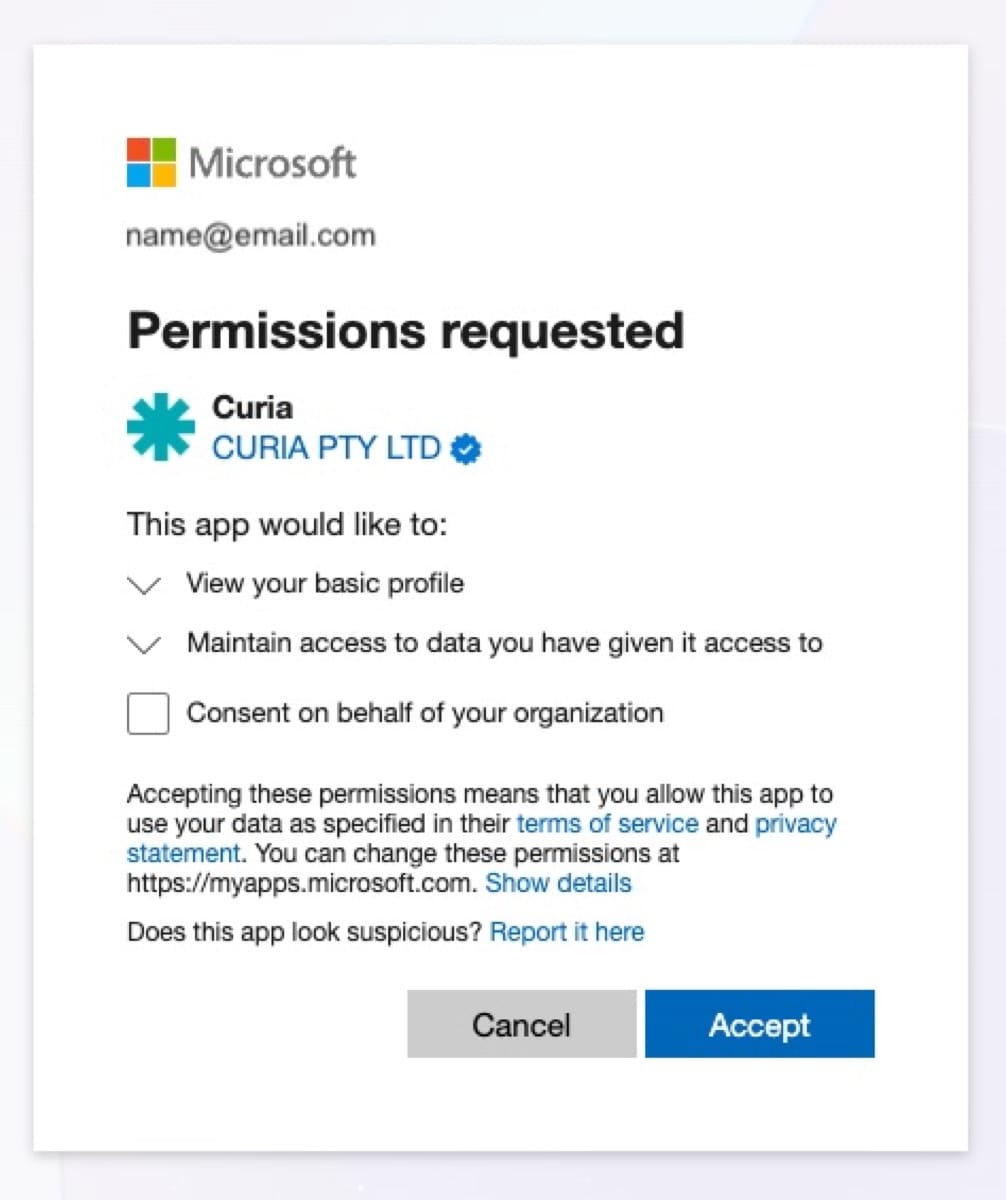
Leave the consent-on-behalf-of-your-organisation checkbox unticked unless you are an IT administrator for your firm and you want to approve Curia for everyone at once. Most users should just accept it for themselves.
Adding Microsoft to an existing Curia account
If you already sign in with a password and want to add Microsoft as an option:
- Click your profile button at the bottom of the sidebar.
- Click Manage account.
- Scroll to Connected accounts.
- Click the Microsoft option and complete the sign-in.
FAQ
Which Microsoft accounts work?
Any Microsoft account, work, school or personal.
My organisation is blocking the sign-in
Some firms restrict which third-party apps their staff can sign in to with Microsoft. If you see a message from Microsoft saying that approval is required, that Curia is not approved, or that your administrator has not consented, the block is on your firm’s side and Curia cannot bypass it.
Send your IT administrator a request to approve Curia. They can do this from the Microsoft Entra admin centre. Once they approve the app, your sign-in will go through.
In the meantime, you can sign in to Curia with your password instead. See Sign-in methods for the other options.
The sign-in succeeds at Microsoft but Curia doesn’t recognise me
The email address on your Microsoft account must match the email address on your Curia account. If they differ, Microsoft signs you in to its own service but Curia does not link it to your account. Ask your Curia administrator to check the email address on your Curia user, or contact Curia support.
Do I still need a password?
No. If Microsoft is the only sign-in method you want to use, you can leave the password off your account.