Curia Pulse
What Curia Pulse shows, how its monthly network figures compare with earlier months and with your own firm, and how to download a panel.
Pulse is a monthly read on the conveyancing market. It shows figures drawn from reviews across the Curia network, pooled and anonymised, with your own firm’s figures alongside them.
Opening Pulse
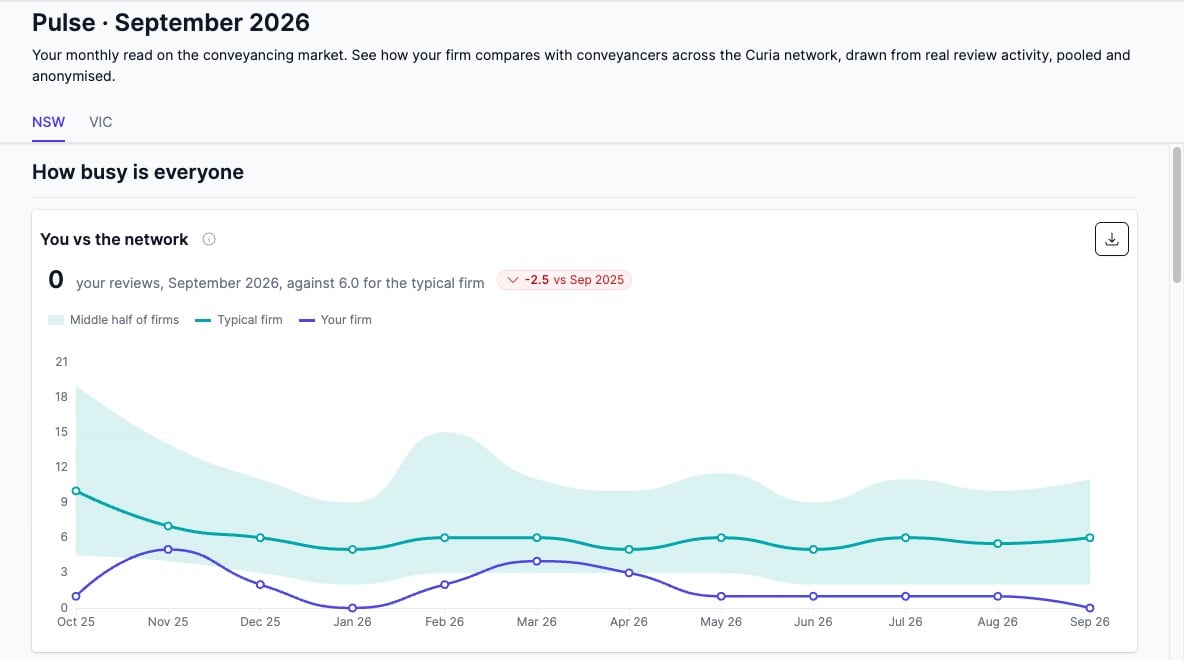
Admins at firms with Pulse enabled open it from Pulse in the sidebar. The page title shows the month the figures cover. Pulse reports on completed months only, so the latest month shown is the last full month.
If Pulse reports on more than one state your firm works in, each state has its own tab in the header.
What’s on the page
Pulse has four sections:
- How busy is everyone - your monthly reviews against the network, how busy firms are compared with a year earlier and reviews per week by firm size
- When is everyone working - when review work happens across the day and the week, and how long a review takes
- Who is buying, and what - the property mix and the share of investor buyers, first home buyers, vacant land and unregistered titles
- The issues we catch most - what Preflight finds in every 100 contracts
Each panel has an information icon that explains what the figure measures. A panel or section is left off the page in any month without enough data behind it to publish safely.
See Reading the Pulse figures for what each panel shows.
Your firm alongside the network
Where Pulse has figures for your firm, they appear alongside the network figures, labelled Your firm. Your figures always cover the same period as the network figures they’re shown with.
The issues we catch most shows network figures only.
Comparisons
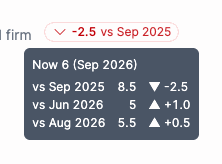
Many figures carry a label showing the direction and size of the change and the month it’s measured against. The comparison is with the same month a year earlier. When there’s no figure for that month, it’s with the previous month.
Hover over a label to see the current figure and the change against a year earlier, three months earlier and the previous month, where those figures exist.
Downloading a panel
To save a panel as an image:
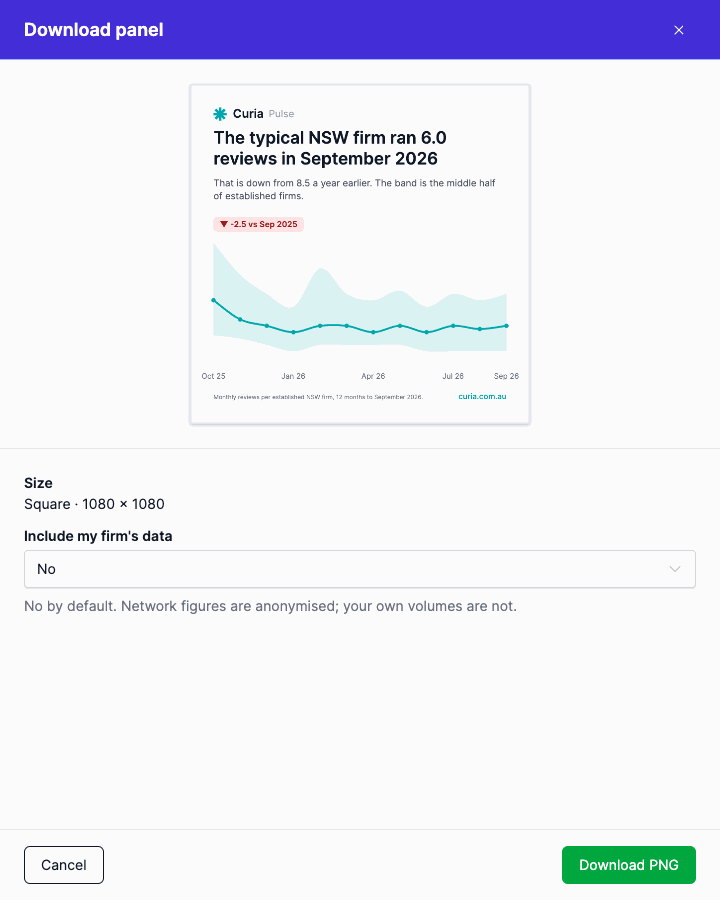
- Click the download icon on the panel.
- Choose whether to include your firm’s figures with Include my firm’s data. It’s set to No by default. Panels showing network figures only don’t offer the option.
- Click Download PNG.
The image is square and carries the panel’s figures, chart and the month they cover.
Privacy and opting out
Network figures are anonymised and never show another firm’s figures. See How Pulse protects your firm’s data.
Your firm can opt out of Pulse from General settings. See Opting out of Curia Pulse.
FAQ
Why can’t I see Pulse in the sidebar?
Pulse is available to admins at firms with Pulse enabled.
Why does Pulse say my firm has opted out?
An admin at your firm opted out of Pulse in General settings. Click Opt back in to change it. See Opting out of Curia Pulse.