Using the Date for Completion field
Define when settlement occurs - a fixed date, a period after an event, or a combination of conditions.
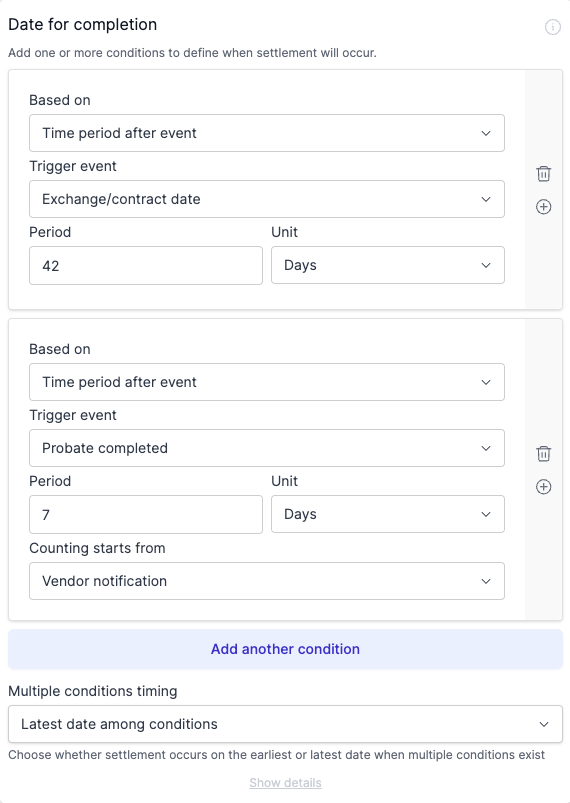
The Date for Completion field on the Exchange tab captures settlement timing. Curia pre-fills it from the contract during processing; you can edit, add conditions, or set the value by hand.
How automatic detection works
Curia reads the contract particulars and any special conditions or clauses during processing to find every date for completion in the contract, then pre-fills the field with the conditions it found.
Defaults
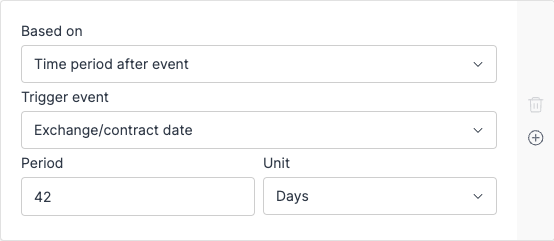
The default value is the common case “42 days after exchange of contracts”:
- Based on: Time period after event
- Trigger event: Exchange/contract date
- Period: 42
- Unit: Days
The report reads:
Completion will occur 42 days after exchange of contracts
Adding a single condition
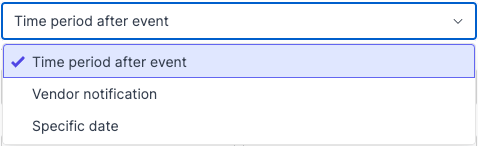
Each condition has a Based on type:
- Time period after event - a period counted from a chosen event.
- Vendor notification - a period counted from when the vendor notifies the purchaser.
- Specific date - a fixed calendar date.
- Other - settlement wording you enter yourself, for a term none of the other types can hold.
Time period after event
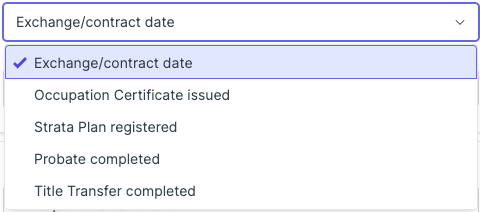
Pick a trigger event:
- Exchange/contract date
- Occupation Certificate issued
- Proposed Plan registered
- Grant of probate
- Survivorship dealing registered
- Transmission application registered
- Title Transfer completed
- Contract unconditional
For any trigger other than Exchange/contract date, a Counting starts from option appears with two choices: Event occurring (count from the date the event actually happens) or Notification of event (count from notification that the event has happened).
Then enter the Period number and pick the Unit (Days, Weeks, or Months).
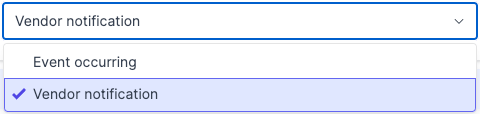
Vendor notification
Enter the number of days. Optionally set a Minimum period after exchange of contracts so settlement can’t occur within a stated window after exchange.
Specific date
Pick the calendar date.
Other
Enter the settlement term in Wording. The report places it after “Completion is scheduled to occur”, so write it as the rest of that sentence. An Other condition can be combined with any other condition.
Multiple conditions
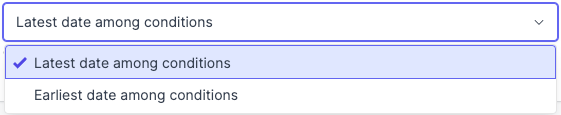
Click Add another condition to add more. Once two or more conditions exist, a Multiple conditions timing dropdown shows up with two options:
- Latest date among conditions - settlement occurs on the latest of all dates.
- Earliest date among conditions - settlement occurs on the earliest of all dates.
To remove a condition, click the bin icon on its card. The last remaining condition can’t be deleted; at least one is always required.
Weekend and public holiday adjustments
When the calculated settlement date falls on a weekend or a public holiday for the contract’s state, Curia adjusts it to the next business day and the report explains the shift. Examples:
Completion is scheduled to occur on Monday 29 December 2025. Designated settlement date of Saturday 27 December 2025 was adjusted because completion cannot occur on weekends.
Completion is scheduled to occur on Monday 29 December 2025. Designated settlement date of Friday 26 December 2025 was adjusted because completion cannot occur on a public holiday (Boxing Day).
Report wording examples
- Single fixed date: “Completion will occur on 12 November 2024.”
- Single offset: “Completion will occur 42 days after exchange of contracts.”
- Single offset with known exchange date: “Completion will occur 42 days after exchange of contracts (26 February 2024).”
- Multiple conditions:
Completion will occur on the later of:
a) 12 December 2024;
b) 60 days after exchange of contracts (15 March 2024)
FAQ
Can I add multiple conditions for complex contracts?
Yes. Click Add another condition to layer triggers, then pick Latest or Earliest for how they combine.
What if I want to override what Curia extracted?
Edit the field directly. Change the trigger, period, or set a specific date. If the contract’s settlement term fits none of the condition types, choose Other and enter the wording.