Editing your report template
How to start an editing session, find and reorder content, edit sections and items, work with tables and discard a draft.
Starting an editing session
A template opens in read-only mode. To start editing, click Edit in the header. This creates a draft - a private working copy of the template:
- New reports keep using the published template while you work on the draft.
- The draft is autosaved as you go.
- You can discard the draft at any time to throw away every change.
- The draft is yours until you publish or discard.
While you edit a draft, a bar carries Discard and Publish changes. Version history and Settings are in the ’…’ menu in the header.

Finding content
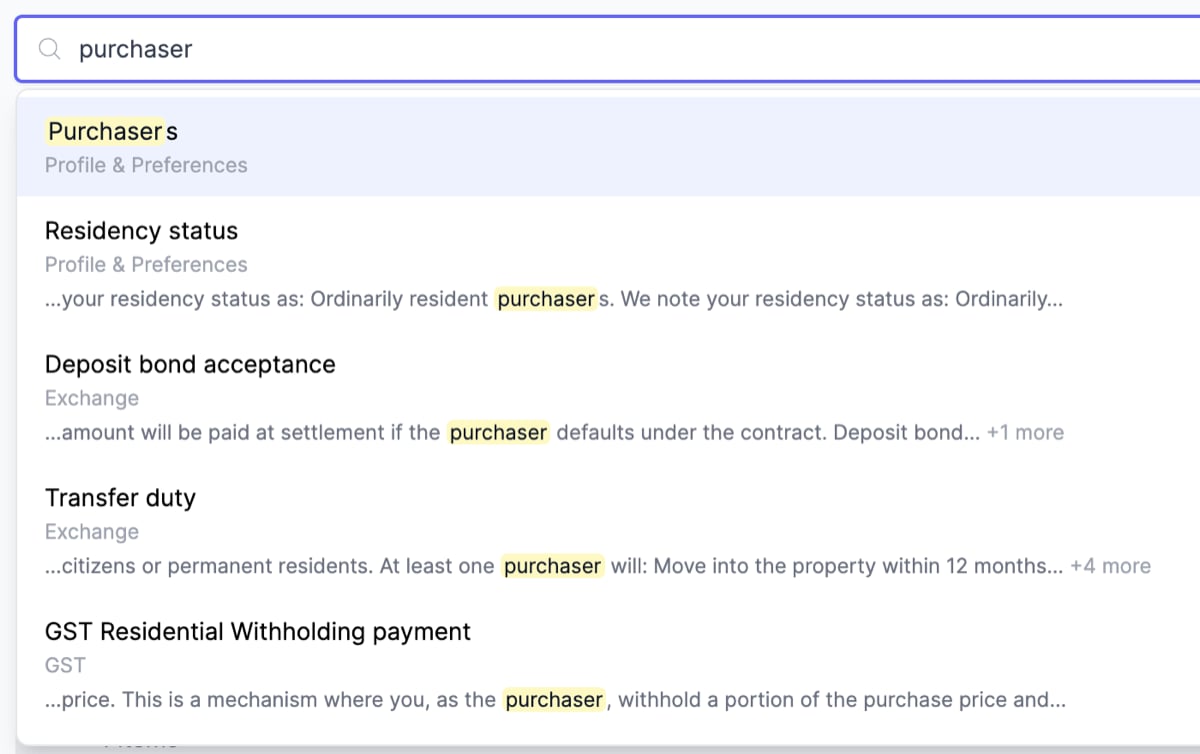
A search box at the top of the editor finds items by title or by the text inside them. Type a search term to see matching items, each showing the item title, the section and group it sits in, and a snippet of the matching content with the term highlighted.
Title matches are listed first, then content matches. Move through the list with the arrow keys and press Enter, or click a result, to jump to that item within its section and group.
Reordering content
In edit mode, drag and drop to reorder:
- Sections - drag a section by its handle.
- Groups within a section - expand the section and drag groups.
- Items within a group or section - drag items into position.
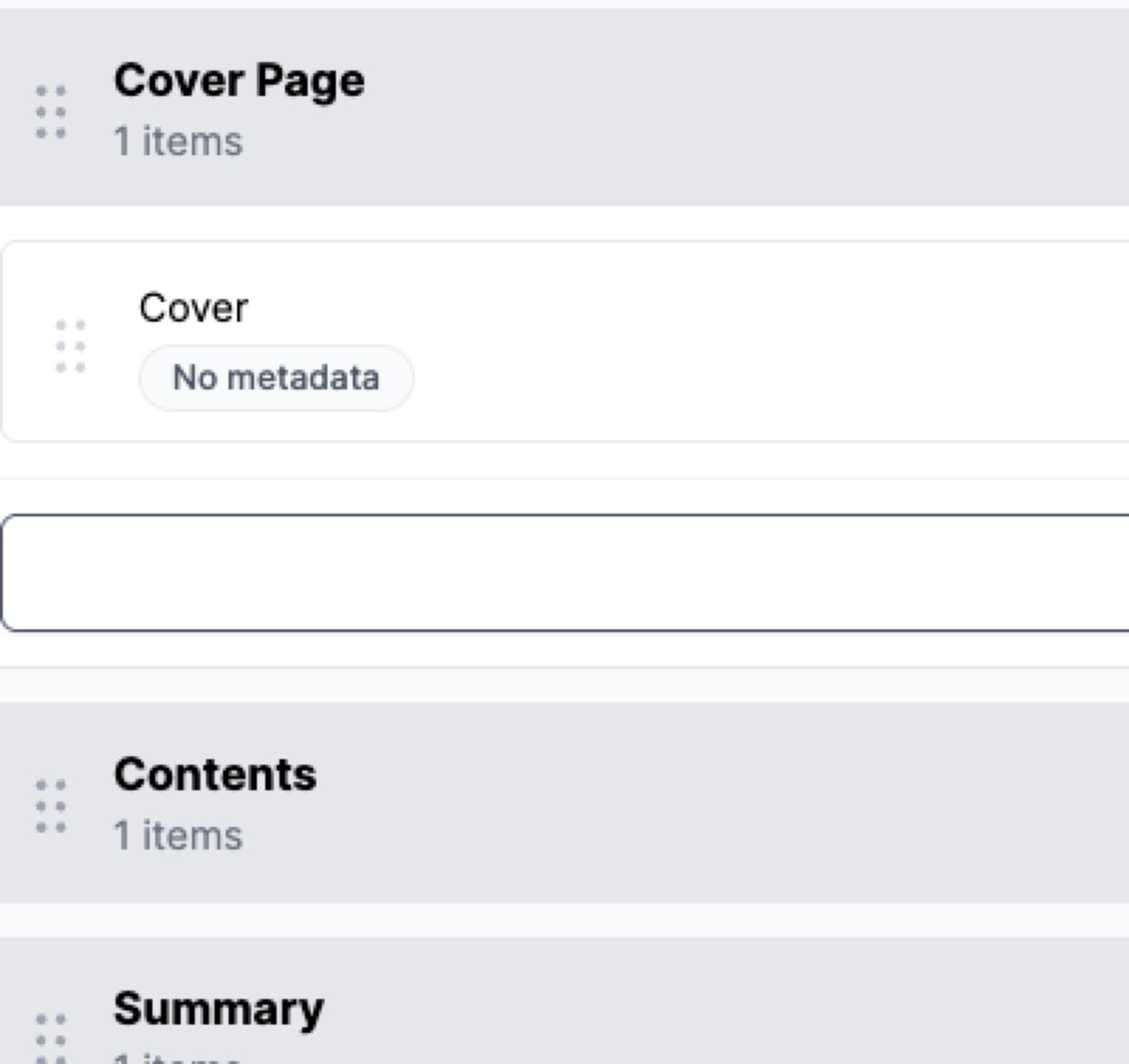
The drag handle is only visible in edit mode.
Editing sections and groups
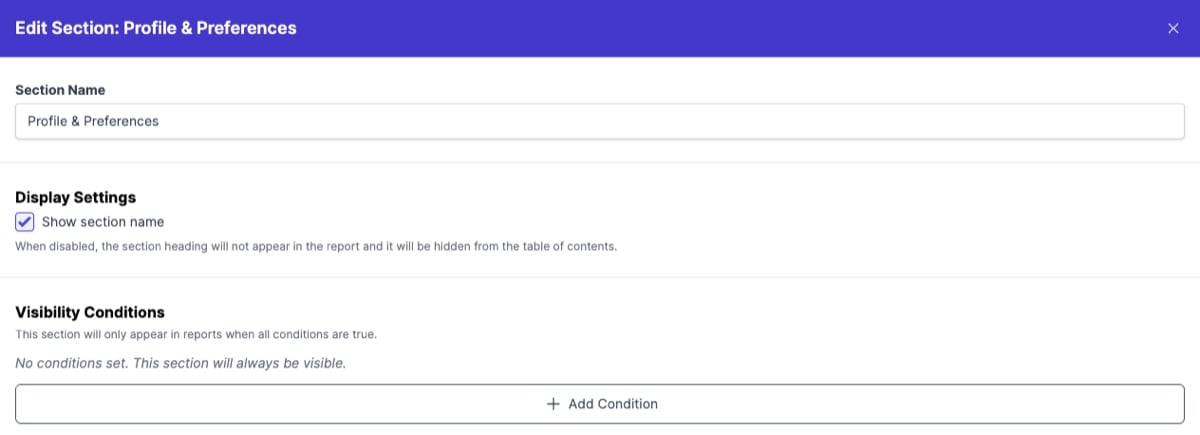
Click the pencil button on a section or group header to open its settings panel.
- Section name or Group name - the heading that appears in the report.
- Show section name (sections only) - when off, the section heading doesn’t appear in the report and is left out of the table of contents. The section’s content still appears.
- Show group name (groups only) - when off, the group heading doesn’t appear in the report.
- Start this section on a new page (sections only) - inserts a page break before the section in the downloaded Word document.
- Visibility conditions - rules that control when the section or group appears in the report.
Editing items
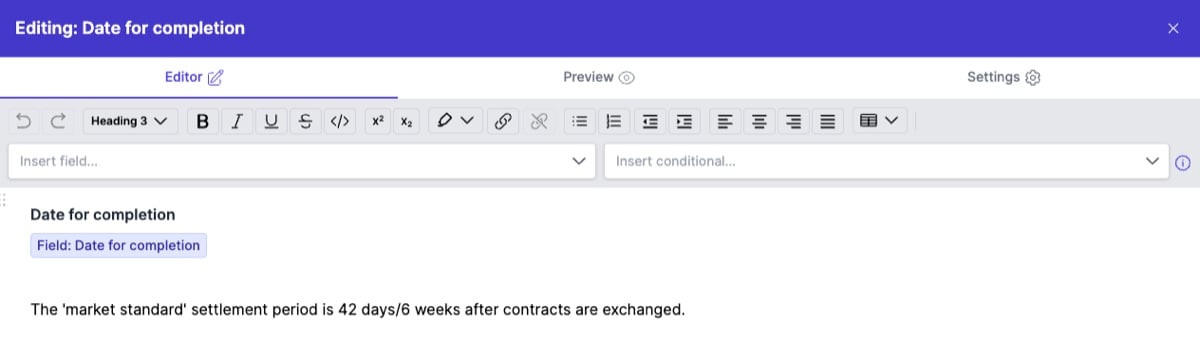
Click the pencil button on an item to open it in a side panel with three tabs.
Editor
The main content editor. The toolbar covers:
- Text formatting - bold, italic, underline, strikethrough.
- Headings - sub-headings inside the item.
- Lists - bullet and numbered.
- Tables - insert and edit tables (see below).
- Merge tags - dynamic data placeholders.
- Conditional blocks - content that only appears when conditions are met.
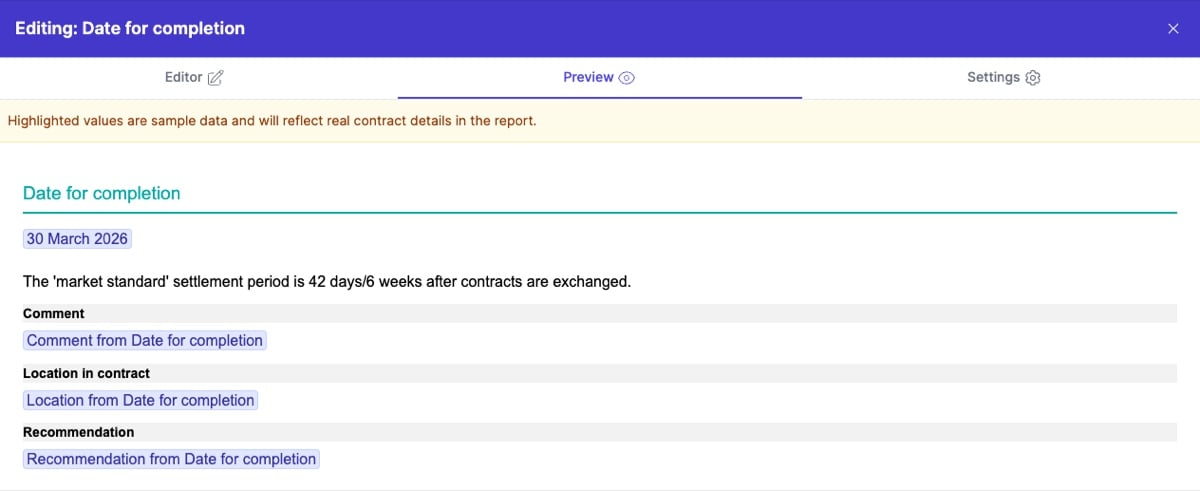
Preview
Renders the item with sample data so you can see how it’ll read in a real report. The preview includes toggle controls for any conditional fields, so you can flip values (Australian Citizen vs Foreign Resident, for example) and watch the content change.
Settings
How the item behaves in the report.
Item name names the item in the editor. This item reports on sets the review field it’s about, see Understanding your report template.
On an item that reports on a field, Display settings control what a reviewer can add to that field during a review and what prints with the item:
- Comment
- Recommendation
- Risk rating
- Image
- Location description - where the field appears in the contract, such as a clause reference.
- Page number - the contract page number alongside the location reference.
Under Visibility, add the conditions that determine when the item appears; all of them must be met. Print even when the field is hidden in review keeps the item in the report when a reviewer hides its field, and ignores those conditions.
On an item that came with the template, Reset to default returns its content, field, visibility and display settings to the Curia default, once the item has been changed.

Tables
Use tables for property details, party information, or anything that reads better in rows and columns.
To insert a table:
- Place the cursor where you want it.
- Click the table button in the toolbar.
- Click Insert table.
A three-by-three table with a header row is inserted. Add the rows and columns you need from there.
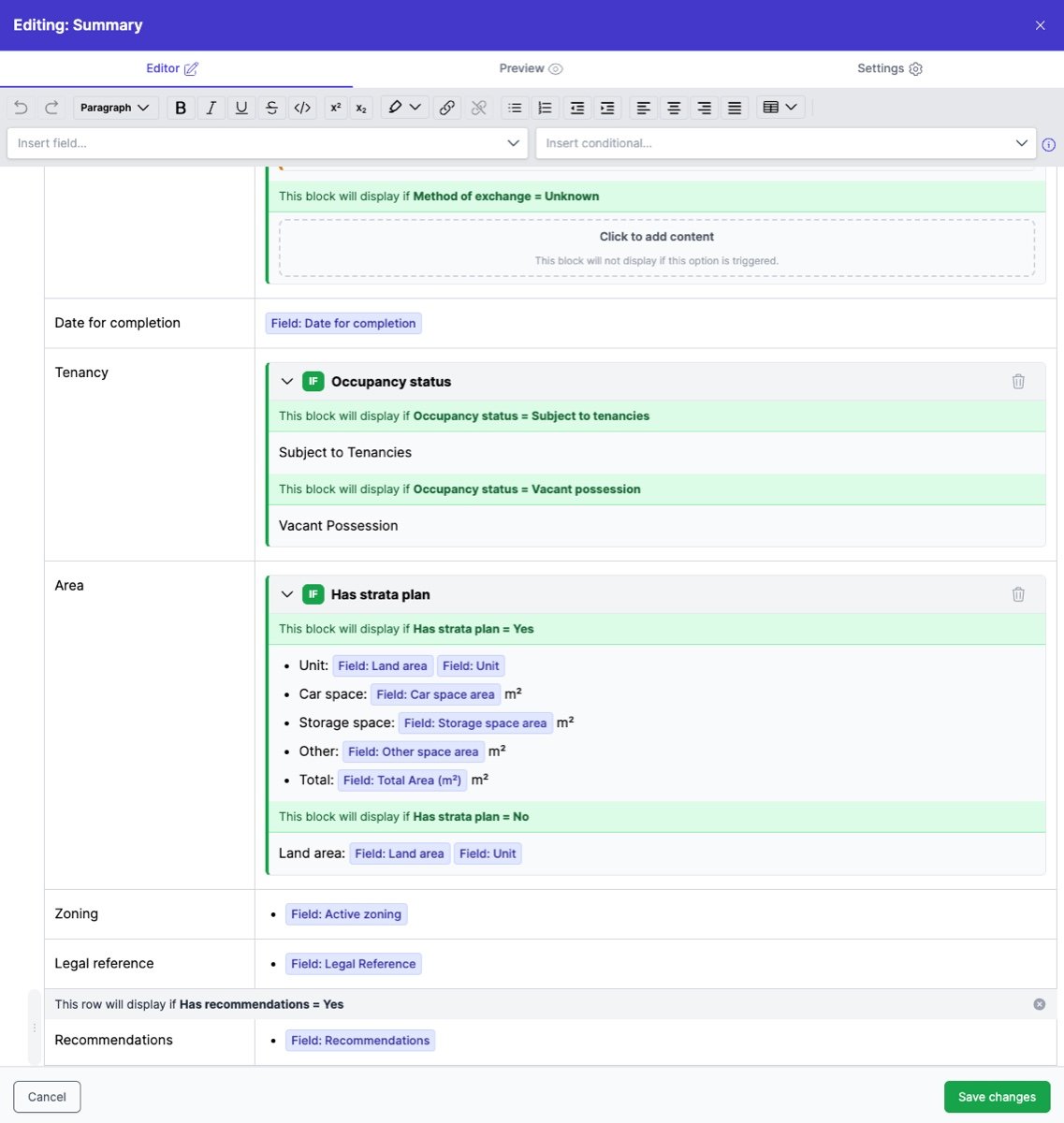
After insert, you can:
- Add or remove rows and columns from the table menu, or from the handle beside a row or above a column.
- Merge or split cells, turn the header row on or off, or delete the whole table.
- Place merge tags inside cells - they work the same as in regular text.
- Set conditional visibility on individual rows - see Controlling visibility.
- Pick a border style for the table from the table menu. The style applies to the whole table and to the downloaded Word document.
A new table uses All borders until you pick another style. In the Curia default template, the Summary item uses Row lines only.
Saving an item edit
Click Save to keep the changes in the draft. Click Cancel or close the panel to drop them. Saving keeps the change in the draft; you still need to Publish changes to take them live.
Discarding a draft
Click Discard to throw away every change in the draft and return to the published template. Curia asks you to confirm first.