Adding, removing, and restoring content
How to add custom content, exclude and re-add default items, publish your draft, and roll back to a previous version.
Creating custom content
You can add new content at any level of the template.
Custom section
A custom section adds a new top-level heading.
- In edit mode, click New section below the section list.
- Name the section.
- The new section is added to the bottom of the list; drag it into the position you want.
Custom group
A custom group adds a sub-heading inside an existing section.
- Expand the section.
- Click New group.
- Name the group.
Custom item
A custom item adds a new content block.
- Open the section or group where the item belongs.
- Click New item.
- Name the item and edit the content.
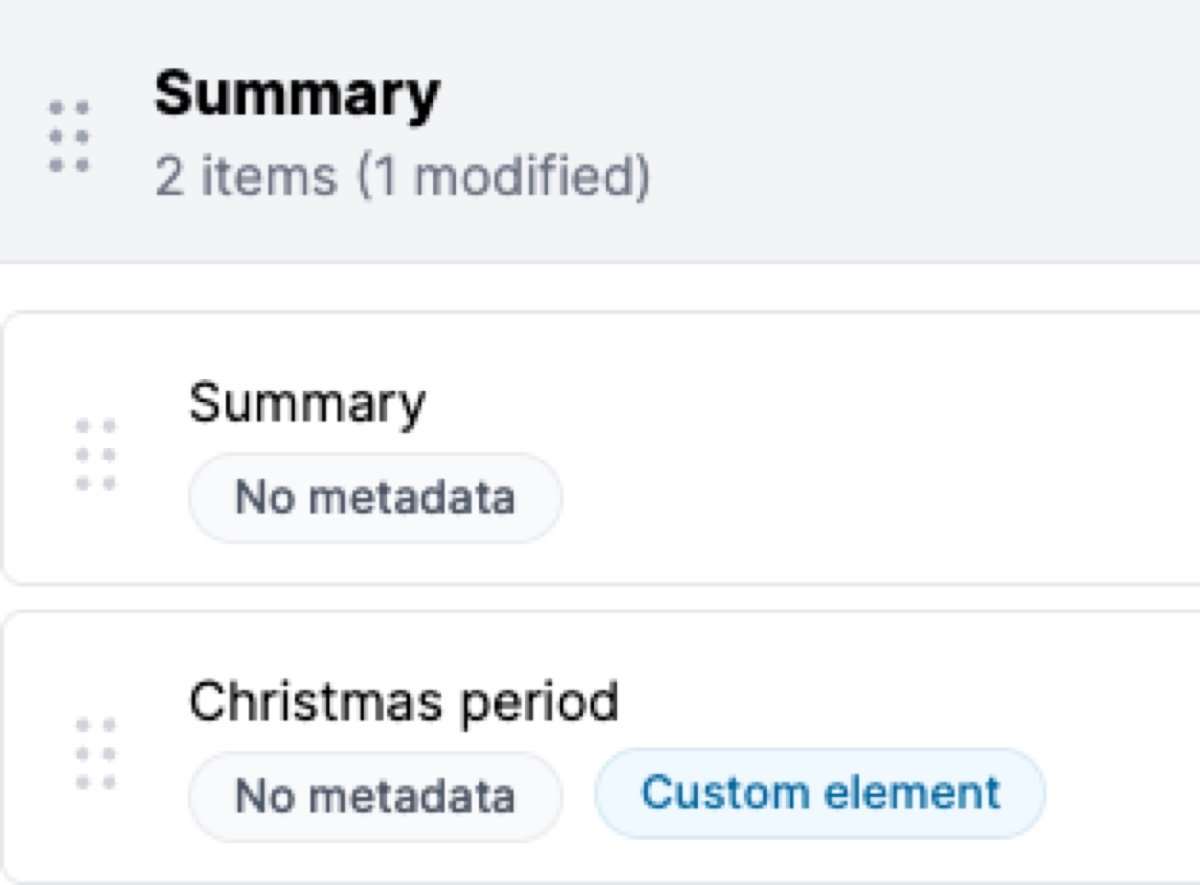
Custom content carries a Custom element badge so you can tell what you added from what’s part of the default template.
Excluding items
To take a default item out of the report without deleting it, exclude it.
- Find the item on the Report Items tab.
- Click the item’s delete action.
- Confirm.
The item moves to the Excluded items tab and stops appearing in reports. You can add it back at any time.
Re-adding excluded items
- Switch to the Excluded items tab.
- Browse the Content Library; items are grouped by their original section.
- Click Add to report on the item you want back.
- Choose the section, and optionally a group, to add it to.
- Click Add to report again.
The item is added to the bottom of the section or group you chose. Add to report is available once you’ve started a draft.
Publishing changes
When the draft is ready, click Publish changes in the bar shown while you edit. You can add a version label, then click Publish.

Publishing:
- Saves a version snapshot of the draft so you can roll back to it later.
- Updates the live template - new reports use the updated content from this point.
- Clears the draft and returns the template to read-only mode.
Version history
Each publish creates a version snapshot, building up a history of every change.
Viewing version history
- Select Version history from the ’…’ menu in the header.
- The panel lists every version, newest first, with a Current badge on the latest.
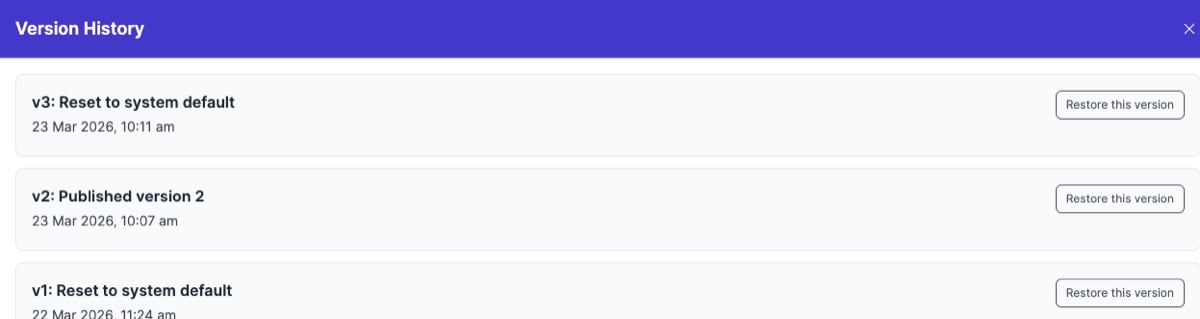
Each version shows:
- The version number and label, such as “Published version 3” or the label you entered when you published.
- The user who created it.
- The date and time.
Restoring a previous version
- Open the version history panel.
- Find the version you want.
- Click Restore this version and confirm.
Restoring:
- Updates the live template to match the chosen version.
- Creates a new version of the restored state, so there’s a record of the restore.
- Discards any draft you have open, so publish it first if you want to keep it.
- Returns the template to read-only mode.
Every previous version is preserved. To undo a restore, restore an earlier version the same way.
Resetting to system default
To wipe customisations and go back to Curia’s default template:
- While editing a draft, select Settings from the ’…’ menu in the header.
- Click Reset to Curia default.
- Confirm.
A version snapshot is saved before the reset, so the customised version can still be restored if you change your mind. Any open draft is discarded.