Managing duplicate contracts
Curia checks for duplicate contracts at upload and again on Preflight, so you can spot a contract that has already been loaded by someone in your account.
Curia runs two duplicate checks on each upload - one against the uploaded file, one against the property it covers. You can still review the same property for a second client when you need to.
Duplicate of an existing file (at upload)
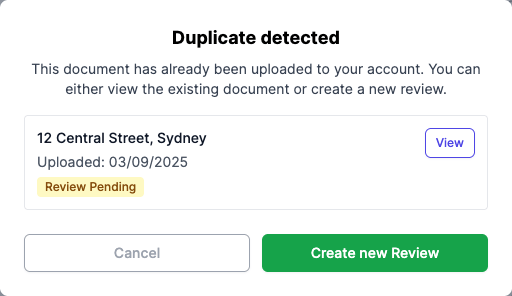
If the file you upload matches a contract already in your account, Curia lists the existing reviews for that contract before letting you continue. Each row shows the filename, upload date, and the review’s status, such as In review, Completed or Closed (client not proceeding). See Understanding review states.
From the dialog:
- Click View on a row to open that existing review in a new tab.
- Click Create new Review to start a fresh review on the same contract anyway.
- Click Cancel to back out of the upload.
A new review on the same contract is billed as a separate review.
Duplicate of the same property (on Preflight)
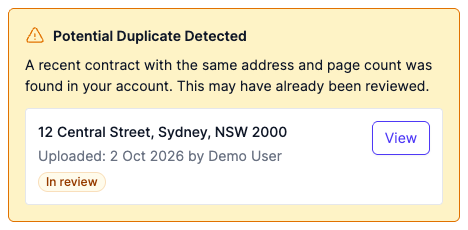
After processing, Curia compares the contract’s property address and page count against contracts uploaded to your account in the last three months. A match raises a warning on the Preflight tab with the duplicate’s filename, upload date, owner, and the review’s status. Click View on the warning to open the other contract in a new tab.
The warning lives on the Preflight tab only. Once you click Start review, the contract moves past Preflight and the warning is no longer shown.
Finding existing reviews manually
To check for prior work before you upload, open the Reviews page and search by property address. Existing reviews on the same property come up in the results.
FAQ
Will I be charged twice if I upload a duplicate?
Yes. Each review is billed separately. Click Cancel on the upload dialog, or back out of the Preflight warning, if you don’t want a second review.
Why doesn’t Curia check by address at upload?
The property address comes from the contract itself, which Curia reads during processing. The upload-time check uses the file directly; the address check runs on the Preflight tab once the contract has been read.
Can I have multiple reviews for the same property?
Yes - for example, when reviewing the same property for different clients. Click Create new Review on the upload dialog, or proceed past the Preflight warning by clicking Start review.