The Area tab
How the Area tab holds land and space areas, totals them, and surfaces areas detected on the plan as suggestions for the area fields.
The Area tab holds the land and space areas for the contract, totals them, and in Victoria surfaces the areas printed on the plan so you can place each one into the right field.
The area fields
The tab shows a title details panel listing each title and its identifier, with a Find on plan control on each row. See Finding a lot on the plan.
The tab also holds four area fields:
- Land area - the land area of the property. On a strata contract this field is labelled Unit area and is held in square metres.
- Car space area
- Storage space area
- Other space area
Car space, storage and other space areas are optional and shown in square metres. Only Land area has a selectable display unit; the others are always square metres. Every field has an Open converter link for entering a value in another unit. See Area converter.
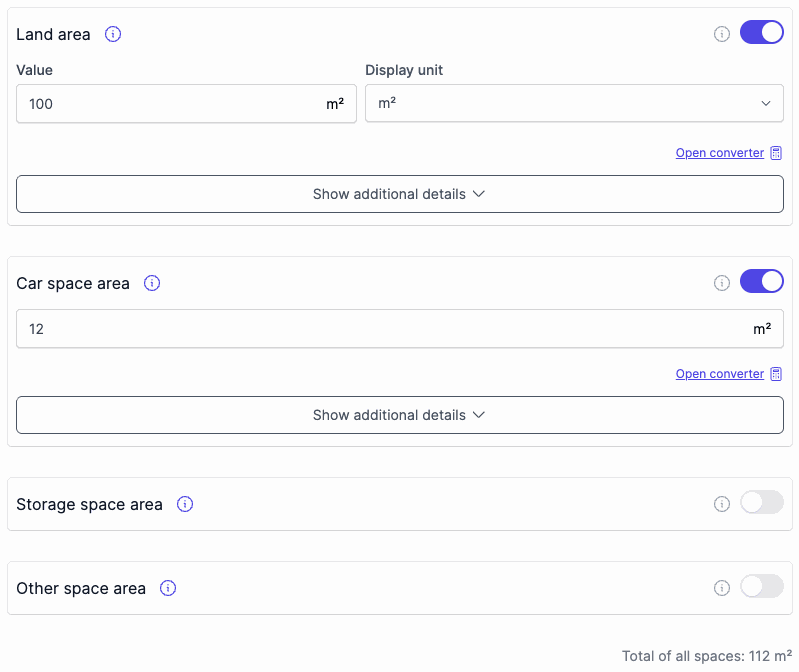
Total of all spaces
A read-only total of all spaces sums the area fields in square metres and updates as the field values change.
The total is shown only when more than one of the area fields is shown.
Adding areas
VIC VIC: details specific to Victoria reviews
Curia reads the areas printed on the plan. Where the land area is unambiguous on the plan, Curia fills Land area for you. Car space, storage and other areas are never filled automatically.
Everything else appears in the Detected plan areas panel as a suggestion, so you decide which field it belongs in. The panel groups the rows: Needs action for areas waiting on you, then areas you have already added, then anything dismissed. Each row shows the size, the lot it was found on, and a Go to page link to the plan page.
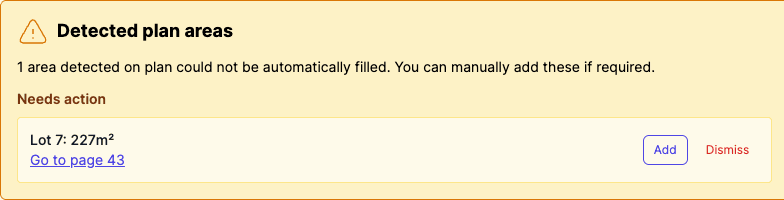
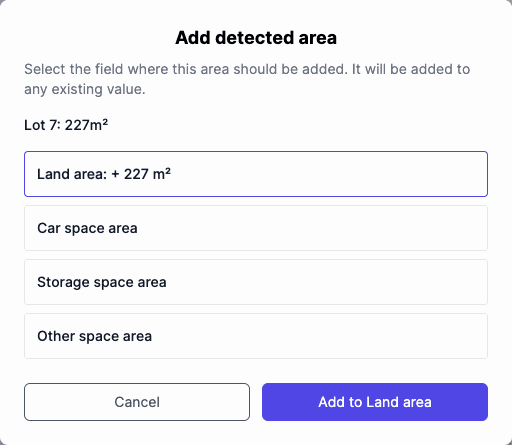
Click Add on a row to open the Add detected area dialog. Pick the field it belongs in; Curia converts the size to that field’s unit and adds it to any existing value. The row then moves to the added list, marked with the field it went to.
Dismiss moves a row you don’t need out of Needs action. Restore brings a dismissed row back so you can add it.
NSW NSW: details specific to New South Wales reviews
Curia does not yet detect plan areas for NSW contracts, so the Detected plan areas panel does not appear. Enter each area directly into the fields.
FAQ
A detected area shows but I can’t add it
When a detected size can’t be read as a number, Add is unavailable on that row. Read the value from the plan with the Go to page link and enter it into the field manually.
Can I move an area to a different field after adding it?
Adjust the field values directly on the tab. Adding a detected area writes into the field and adds to any existing value, so correct the field itself rather than the panel row.