Opening exported reports in Microsoft Word
When the report table of contents shows page numbers, Word needs a one-time field update to fill them in.
Page numbers in the table of contents are off by default. When they’re off, the links are already correct and Word opens the report without prompting you. The rest of this article applies only when your firm has turned on Show page numbers in the table of contents under Settings > Branding > Word Downloads. See Branding your reports to change the setting.
When you open an exported report with page numbers enabled, Word asks whether to update the document’s fields. Click Yes. The table of contents picks up the correct page numbers from the body of the document.
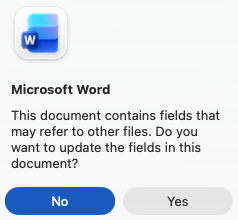
If you click No, the page numbers aren’t filled in. Update them later using the steps below, or close the document without saving, reopen it, and click Yes.
Updating the table of contents manually
If the table of contents is out of date, or you missed the prompt:
- Right-click anywhere on the table of contents.
- Choose Update Field.
- Choose Update page numbers only.
- Click OK.
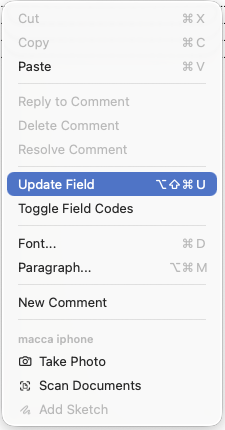
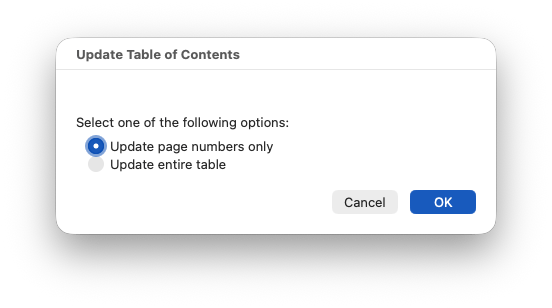
Table of contents issue: page numbers all show “1”
Depending on the operating system and Microsoft Word version, Word may show every page number in the table of contents as “1”, even after you click Yes on the field prompt.
This is a Word behaviour, not a Curia one: Word on Mac doesn’t fully recalculate page layout for a newly opened document while another document is active.
Workaround: update the table of contents manually using the steps above, or close any other Word documents before opening the report.