Special Conditions
The Special Conditions tab on an NSW review lists every condition Curia identified in the contract, plus any required fields, ready for you to review.
The Special Conditions tab pulls together the conditions Curia identified in the contract during processing, the required special conditions fields on your report template, and any custom entries you add by hand. Each entry is a card with its title, content, page reference, comment, and recommendation.
If your firm’s NSW reviews show a Clauses tab instead, see Clauses.
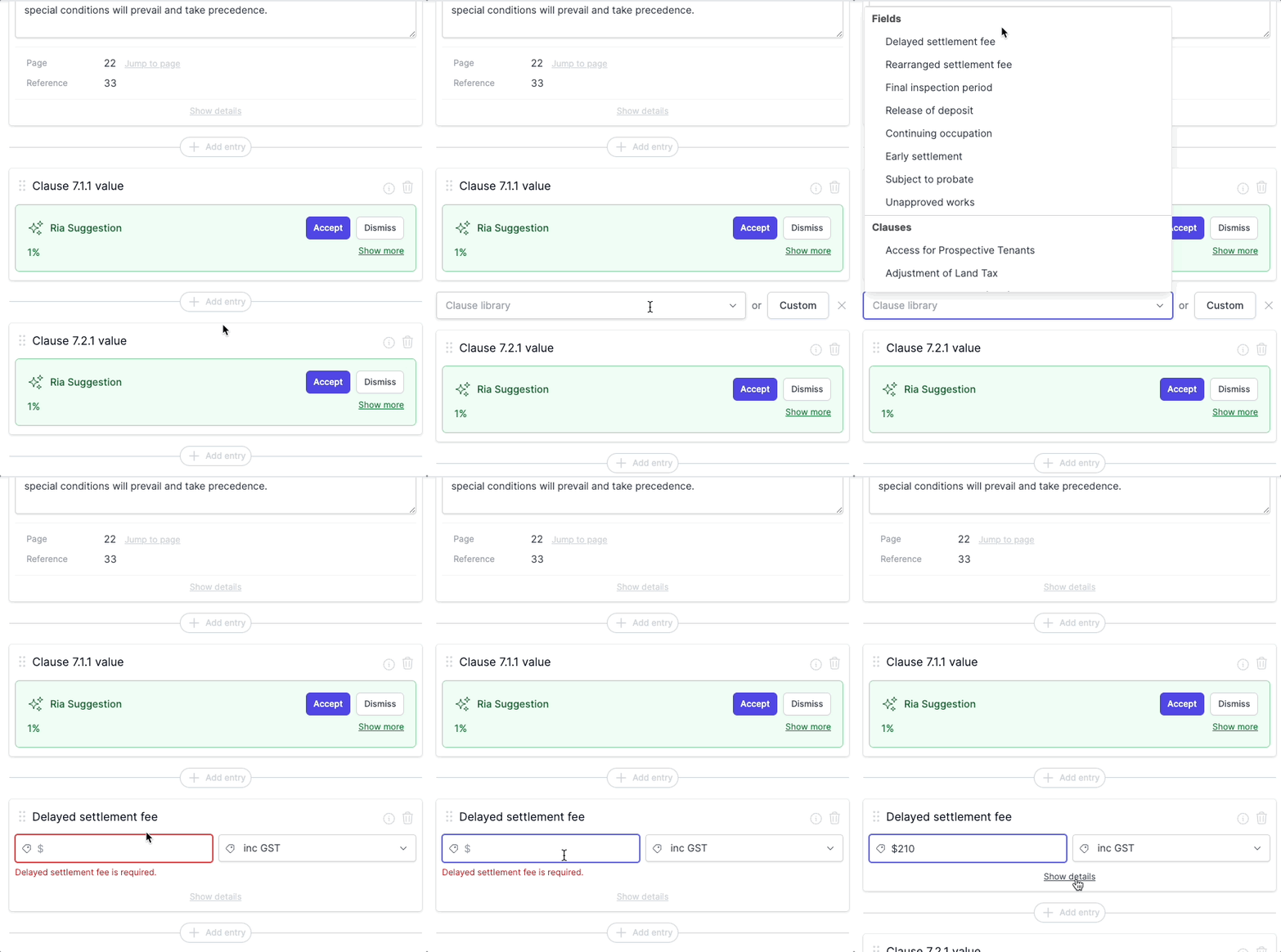
How entries are populated
During processing, Curia matches the special conditions section of the contract against:
- Active clauses in your Library - see Managing clauses.
- The special conditions fields your report template uses - see The Fields tab.
Each match becomes an entry on the tab, pre-filled with the page number and clause reference from the contract.
If processing finds no special conditions, the tab still shows any of those fields set to Required on the template. You can add and edit entries from there.
Adding an entry
Click Add new entry on the tab. Choose a clause or field from the dropdown, or click Custom to create a one-off entry with your own title and content.
The dropdown contains the active clauses in the Library and the special conditions fields relevant to this contract. To make more clauses available in the dropdown, add them to the Library - they appear in the dropdown and in auto-matching from then on.
A custom entry can be saved back to the Library with the Add to library button on the card - see Adding content to library during review.
Reordering and removing entries
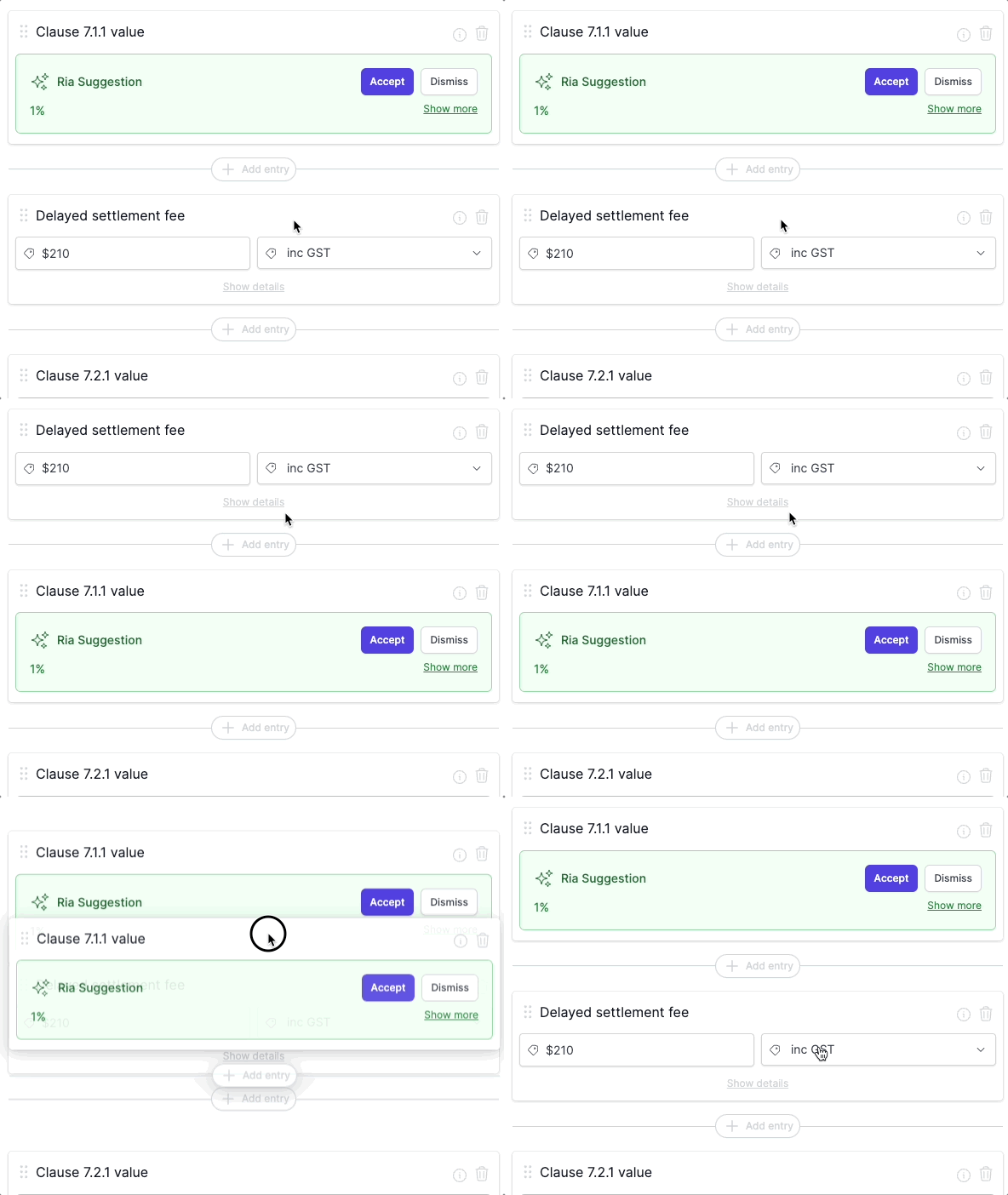
- Reorder - drag the card to the position you want.
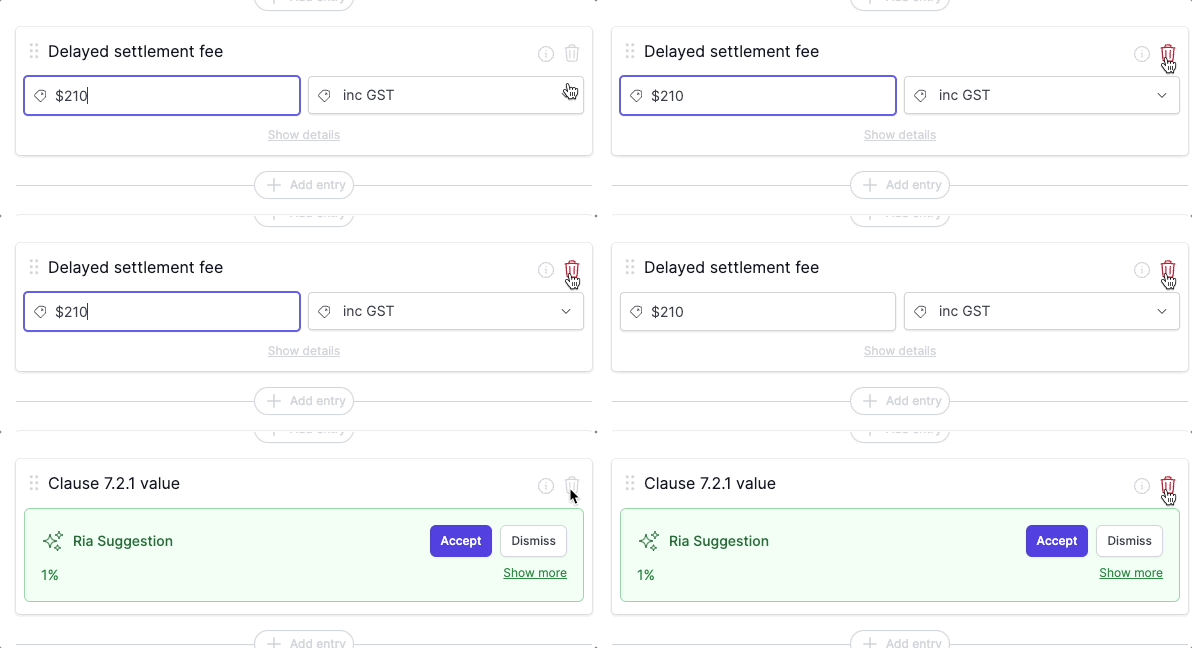
- Remove - click the bin icon at the top right of the card. Required fields can’t be removed; they always appear on the tab.
FAQ
Why is an entry on the tab that wasn’t in the contract?
Required fields always appear on the tab. If a required field wasn’t detected in the contract, it sits at the bottom of the list for you to complete.
How do I add a clause to the dropdown?
Add the clause to the Library - see Managing clauses. Active clauses are available in the dropdown immediately, and Curia matches future contracts against them during processing.
Are special conditions included in the report?
Yes. Entries marked visible appear in the client report along with any associated recommendations.