Understanding contacts
Manage your client contact records in Curia and link them to contract reviews so you can find work by client names.
Contacts are a central place to keep the people and organisations you work for. Linking a contact to a review records who that review is being done for and lets you find every review for the same client later.
Contact types
Curia supports two types of contact, each on its own tab of the Contacts page:
- Individual - a single person. Each purchaser is a separate individual. A husband and wife buying together are two contacts (“Jane Smith” and “John Smith”), not one.
- Company - an organisation, with one or more linked individuals.
Companies always have at least one linked individual. The same individual can appear under more than one company, for example a director of two companies.
A trust is recorded through its trustee. Create the trustee as an individual or company contact, and set its capacity as trustee when you link it to a review. See The Client tab.
With or without an integration
If your account has a practice management integration connected (such as Smokeball), contacts come from that system. Contacts are synced as they’re needed, for example when you sync a matter they’re a party to. You can’t create contacts or edit their details in Curia while an integration is connected, apart from residency status, but you can still link imported contacts to reviews. See Working with synced contacts for the detail.
If your account has no integration, contacts live entirely in Curia. You create, edit, and delete contacts yourself. See Creating and managing contacts.
Browsing the Contacts page
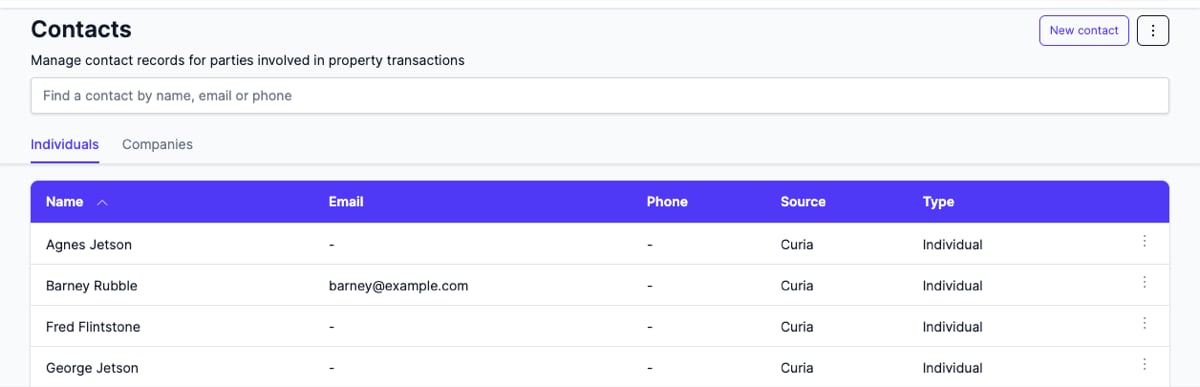
The Contacts page has two tabs: Individuals and Companies. Each tab is a sortable table.
Use the search bar at the top to find contacts by name, email, or phone. Type your query and press enter to run the search.
The Source column shows where each contact came from: Curia for contacts created in Curia, or the name of your connected integration for imported contacts.
Contact profiles
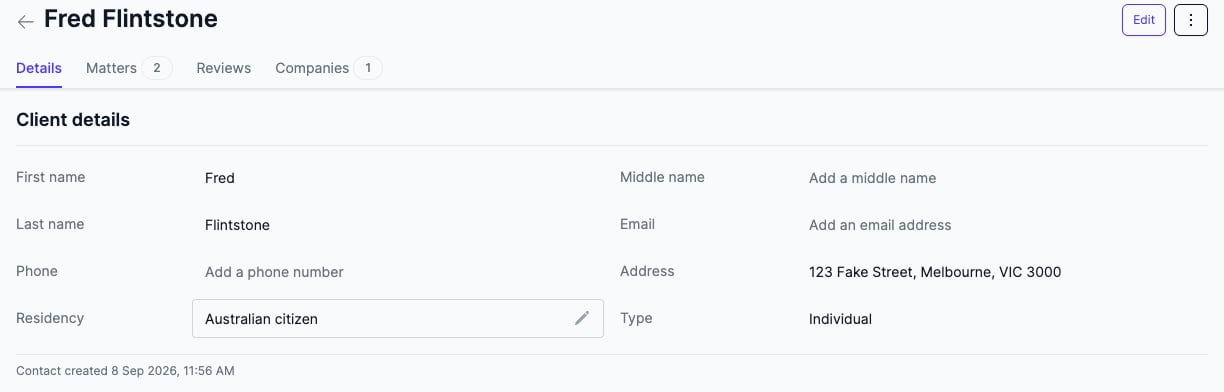
Click a contact to open the profile. Every profile has these tabs:
- Details - the Client details section with the contact’s own details, including Residency and Type.
- Matters - every matter this contact is a party to. See Understanding matters.
- Reviews - every review linked to this contact, with property address, status, title reference, and submission date.
An individual’s profile also has a Companies tab listing the companies the individual belongs to.
A company’s Details tab lists its people, each with an Open button. For a contact created in Curia, New contact opens a side panel where you can link existing contacts or create new ones.
A copy icon beside values such as email, phone and address copies the value to your clipboard.
Residency shows the contact’s residency status, or Record residency status if none has been set. Hover over the field and click the pencil to change it. You can set it on any contact, including one imported from an integration.
An imported contact’s header carries a Contact sourced from label naming the integration.
FAQ
Do I need to re-enter a contact for every review?
No. Once a contact exists, you can link it to any review. The same record is reused across all reviews.
What does the Source column mean?
It shows where the contact originated - Curia for contacts created directly in Curia, or the name of your integration for imported contacts.
Can I use contacts without an integration?
Yes. Contacts work the same way with or without an integration; the only difference is where new contacts are created.