Introduction to report templates
How to find your report templates, what the dashboard tells you, and how to open a template in the editor.
Opening the Template Dashboard
Navigate to Settings > Templates to open the Template Dashboard. The dashboard lists your report templates by state, with each template’s name, status, and last-modified date.

Template statuses
Each template has one of two statuses:
- Published - the live template. New reports use this version.
- Draft - there are unpublished changes. Live reports keep using the published version until you publish.
Opening a template
Click a row in the dashboard to open the template.
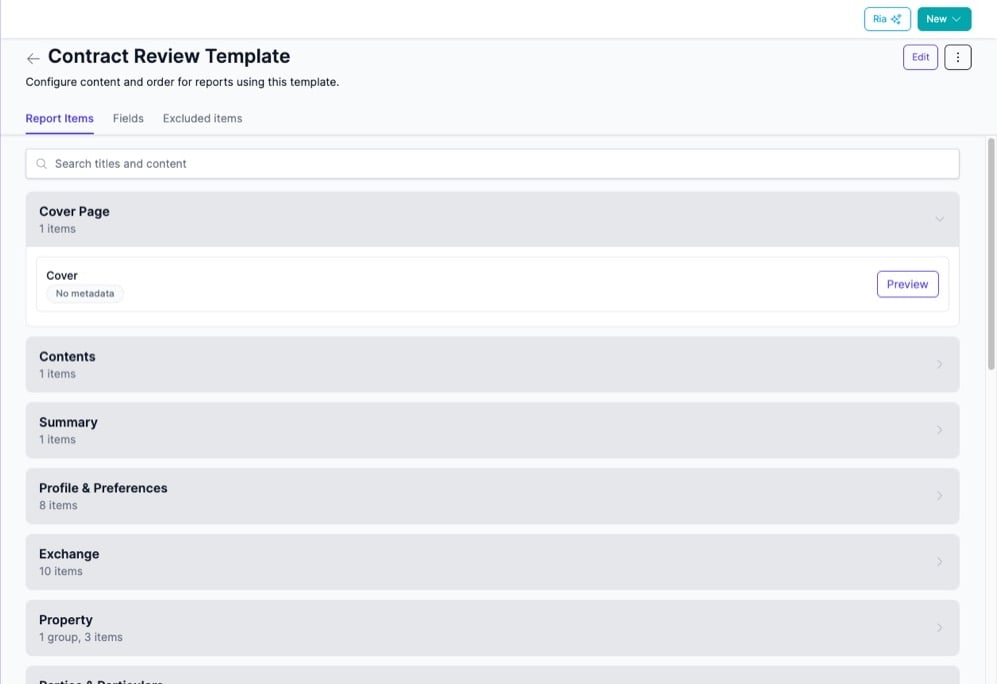
A Published template opens in read-only mode so you can browse the section, group, and item structure without risk. Click Edit in the header to create a draft and start editing - see Editing your report template.
Editor tabs
The editor has three tabs:
- Report Items - the active template content, organised into sections, groups, and items.
- Fields - every review field, where each reaches the report, and which ones a reviewer must answer. See The Fields tab.
- Excluded items - default content that’s been excluded from the template and is available to add back.
While you’re editing, a bar carries Discard and Publish changes, and the ’…’ menu in the header carries Version history and Settings.