Users and user roles
How to invite, manage and remove team members in Curia, and what each role can do.
Each person on your team has a role that controls what they can access. Inviting, changing roles and removing people is restricted to admins and the account owner.
Roles
Curia has three roles:
- Admin - full access to the account, including settings and the library.
- Conveyancer - reviews contracts and manages contacts.
- Reception - intake work: see the Reviews list and add documents, manage contacts. Cannot open a review.
The account owner is a separate flag on top of one of these roles, usually admin. Account owners also have access to billing and usage. There is one account owner per account.
What each role can access
Admin
Admins have the broadest access in Curia:
- The Dashboard and Reports.
- The full Reviews flow: the Reviews list, adding documents and opening a review.
- Contacts.
- All of Settings, including the Library, templates, branding, integrations and managing team members.
Admins do not have access to billing or usage; those belong to the account owner.
After signing in, an admin lands on the Dashboard.
Conveyancer
Conveyancers do the day-to-day review work:
- The full Reviews flow: the Reviews list, adding documents and opening a review.
- Contacts.
Conveyancers do not have access to Settings, the Library, the Dashboard or account-level reports. After signing in, a conveyancer lands on the Reviews list.
Reception
Reception covers intake without doing the review itself:
- The Reviews list and adding documents.
- Contacts.
Reception cannot open a review for inspection, and does not have access to Settings, the Library, the Dashboard or account-level reports. After signing in, someone in Reception lands on the Reviews list.
Account owner
The account owner has the access of their underlying role plus the billing and usage pages.
Inviting a team member
- In the sidebar, open Settings > Profile & Users.
- Select Members.
- Click Invite.
- Enter the email address and choose a role.
- Click Send invitations.
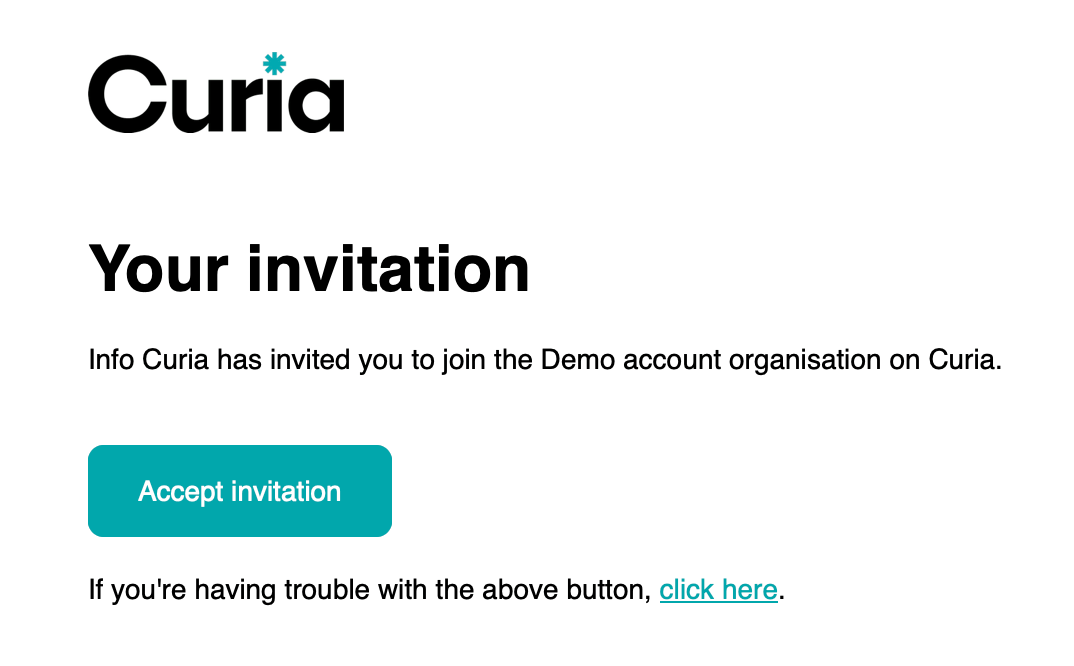
The invited person receives an email with a link to finish setting up their account. Once accepted, they’re listed in Members with the role you assigned.
Revoking an invitation
For an invitation that has not yet been accepted:
- Open Settings > Profile & Users.
- Select Members, then Invitations.
- Click the menu (the ’…’ icon) next to the invitee.
- Click Revoke invitation.
Changing a role
Role changes take effect immediately.
- Open Settings > Profile & Users.
- Select Members.
- Choose a new role from the Role dropdown next to their name.
Removing someone
Removing a team member revokes their access immediately. The reviews and matters they worked on stay with the account.
- Open Settings > Profile & Users.
- Select Members.
- Click the menu (the ’…’ icon) next to their name.
- Click Remove member.
Account owner
The account owner’s access cannot be reduced, and the owner cannot be removed through Profile & Users. To change who the account owner is, contact Curia support.
FAQ
How many team members can I add?
There is no limit on the number of team members on an account.
Who can invite and manage team members?
Admins and the account owner. Conveyancers and reception cannot open Profile & Users.
What happens when I remove someone?
Their access ends straight away. Anything they worked on, including completed reviews and matters, stays on the account.