Upload and assign new contracts
Upload one or more PDFs to start a review. Curia handles single files and contracts that arrived split across multiple PDFs.
Click New in the header and choose Review to open the upload page. Drop a PDF onto the upload area, or click Select files to pick one.
Uploading a contract
For a single contract, drop the PDF in or click Select files. A preview of the document is shown beside the upload area.
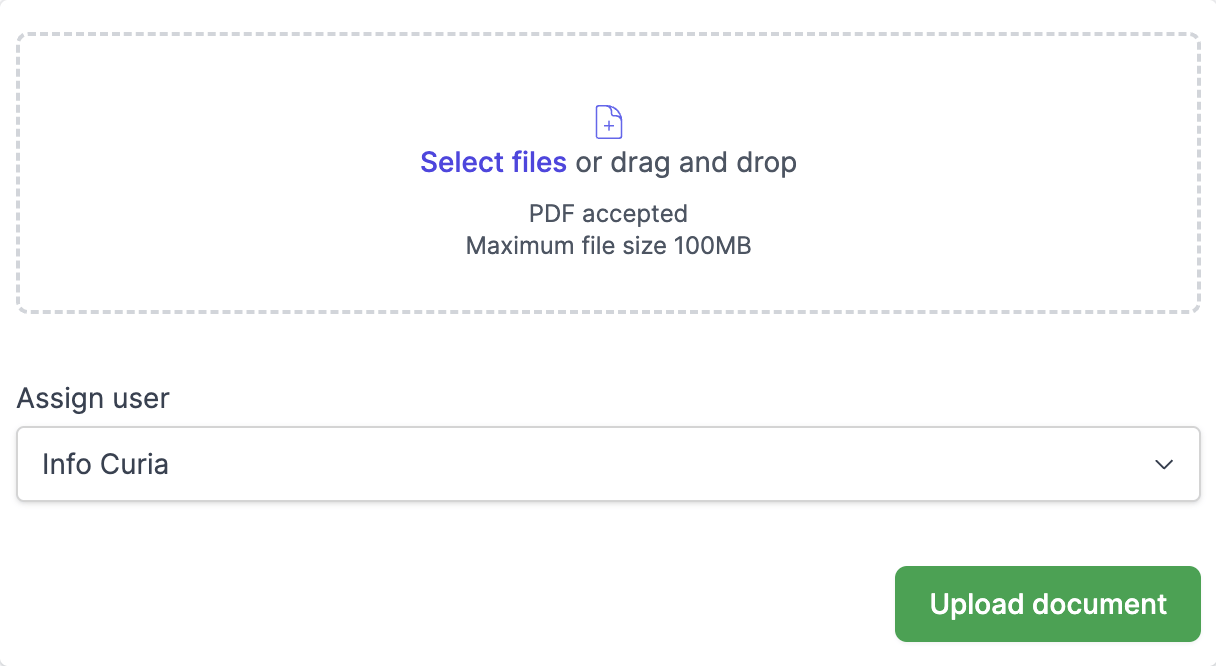
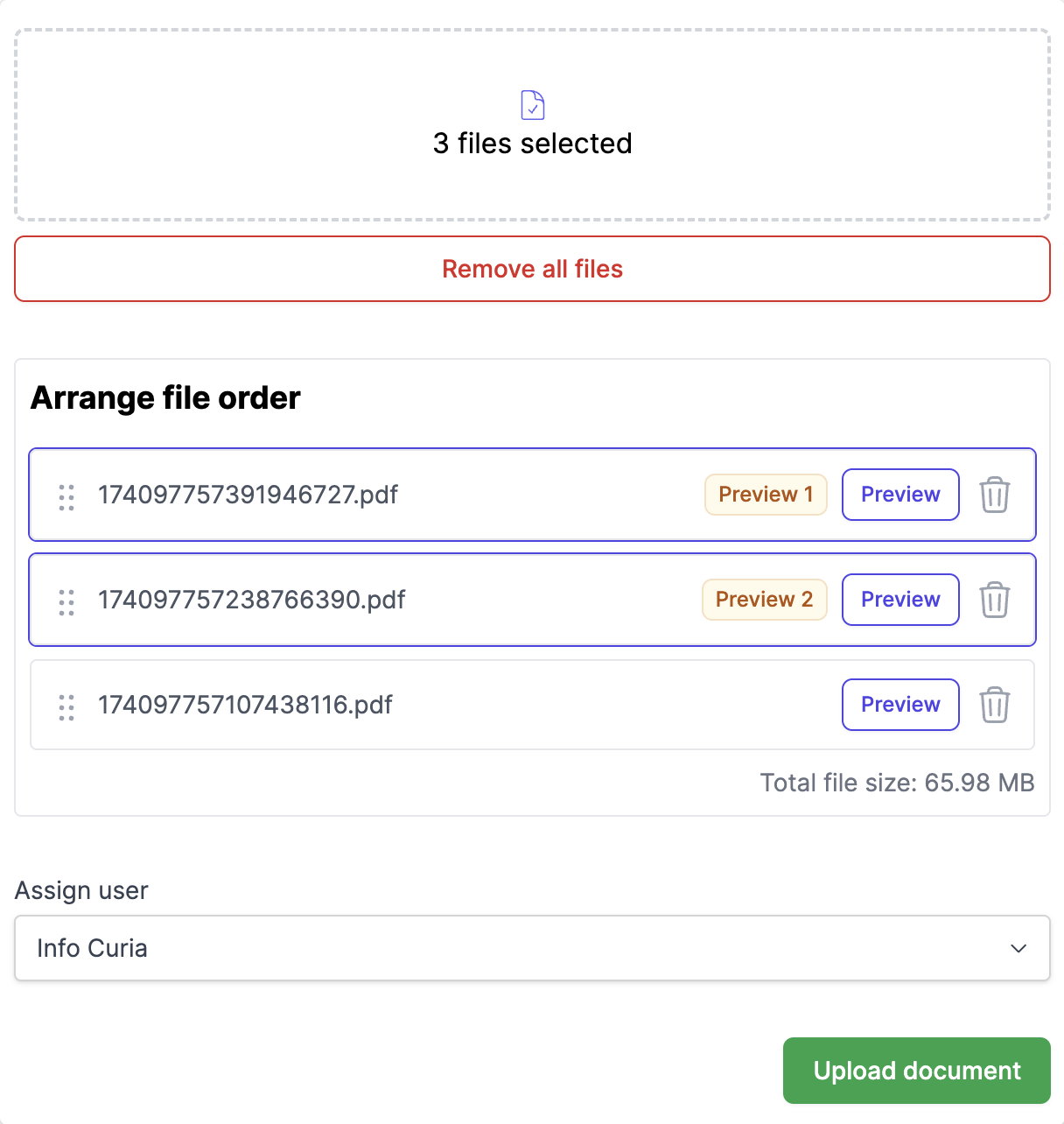
For a contract that arrived as separate PDFs - an agent who hit an email size limit, a long document split for easier handling - drop or pick all the files at once. The page switches to multi-file mode.
Multi-file ordering and preview
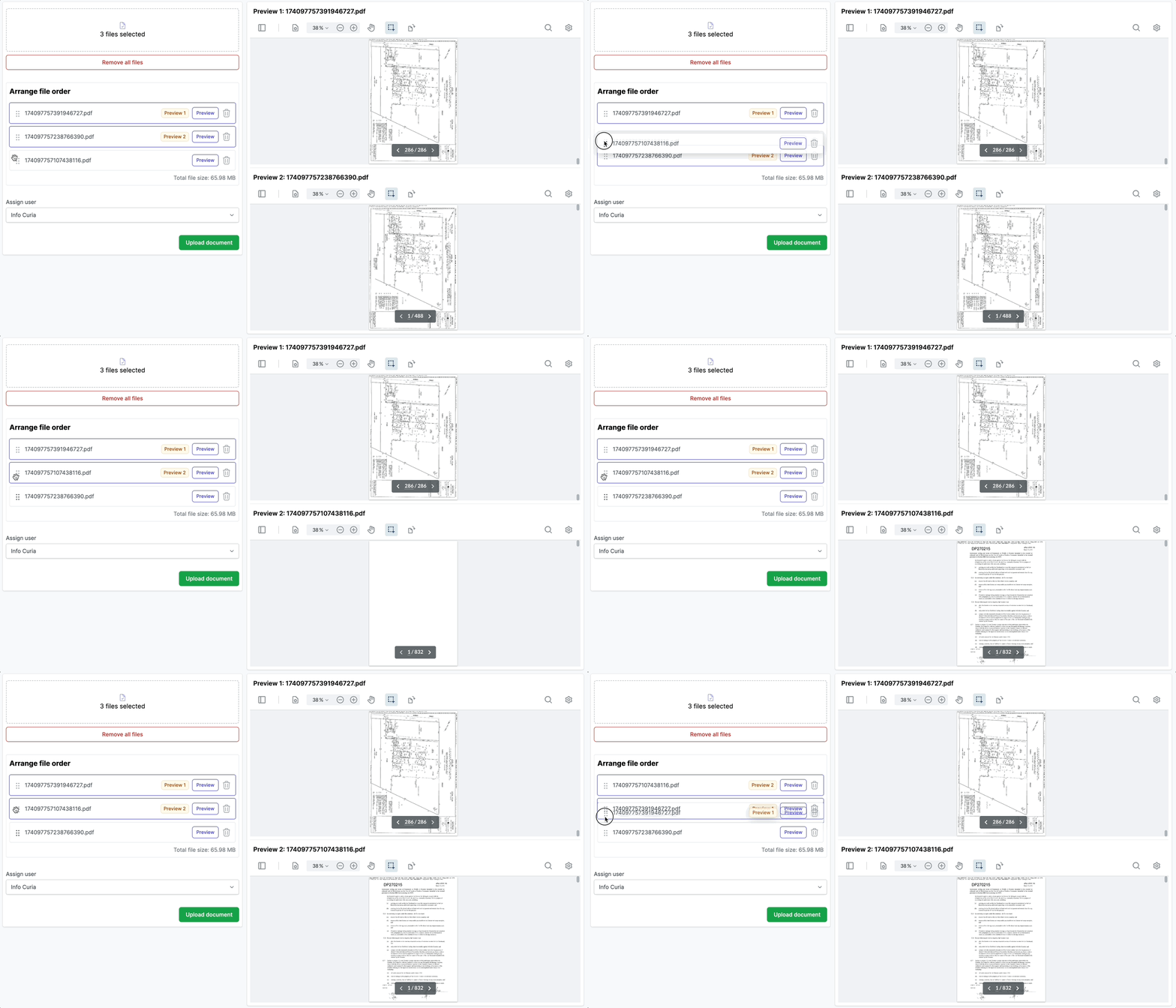
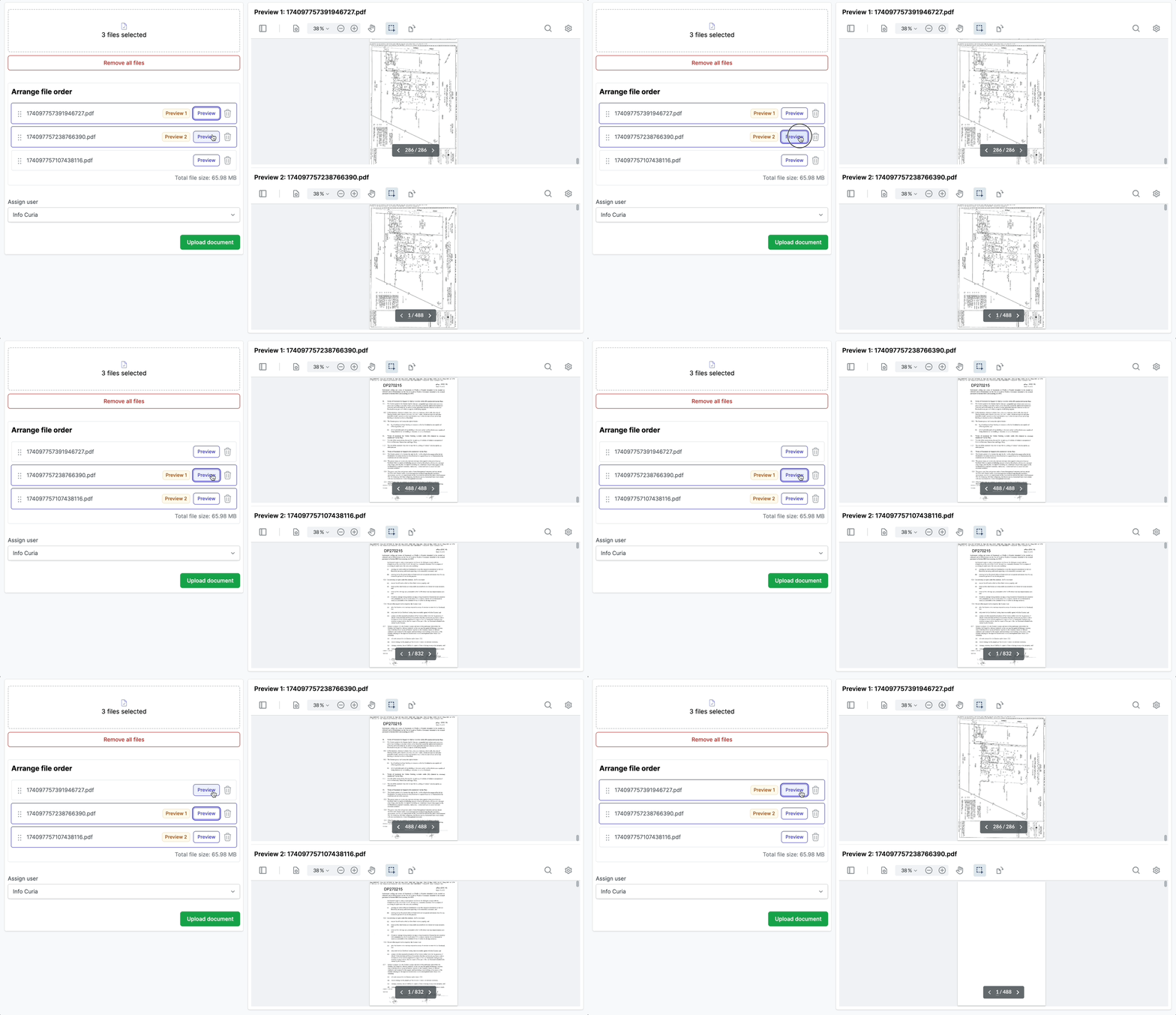
In multi-file mode each file is shown as a row which can be reordered to assemble a multi-part document into the original order. Drag the handle on the left of a row to reorder it. The row labelled Preview 1 and the next row labelled Preview 2 drive a dual preview pane: Preview 1 shows the last page of the first file and Preview 2 shows the first page of the next file, so you can confirm the contract is unbroken across the join. Click the Preview button on another file to inspect a different join.
Use the bin icon on a row to remove a file. Use Clear all to start over.
Assign and start
If your account operates in more than one state, pick the contract’s state from the Contract State dropdown.
The page has a step bar with Select document, Link to matter and, if the account has more than one user, Assign user. Click Continue to move on.
On the Link to matter step, search for an existing matter to link to the review, or skip the step to link one later. In a single-user account this is the final step, and Skip and start review starts the review without a matter. See Linking reviews to matters.
On the Assign user step, pick the team member who will run the review.
Click Start review on the final step. Curia processes the document and the assigned user receives an email once it is ready to review on the Reviews page.
What Curia accepts
- PDF files only
- Up to 10 PDFs per upload
- A 100MB file size limit for all files in a single upload
- No password-protected or encrypted PDFs
A document scanned at 300 DPI or higher gives the cleanest extraction.
FAQ
Can I upload Word or image files?
No. Convert to PDF first.
What if my file is larger than 100MB?
Compress the PDF if possible. If still over 100mb contact Curia support for an alternative upload method.
Can I upload a password-protected PDF?
No. Remove the password before uploading.
Who gets the email notification?
The user assigned to the review.
The contract is split across several PDFs. Can I upload them together?
Yes. Pick all the files at once and arrange them in the correct order with the drag handles before clicking Start review.