Controlling visibility
Use visibility conditions to hide whole sections, groups, or items, and table row visibility to hide single rows.
Visibility conditions
A visibility condition controls whether a whole section, group, or item appears in the report. It’s all-or-nothing for the element.
A GST section, for example, can carry a visibility condition that checks whether the purchase involves GST. If it doesn’t, the section and everything inside it is hidden.
Visibility conditions vs conditional blocks
- A visibility condition decides whether a whole section, group, or item appears. It’s set in the Settings tab.
- A conditional block decides which content appears inside an item. It sits in the item content editor.
Use visibility conditions to drop a whole element. Use conditional blocks to vary the content of a single item.
Setting a visibility condition
- Open the settings for a section, group, or item.
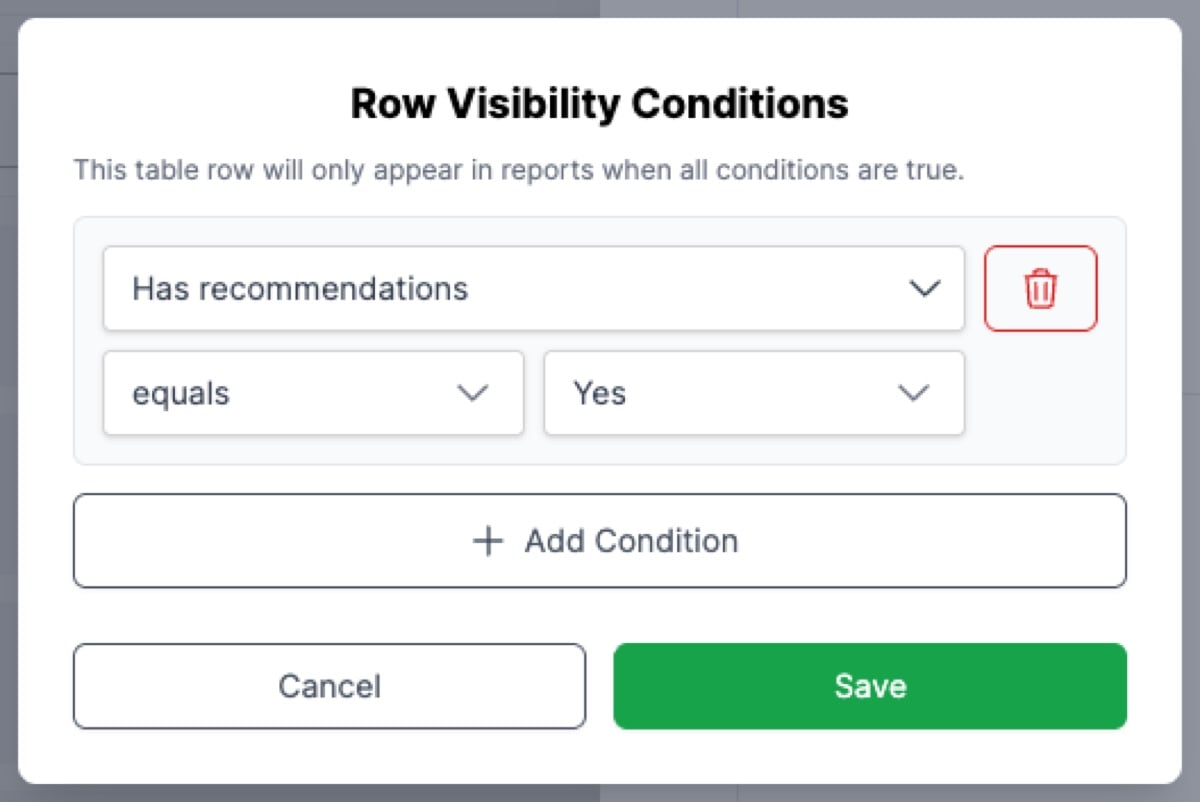
- Click Add Condition.
- Pick the field, operator, and value.
State-specific fields
The fields available in the picker depend on the contract state the template is for. Some flags, like Unregistered title and Reduced deposit (the deposit is less than 10% of the purchase price), are available in both. An NSW template also surfaces flags like Has strata plan; a VIC template surfaces flags like Has overlays, Has owners corporation and Contract has subject-to conditions.
A VIC planning section can be gated to only appear when the contract carries a planning overlay:
- Field: Has overlays
- Operator: equals
- Value: Yes
Multiple conditions (AND)
When an element has more than one visibility condition, all of them must be met for the element to appear.
For example, a section with:
- Has strata plan equals Yes AND
- Unregistered title equals No
shows up only when both are true.
Other visibility mechanisms
An item is also hidden when the reviewer hides the field it reports on, along with every other item reporting on that field - see Understanding your report template.
The Print even when the field is hidden in review setting overrides both visibility conditions and that field guard.
Empty sections and groups
A section or group that produces no content doesn’t appear in the report. Its heading goes with it, and for a section so does its page break, so the report has no bare headings and no gap where the section would have been.
This applies whatever emptied the container: every item inside it hidden by the reviewer, every item’s own visibility condition unmet or the items resolving to nothing on this contract. You don’t need a condition on a section to keep it out of the report when there is nothing to put in it.
Set a condition on a section when you want it dropped for a reason the content alone doesn’t express.
Table row visibility
You can set a visibility condition on a single table row, so the row only appears when its condition is met while the rest of the table renders normally.
Useful when a table should always appear but some rows are only relevant in certain cases:
- A property details table where the strata-lot row only appears for strata properties.
- A summary table where line items depend on the transaction type.
- A costs table where the purchase price row only appears when the price is known.
Setting row visibility
- In the item editor, place the cursor in the table row.
- Open the table menu in the toolbar and select Row visibility conditions….
- Set the field, operator, and value.
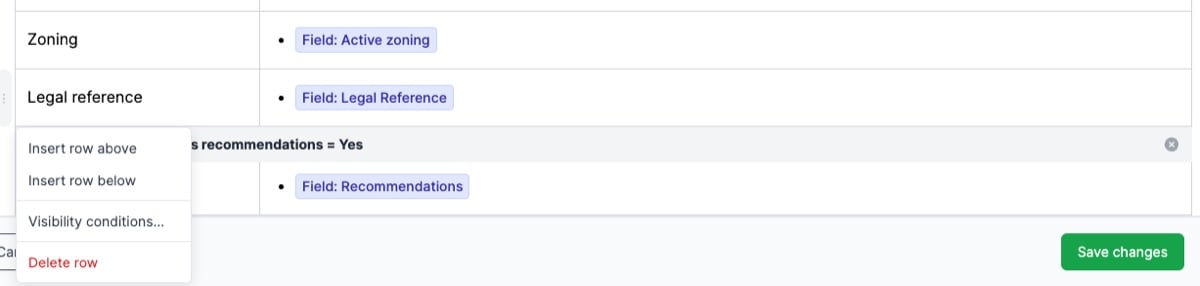
A row’s condition works the same way as a visibility condition on a section, group, or item. When the condition isn’t met, the row is dropped and the rest of the table renders without it.
Rows without conditions
A table row with no visibility condition always appears. Only set conditions on rows that should sometimes be hidden.