Using the Document Map
The Document Map labels detected sections in the contract PDF so you can jump to a title search, dealing, or certificate without scrolling.
The Jump to section dropdown sits below the PDF viewer on both desktop and mobile. It lists each detected section in the contract with its page and a short label, and it updates to show the current section as you scroll or change pages.
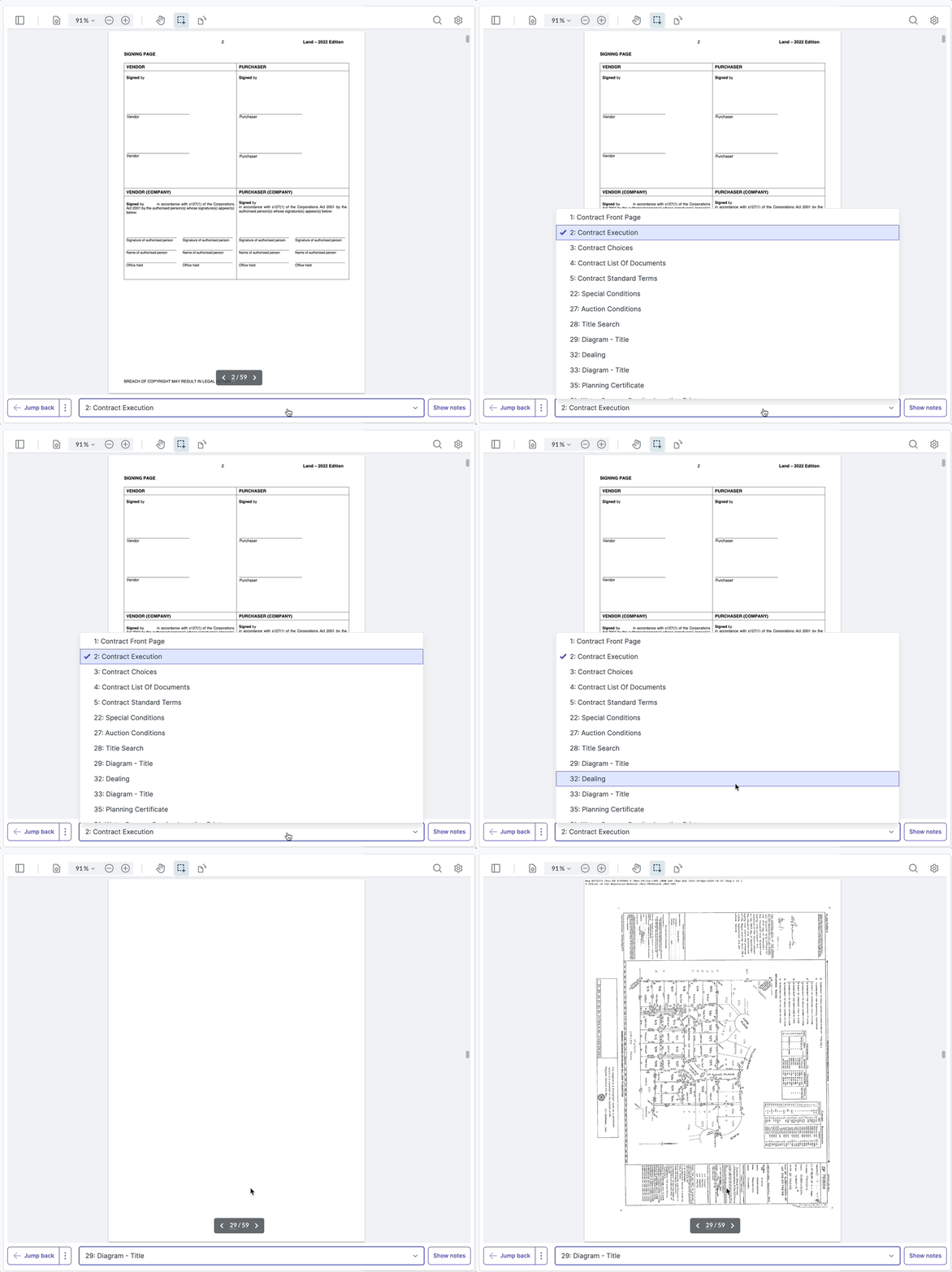
Jumping to a section
Open Jump to section and select an entry to jump to the first page of that section. The dropdown reflects where you are in the document, so the selected entry changes as you move through the PDF.
What Curia detects
Curia identifies the documents in the contract and labels each one in the dropdown. The dropdown shows every detected section, so its length depends on what’s in the contract PDF. Typical entries include:
NSW NSW: details specific to New South Wales reviews
- Title Search
- Plan
- Dealing
- Planning Certificate
- Pool Certificate of Compliance
- Pool Certificate of Non-Compliance
VIC VIC: details specific to Victoria reviews
- Section 32 Vendor Statement
- Title Search
- Plan
- Dealing
- Planning Certificate
- Land Information Certificate
- Water Information Statement
- Owners Corporation Search Report
- Owners Corporation Information Statement
- Owners Corporation Rules, AGM and Supporting Documentation
- Due Diligence Checklist
- Pool Certificate of Compliance
Jumping back to a previous section
After you use Jump to section, a Jump back button appears next to the dropdown. Click it to return to where you were before the last jump.
Click the dropdown arrow on Jump back to see up to the last five jumps under a Page jump history header, with the earliest entry marked Oldest. Select any entry to return to that location.
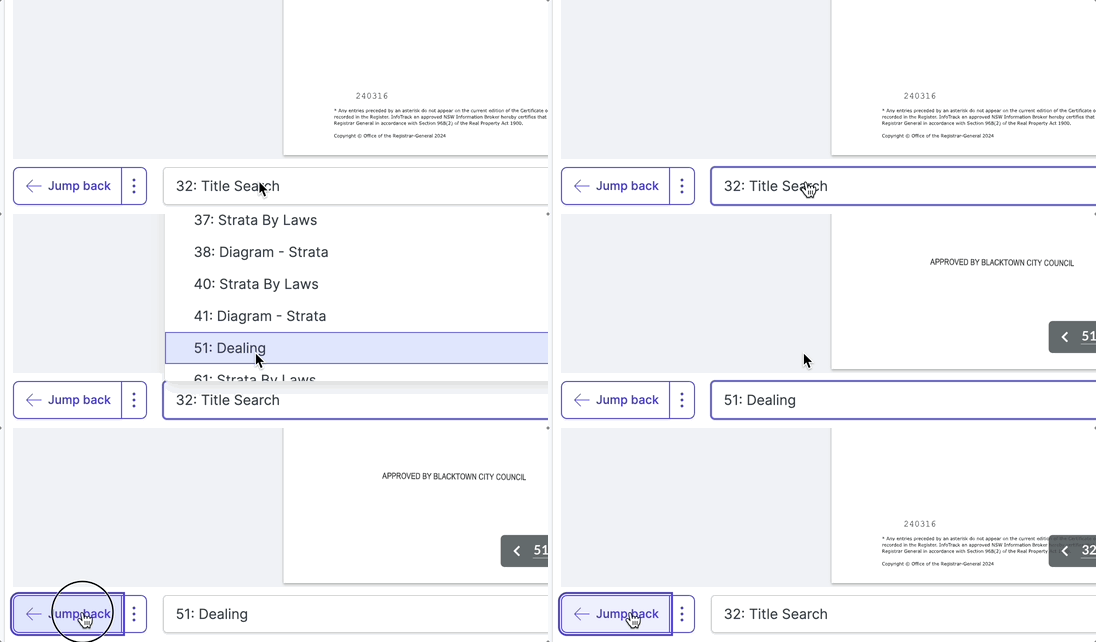
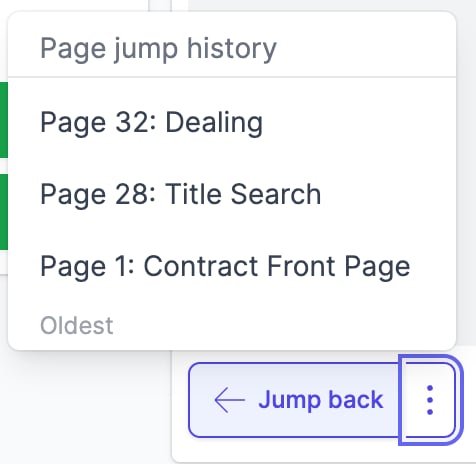
Only jumps made through Jump to section or a smart navigation button are recorded. Scrolling and using the PDF page controls do not add entries.
Smart navigation from review fields
Some review fields show a button that jumps straight to the relevant detected section:
- Show Title Search on the Parties tab, when a vendor name on the contract doesn’t match the title search.
- Show Title Search on the Title tab, when a title reference on the contract doesn’t match the title search.
These buttons use the same jump history as Jump to section, so Jump back returns you to the field you were on.
FAQ
Why is a section missing from the dropdown?
Curia identifies sections automatically from the PDF. If a document is hard to read or laid out unusually, a section may not be detected. You can still navigate to it with the PDF page controls.
Why does a dealing show without a number?
A dealing may show without a reference number when it hasn’t been registered or when the dealing number couldn’t be read from the document.
Can I edit the entries in the dropdown?
No. The list is generated from what Curia detects in the contract and isn’t editable.