Using merge tags and conditional blocks
How merge tags pull live review data into a report, and how conditional blocks include or hide content based on that data.
Merge tags
A merge tag is a placeholder that’s replaced by review data when the report is generated. A purchase-price tag becomes the actual purchase price; a property-address tag becomes the actual address.
Inserting a merge tag
- Place the cursor where you want the data.
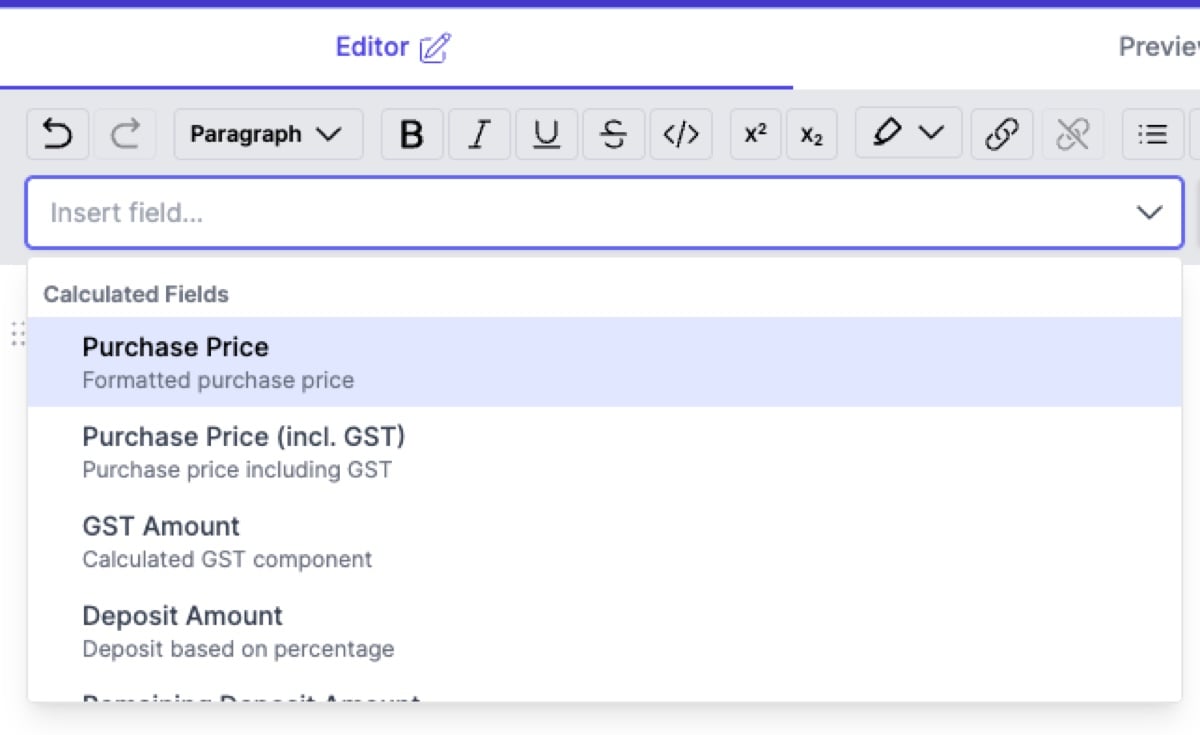
- Click Insert field… in the toolbar.
- Browse or search for the field.
- Click to insert.
The picker opens with a Calculated Fields group, then the review fields grouped by the tab they sit on (Exchange, Parties, Planning and so on).
How merge tags look
In the editor, a merge tag shows as a label reading Field: followed by the field name. In the Preview tab and in the final report, it is replaced by the actual value.
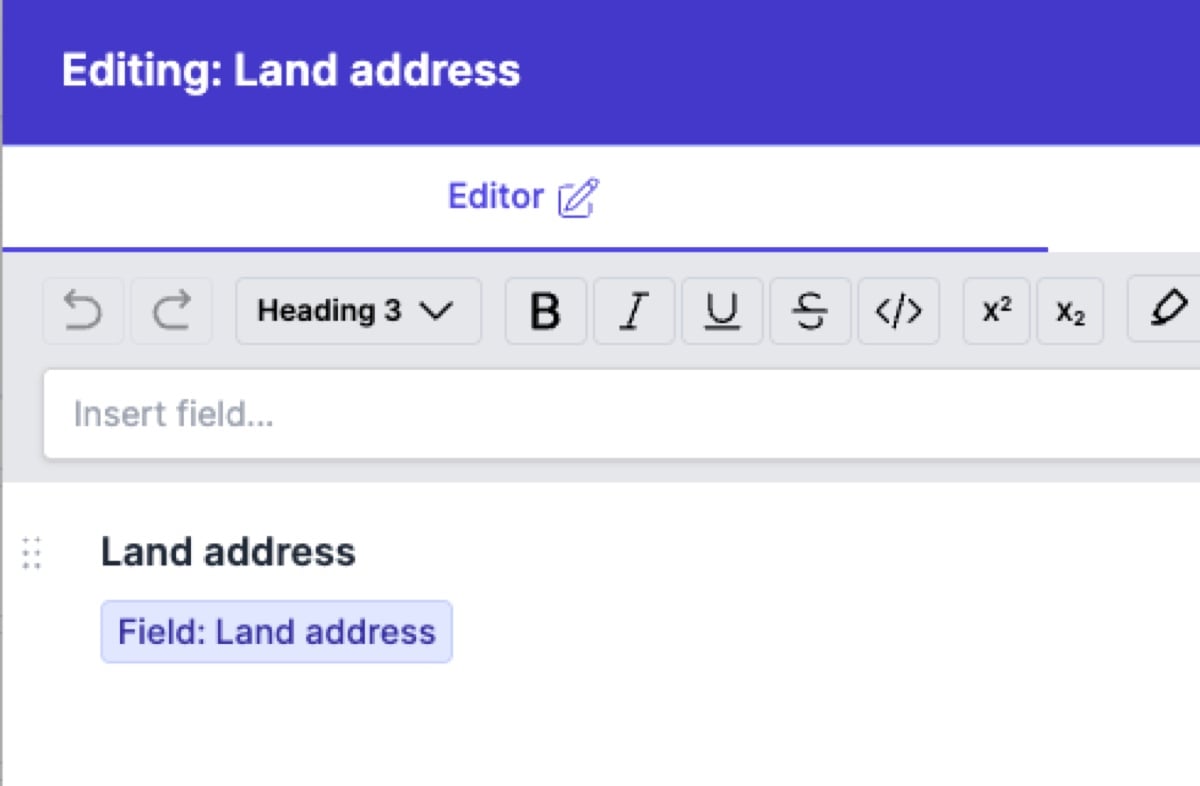
State-specific fields
The fields available in the picker depend on the contract state the template is used for.
Special merge tags
Alongside the review-data fields, the picker carries a few special tags:
- Table of Contents - generates a table of contents from sections with Show section name turned on. Usually placed in its own item at the start of the template.
- Account Logo - inserts your account’s logo image from the Branding settings, separate from the header/footer logo.
- Amendment Requests - a compiled list of every amendment the reviewer flagged. Each entry is listed automatically; you don’t add them one by one.
See Special merge tags for the detail.
What happens with no data
If the field a merge tag points at has no value, the tag is removed from the report and the surrounding text flows together. Write the content so it reads naturally either way.
Where removing it leaves a paragraph or a list item with nothing in it, that line goes too, so an empty tag doesn’t leave a blank line or an empty bullet behind. A list that loses every item goes with them. A line you deliberately left blank in the template is kept.
Conditional blocks
A conditional block holds content that only appears when a condition is met, such as a paragraph that should only appear when the property is connected to main sewer, or different text depending on the method of exchange.
Inserting a conditional block
- Place the cursor where the conditional content should go.
- Click Insert conditional… in the toolbar.
- Search or browse and pick the condition.
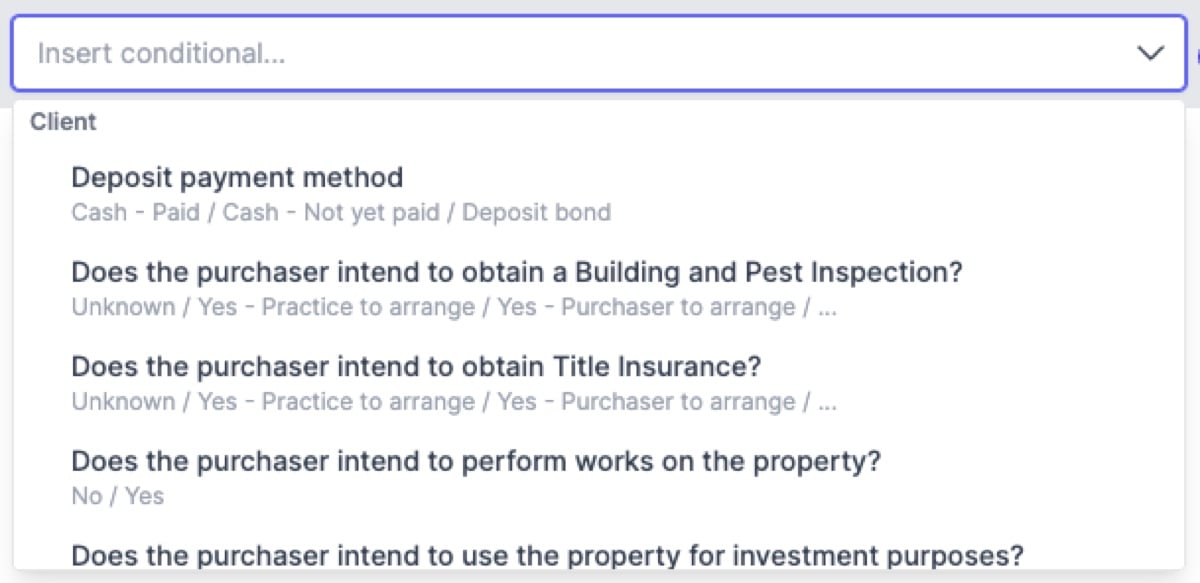
Three kinds of condition:
- Value-based - checks for a specific option. Method of exchange shows Private Treaty / Auction / Unknown as branches.
- Presence-based - checks whether the field holds anything at all. These are suffixed
(presence)in the picker, like Inclusions (presence). - Report Logic - grouped under their own heading, each answering a question about the contract with Yes and No branches, like Has strata plan.
Pick the condition and the block is inserted with every branch.
Some fields hold several values at once, like planning overlays or the conditions a contract is subject to. These carry a multi-select label in the picker, and picking one opens the Insert Conditional window asking How should this block behave?:
- List every option - one branch per option. Every option the property carries renders, so a property with ten overlays shows ten branches.
- List one option - two branches, present and absent, for one option you choose. Exactly one renders, so you can write wording for both cases.
Click Insert block to add the block.
The conditions available depend on the contract state the template is used for. A VIC template surfaces conditions like Has overlays, Has owners corporation and Subject to alongside the cross-state ones.
How conditional blocks look
A conditional block is a coloured region in the editor with every branch shown, each labelled with its condition value. On a multi-select field the branch labels read includes and does not include.
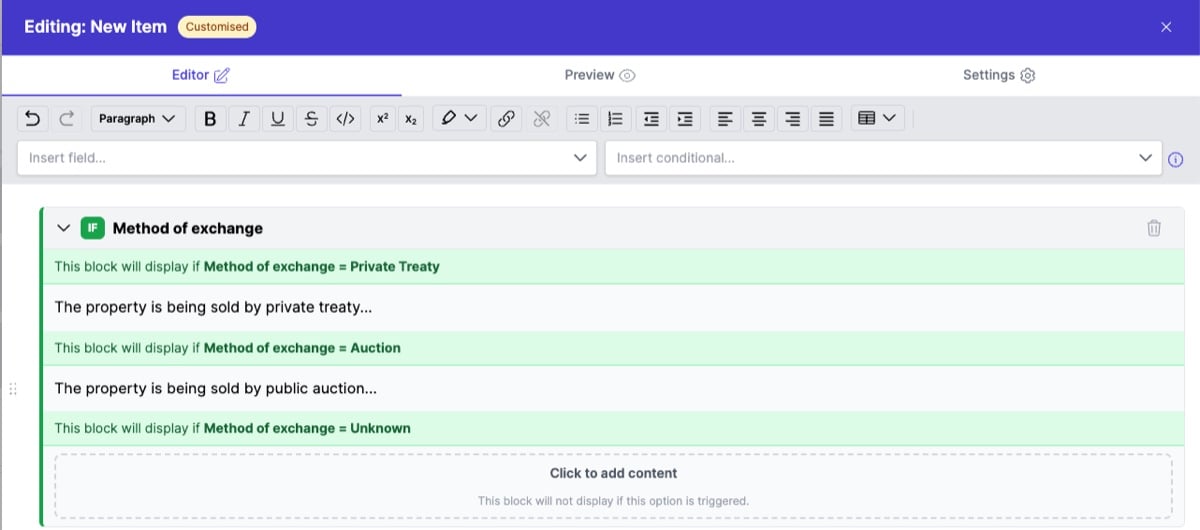
Branches
A block carries a branch for each outcome you chose when you inserted it. Write content in the branches that need it; leave the rest blank. When the report is generated, the branch matching the review data renders and the rest are dropped. Blank branches produce no output.
For a Method of exchange block:
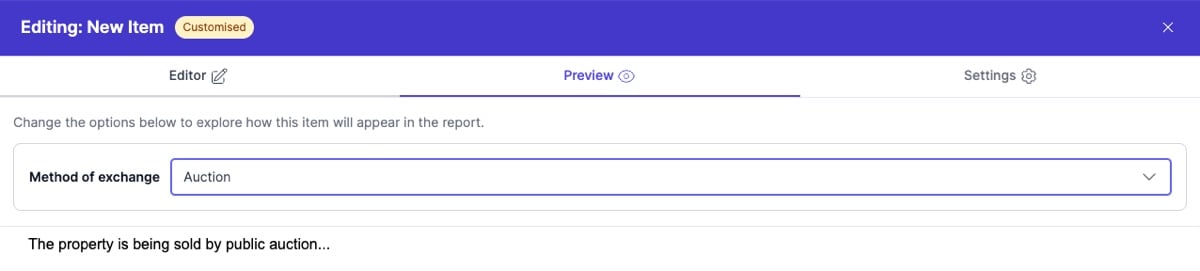
- Private Treaty - “The property is being sold by private treaty…”
- Auction - “The property is being sold by public auction…”
- Unknown - left blank, so nothing renders when the method is unknown.
On a multi-select field every matching branch renders. A property carrying three overlays shows the content of all three, following the order the overlays are held on the review rather than the order the branches sit in the block. Write each branch so it reads on its own, since any of them may appear alongside the others.
Nesting
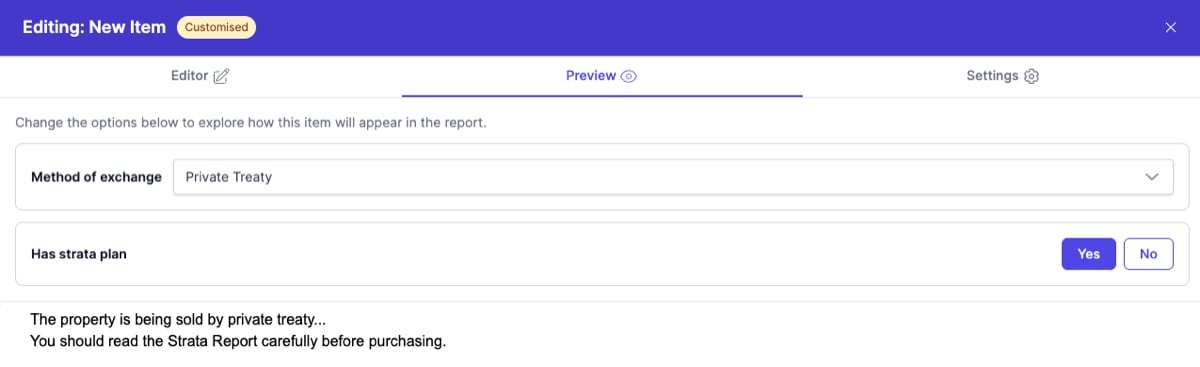
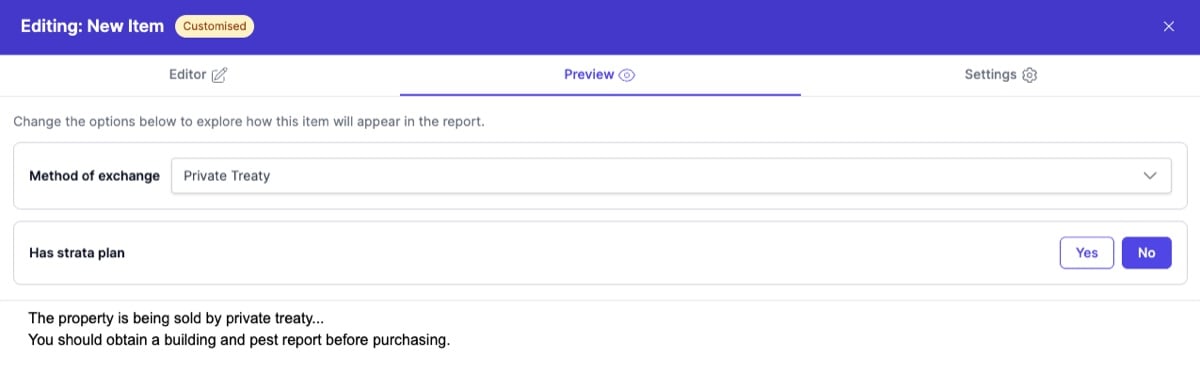
A conditional block can sit inside a branch of another conditional block, so you can target combinations of conditions. For example, a Has strata plan block inside the Private Treaty branch produces content only when the method is private treaty and the property has a strata plan.
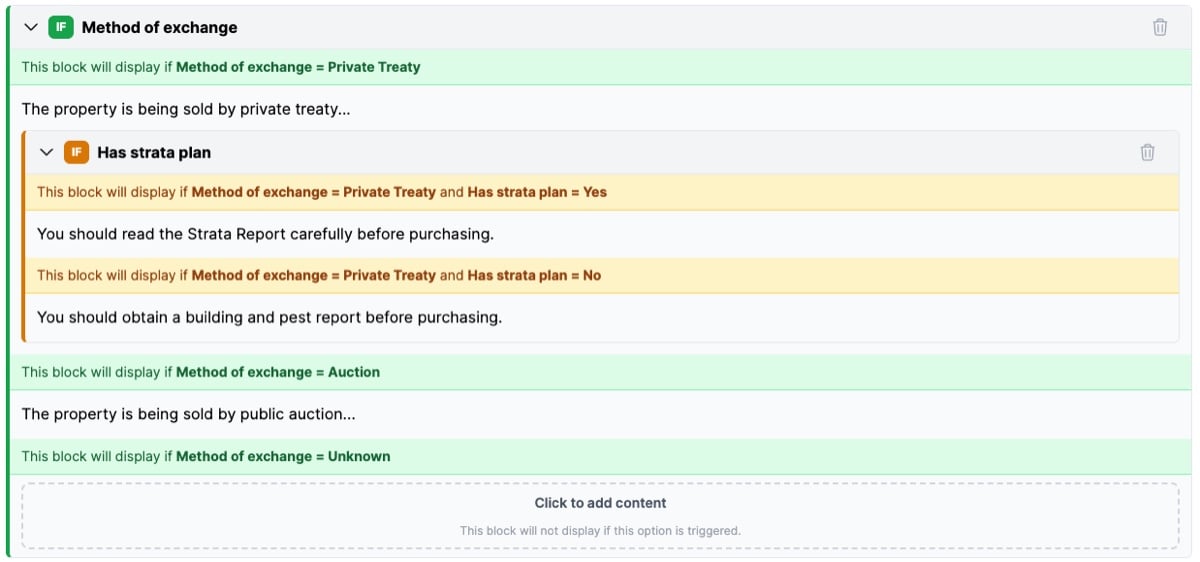
Each level of nesting is shown in a different colour.
Testing in the preview
The Preview tab includes a control for each field the item’s blocks depend on: Yes and No buttons for a Report Logic condition, a dropdown for a single-value field, and a tag list for a multi-select field. Set a value to render the item against it. The tag list takes several options at once, so you can check a block against a property carrying more than one. A control inside a nested block shows only while the outer condition is set to the matching value.