Amendments and questions
Amendments and questions to the vendor's solicitor, how Curia sets them on fields, carries them in from Preflight, and where you manage them on the Finalise tab.
A Request is anything you raise with the vendor’s solicitor on a review. Every request is one of two types. An Amendment asks for the contract to be changed. A Question asks the vendor’s solicitor for information without changing the contract. Both are compiled on the Finalise tab and included in the generated report.
Requests reach the lists three ways: from advice on a review field, from a Preflight warning, or because you added one by hand.
flowchart TD
  A[Field advice] --> M["Finalise tab:\nAmendments & Questions"]
  B[Preflight warnings] --> M
  C["Manual add Request"] --> M
  M --> R[Report]
Field advice
Every field that carries advice has two parts: an Amendment for the vendor’s solicitor and a Recommendation for your client.
- Amendment is the legal wording sent to the vendor’s solicitor. It appears in the Amendments list on the Finalise tab.
- Recommendation is the plain-language explanation for your client. It appears only in the generated report.
Advice
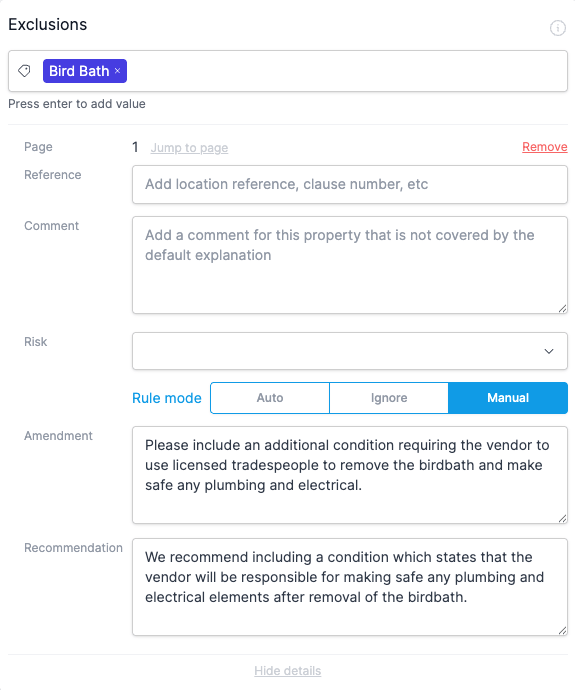
Each field has an Advice row that controls how the two parts are filled. Open the field’s options to reveal it, either by hovering the field or by clicking the button at the bottom of it. Fields whose advice can come from your library offer Auto, None, and Manual; the rest offer None and Manual. A line beneath the control says what the setting is doing on this contract right now.

- Auto is the default for rule-based fields. When the rule’s conditions are met, Curia fills the Amendment and Recommendation from the rule, in blue text so you can see at a glance that the wording came from a rule. If no rule triggers, no text is added. Editing the text switches the field to Manual, taking the rule’s wording as your starting point.
- None drops the Amendment and Recommendation for the field. Nothing appears for it on the Finalise tab, and no advice prints in the report, though the field itself still reports its value. Use it to suppress advice a rule has added that you don’t want to raise, for example when the vendor’s name doesn’t match the title but you know the property is in probate. It is also the default for fields without a rule.
- Manual lets you write the Amendment and Recommendation yourself. If you switch from Auto while a rule is showing text, the rule’s wording is carried over as a starting point.

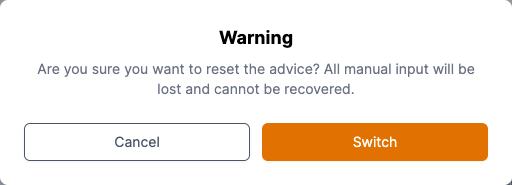
Switching from Manual back to Auto or None discards any text you typed. A confirmation prompt shows before the change applies.
Adding advice to a field without a rule
Any field with advice enabled can carry a manual Amendment and Recommendation, even when no rule exists for it.
- Open the field’s options.
- On the Advice row, select Manual.
- Fill in the Amendment and Recommendation rows.
The Amendment then appears in the Amendments list on Finalise alongside the rule-based ones.
Carried in from Preflight
When you start the review, Curia turns the Preflight warnings into amendments and questions for the vendor’s solicitor. They land in the lists as active items, ready for you to keep or remove. See Understanding Preflight.
Adding your own
The Add Request button sits in the page header on every tab once you have started the review. Adding from here does not move you off your current tab; the new item lands in the matching list on Finalise.

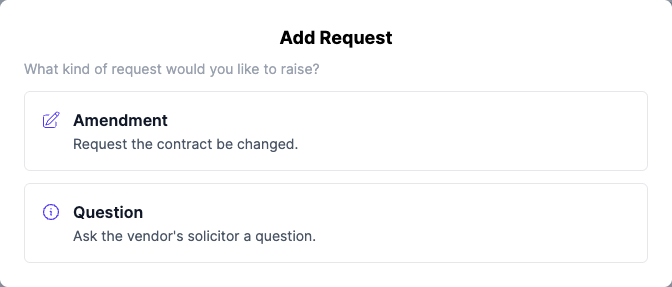
The button opens a window. First, choose Amendment or Question.
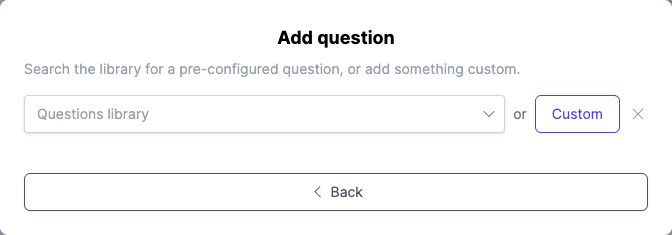
Then search the library for a pre-configured entry, or choose Custom to write your own. The picker is filtered to the type you chose: the Amendments library for an amendment, the Questions library for a question.
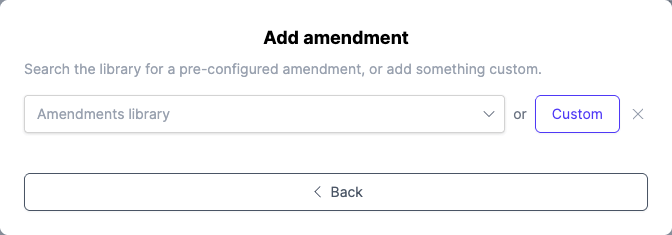
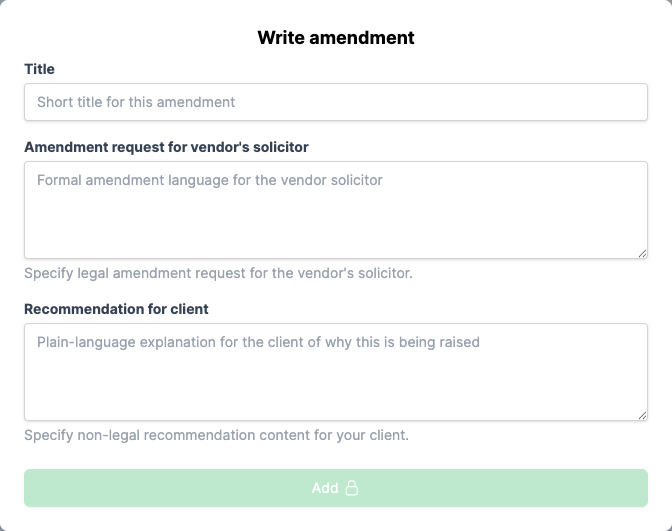
A custom request opens a short form. Fill in a Title, the text for the vendor’s solicitor, and a Recommendation for client, then click Add amendment or Add question.
You can also add straight from the Finalise tab. Each card has a library search at the bottom: pick a pre-configured entry to add it to the list, or choose to write a custom one, which opens the same window with the type already set. The library is managed under Settings > Library. See Managing amendments and questions.
The Amendments and Questions lists
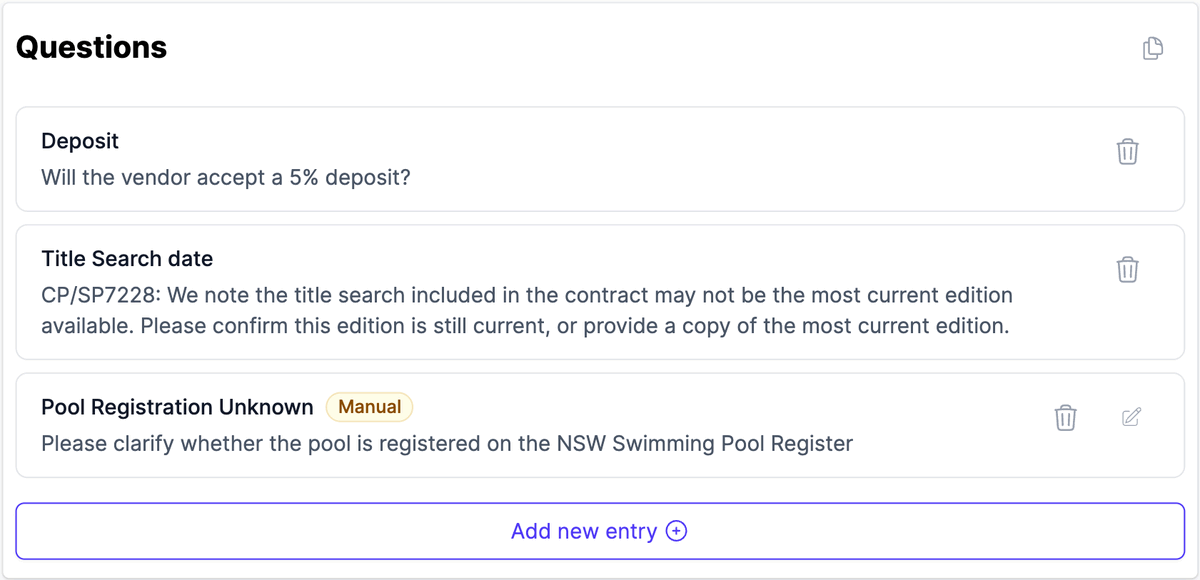
Open the Finalise tab. Requests are split into two cards, Amendments and Questions. Each card lists its items with a title and a short preview of the text that goes to the vendor’s solicitor. A copy button on each card copies that list, ready to paste into an email.
Each item carries a badge showing where it came from: Preflight for an item carried from a Preflight warning, Manual for an item you added. Field advice items have no badge.
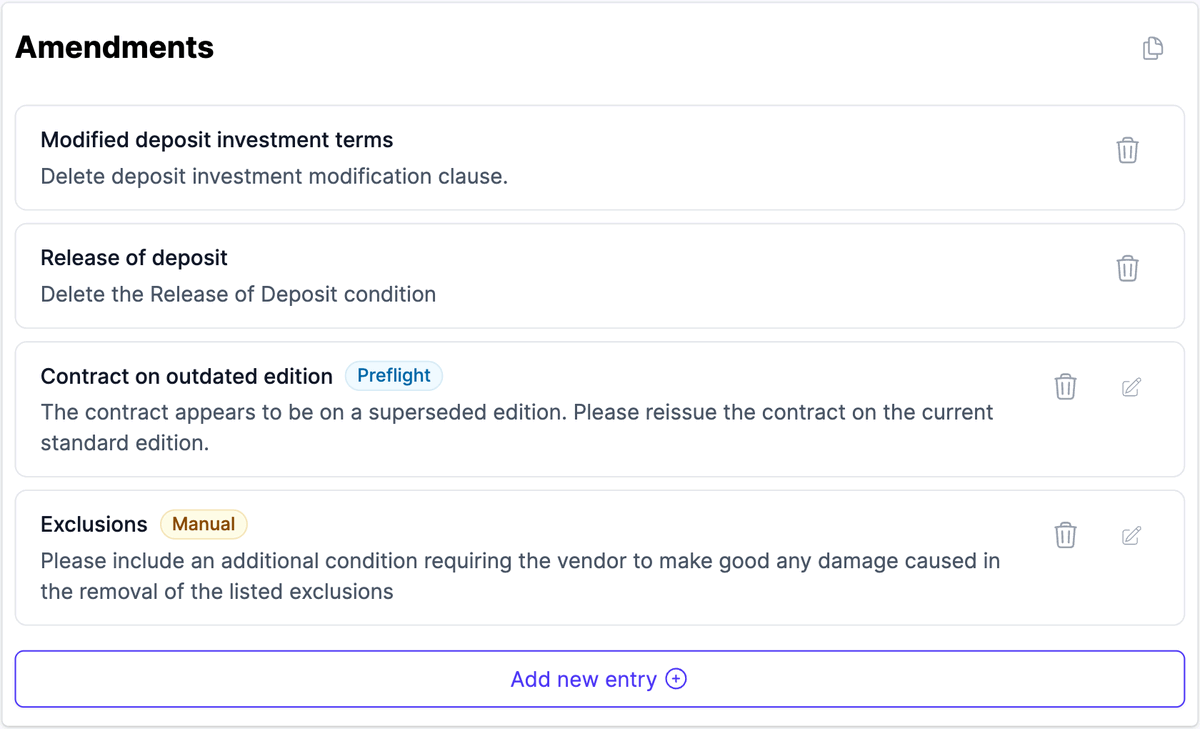
For each item you can:
- Jump to the source field. Field-derived items show the field name as a link; click it to go to that field on its tab. Items carried from Preflight and items you added are not anchored to a field, so they have no link.
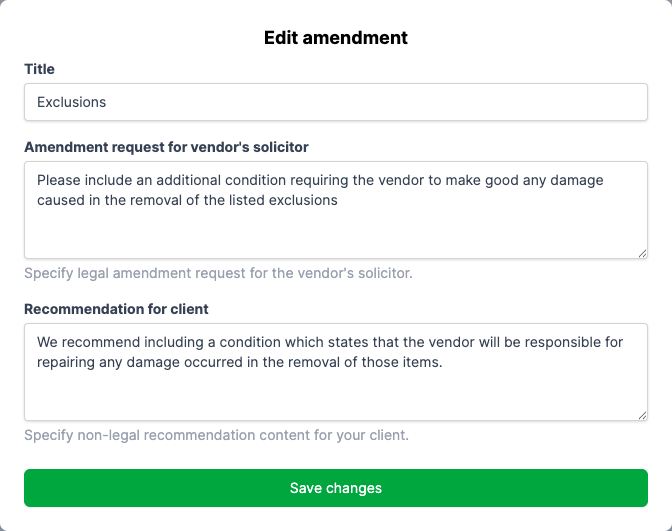
- Edit. Items carried from Preflight and items you added show an edit button that reopens the form. Field advice is edited on the field itself, not here.
- Remove. Removing an item is a two-step action. For a field-derived amendment, removing it sets that field’s advice to None, so the wording stays on the field if you want it back. For an item carried from Preflight or added by hand, removing it deletes it.
The edit button reopens the item’s form with its current text, ready to change. Click Save to apply your changes.
FAQ
What’s the difference between an amendment and a question?
An amendment asks the vendor’s solicitor to change the contract. A question asks them for information and does not, by itself, change the contract. The two are listed and sent separately.
What’s the difference between an Amendment and a Recommendation on a field?
The Amendment is the formal wording for the vendor’s solicitor and appears in the Amendments list on Finalise. The Recommendation is the plain-language explanation for your client and appears only in the generated report. Both are stored on the field.
I removed a field amendment by mistake. How do I get it back?
Removing a field-derived amendment sets that field’s advice to None. Open the field’s options and switch Advice back to Auto or Manual.
Can I save my own wording for reuse?
Not directly from a field or from a one-off request. To make wording reusable, add it in the Library, and every review that matches will use it. See Managing amendments and questions.
How do I turn a rule off for every future review?
The None option only affects the current review. To stop a rule from firing on any future contract, deactivate it in the Library.