Connecting triConvey
Connect triConvey to Curia so your contacts are available as you need them. Covers connecting, managing the connection, refreshing data, reconnecting and disconnecting.
triConvey is a conveyancing practice management platform. Connecting triConvey to Curia brings your contacts and matters into Curia as you need them, so you can link them to contract reviews without manual data entry.
Only Admins can connect, manage or disconnect an integration. Curia supports one CRM integration at a time; if another CRM is already connected, the Connect button on the triConvey card is disabled.
Connecting triConvey
- Go to Settings > Integrations.
- Click Connect on the triConvey card.
- Enter your triConvey email and password on the login page.
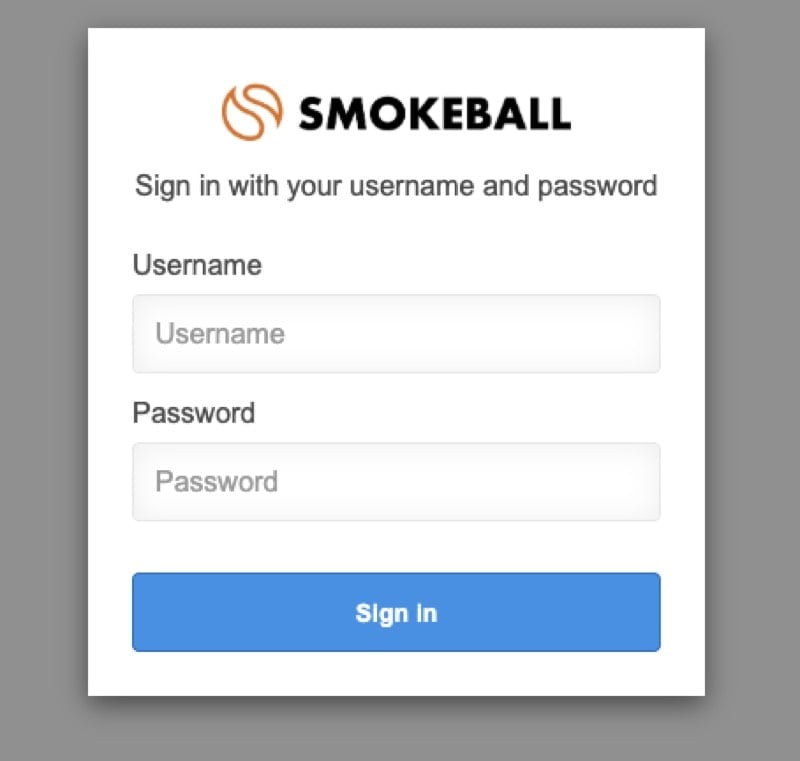
Once authenticated, you are returned to Curia and the integration is ready to use. Curia doesn’t import all triConvey contacts up front; contacts are brought in as you need them, for example when they’re a party on a matter you sync.
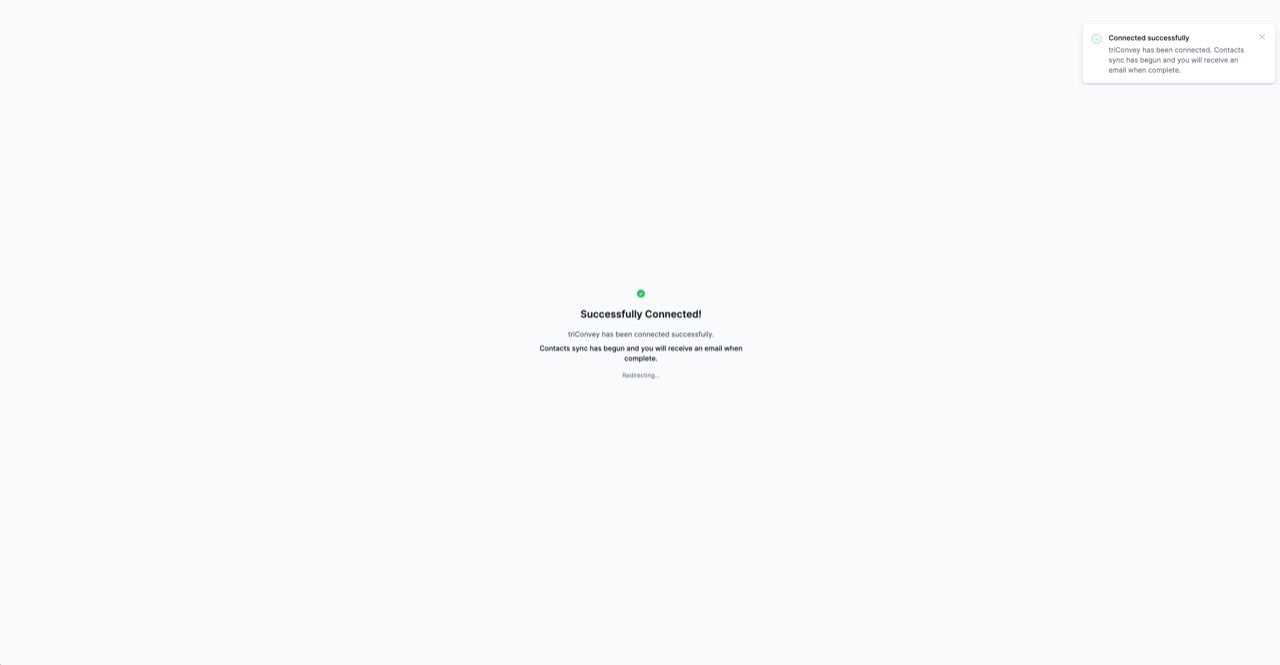
Managing the connection
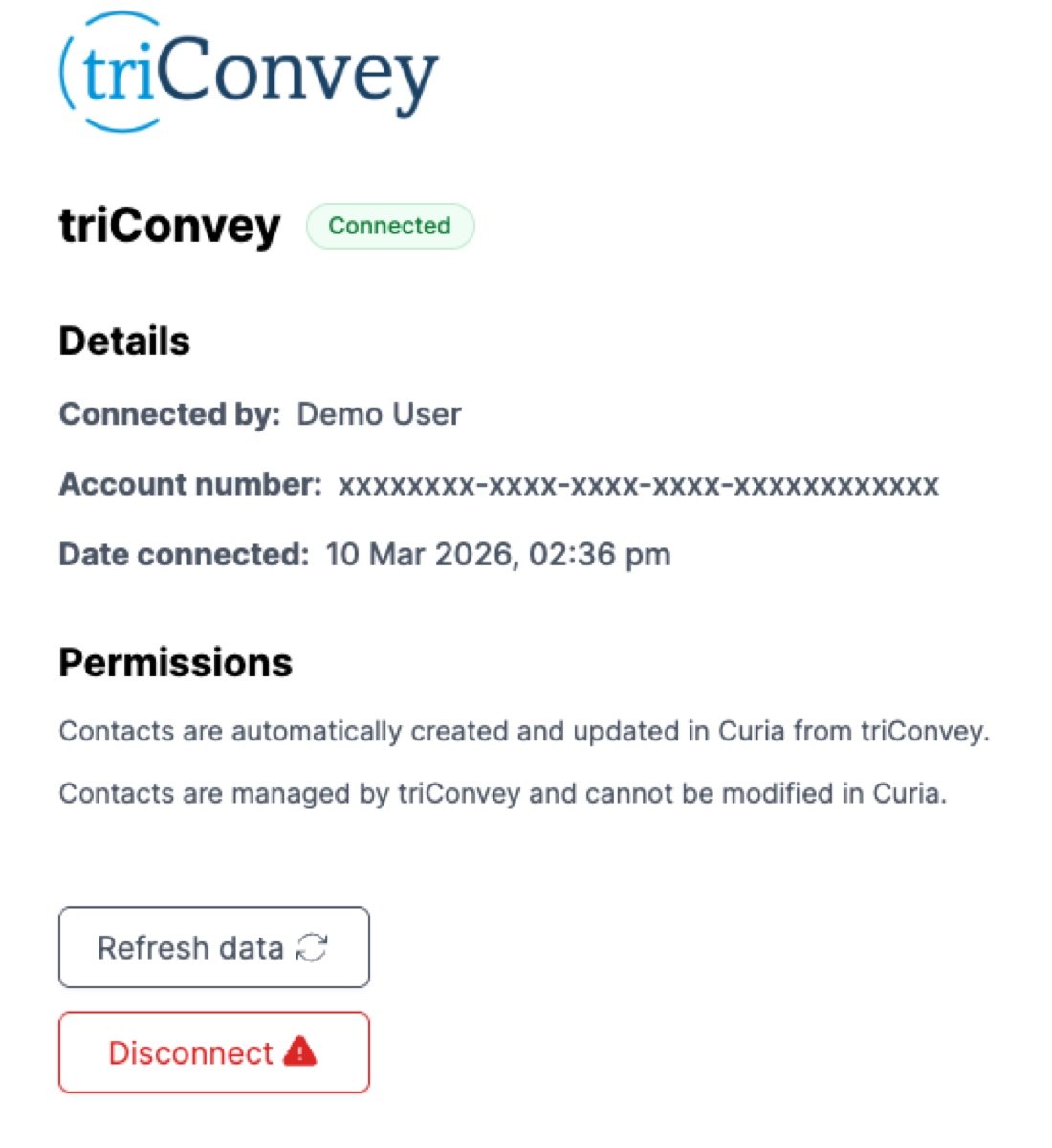
Click Manage on the triConvey card to open the management page. The connection details cover:
- Connected by - the team member who connected the integration
- Account number - your triConvey account identifier
- Date connected - when the connection was established
- Connection expires - when the current authorisation will expire
Refreshing data
Changes you make in triConvey to contacts already in Curia come through automatically.
To pull the latest manually, click Refresh data on the management page. It refreshes the contacts Curia already has from triConvey. Use it if a recent change in triConvey hasn’t made it to Curia yet. This should not be necessary under normal circumstances.
Reconnecting before expiry
triConvey authorisations have an expiry date, shown in the Connection expires field. Admins on the account receive reminder emails before expiry. Within seven days of expiry, and after expiry, the management page also includes a Reconnect now banner. Click Reconnect now to sign in again and extend the connection without losing your imported contacts.
If the connection has already expired, syncing pauses until you reconnect. Existing imported contacts stay in Curia.
Disconnecting triConvey
- Go to Settings > Integrations and click Manage on triConvey.
- Click Disconnect.
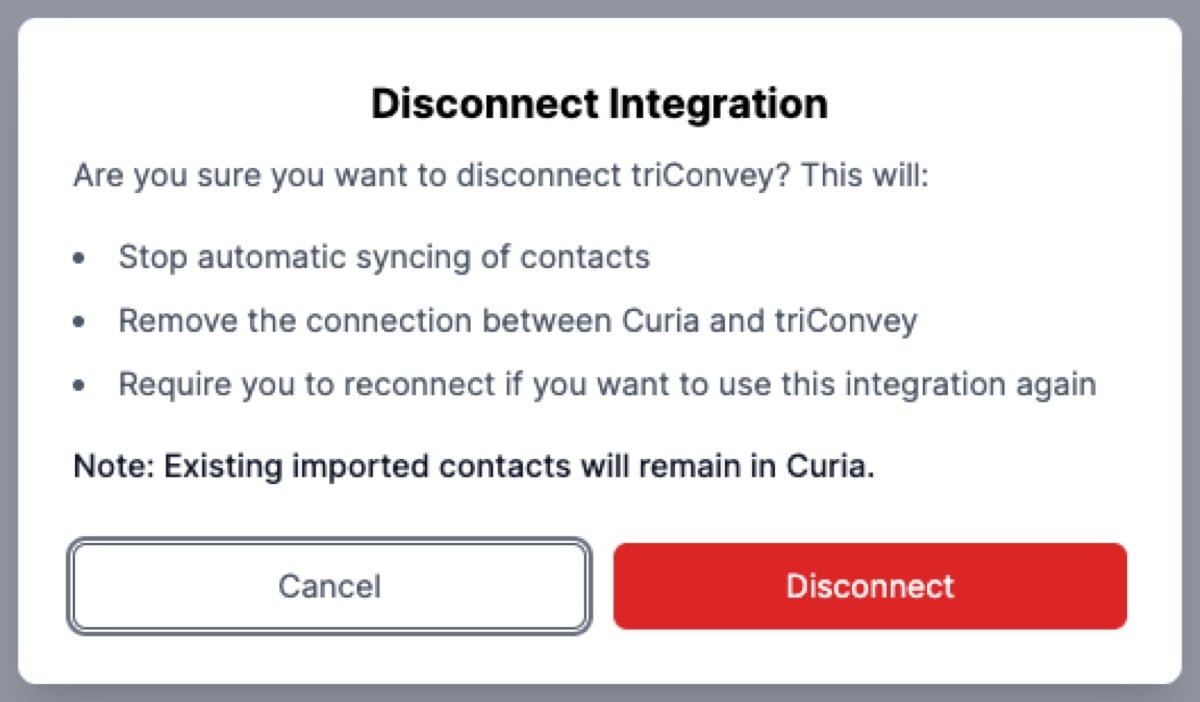
- In the Disconnect Integration dialog, click Disconnect to confirm.
Disconnecting stops automatic contact syncing and removes the connection between Curia and triConvey. To use the integration again you need to reconnect.
FAQ
Who can connect triConvey?
Only Admins can connect, manage or disconnect integrations.
Can I connect more than one CRM?
No. Curia supports one CRM integration at a time. If another CRM is already connected, the Connect button on the triConvey card is disabled with a tooltip explaining why.
What happens if I disconnect and reconnect?
Disconnecting stops syncing and keeps existing imported contacts in Curia. If you reconnect, syncing resumes.
What does Invalid credentials mean?
Your triConvey authorisation has expired or been revoked. Use Reconnect now on the management page banner, or click Disconnect and then Connect again to re-authorise.