Creating a matter from a screenshot
Paste a screenshot of your practice management system on the New matter page or while you upload a contract, and Curia fills in the new matter and its purchasers.
The screenshot option is on the New matter page and on the Link to a matter step of the upload. It is available when your account has no practice management integration connected. See Creating and managing matters and Linking reviews to matters.
Adding a screenshot
Open the matter in your practice management system so the matter number, description and client contacts are on screen. Then add the screenshot in one of three ways:
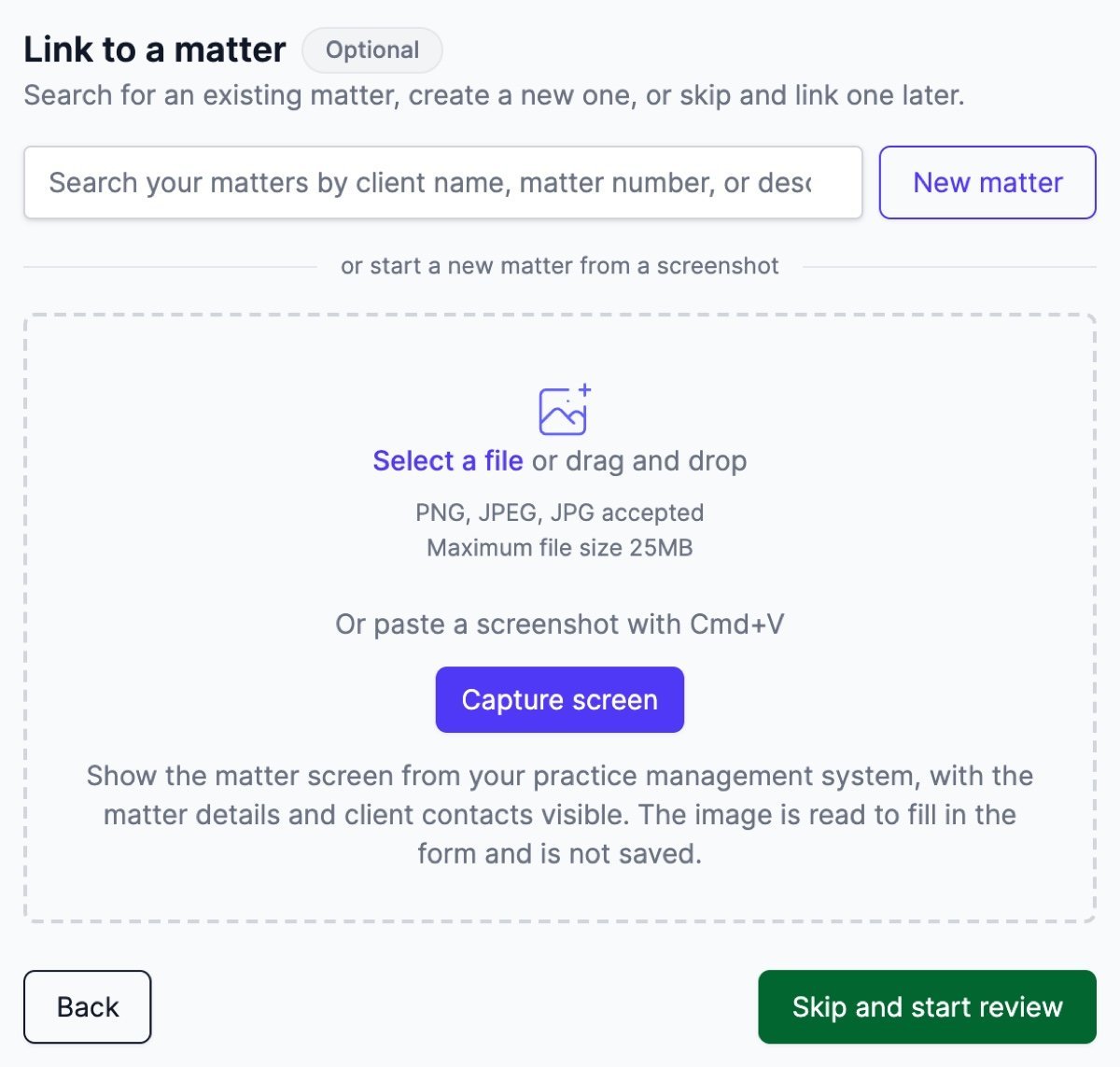
- Paste - copy a screenshot and press Cmd+V (Mac) or Ctrl+V (Windows) anywhere on the page or step
- Drop or select - drop an image file onto the upload area, or click Select a file
- Capture screen - choose the window or screen to capture, and Curia takes a single image of it
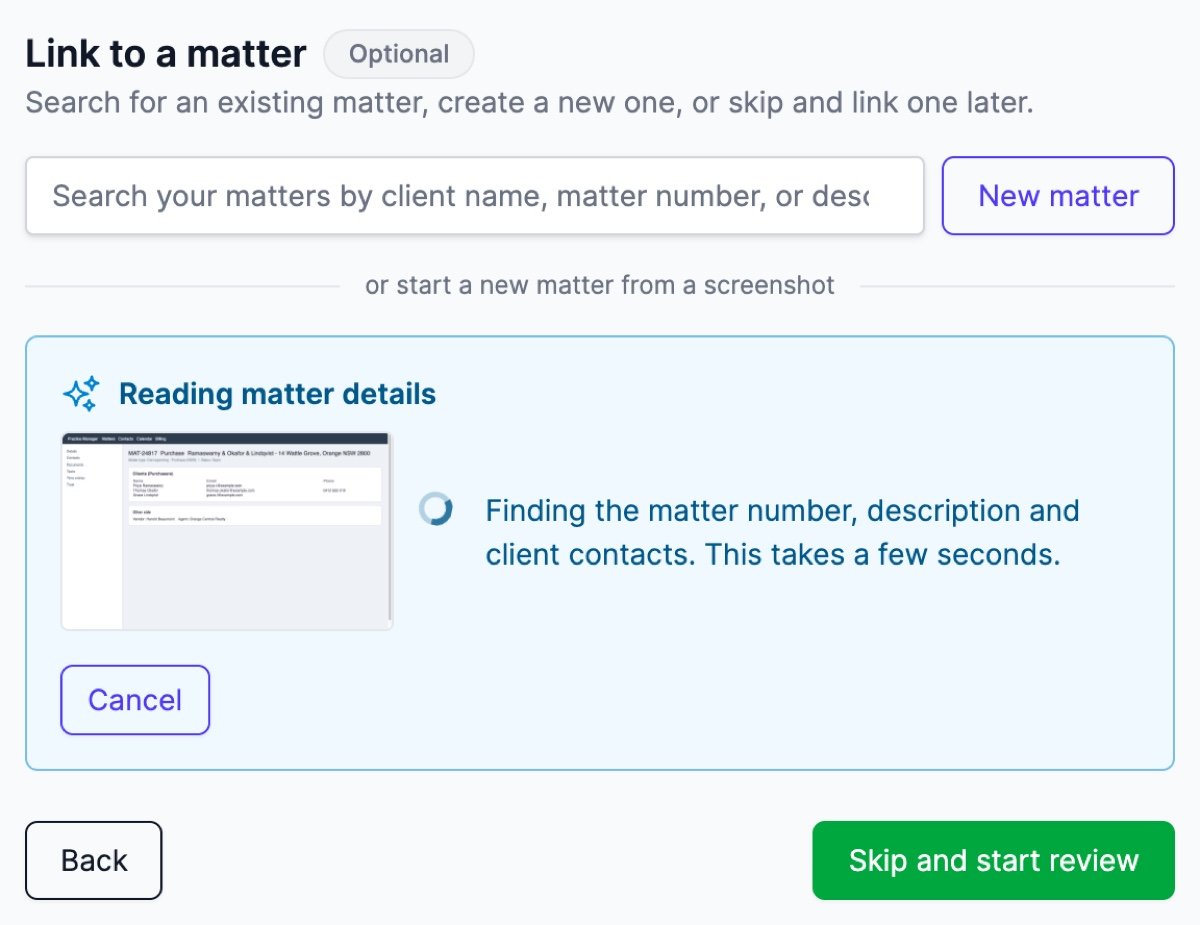
Curia accepts PNG and JPEG images. Reading takes a few seconds. Click Cancel to stop and add a different screenshot.
Checking the new matter
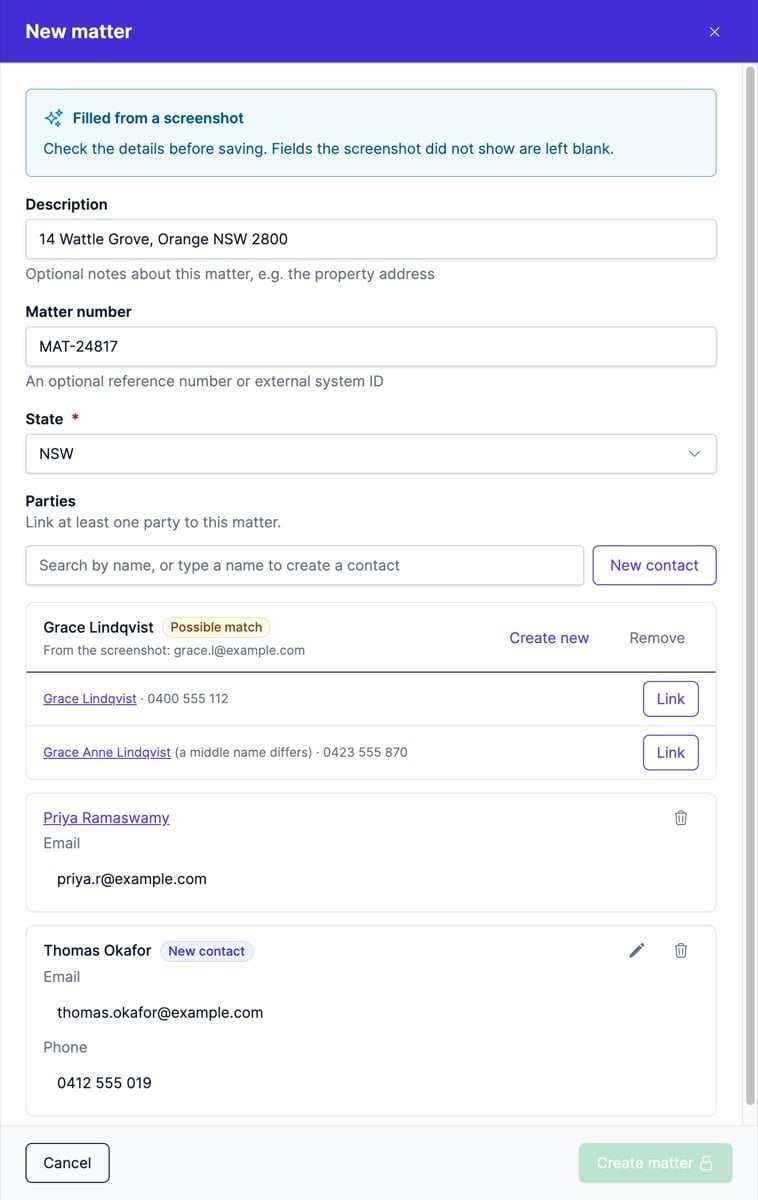
On the upload, the New matter side panel opens. On the New matter page, the page’s own form is filled. Either way, the form shows a “Filled from a screenshot” note. Where the matter number is already in Curia, the form fills once you click Create a separate matter (see below). The Matter number and Description come from the screenshot, and the State is the one you picked for the upload or on the page. Fields the screenshot did not show are left blank.
On the New matter page, adding another screenshot replaces the matter number, description and parties from the first.
The purchasers on the screenshot are added to Parties. A purchaser that matches one of your contacts is linked to that contact. If it’s the wrong contact, remove it and search for the right one. The others are marked:
- New contact - no contact matched, so the purchaser is added as a new contact. Click the pencil icon to edit their details.
- Possible match - the purchaser might be one of your contacts, and the likely contacts are listed. Click Link on the right one, Create new to add them as a new contact, or Remove to leave them off the matter.
Curia only reads purchasers. For a sale matter Curia says no purchasers were read, so add the parties yourself.
Click Create matter to save. New contacts are created at the same time as the matter. On the upload, Curia selects the matter for the upload. If you leave without saving, no matter or contacts are created.
Create matter is unavailable while the matter has no parties, while a possible match is waiting for a decision, or while a new contact is missing a name or, for a company, a contact person. The card says what to add.
When the matter is already in Curia
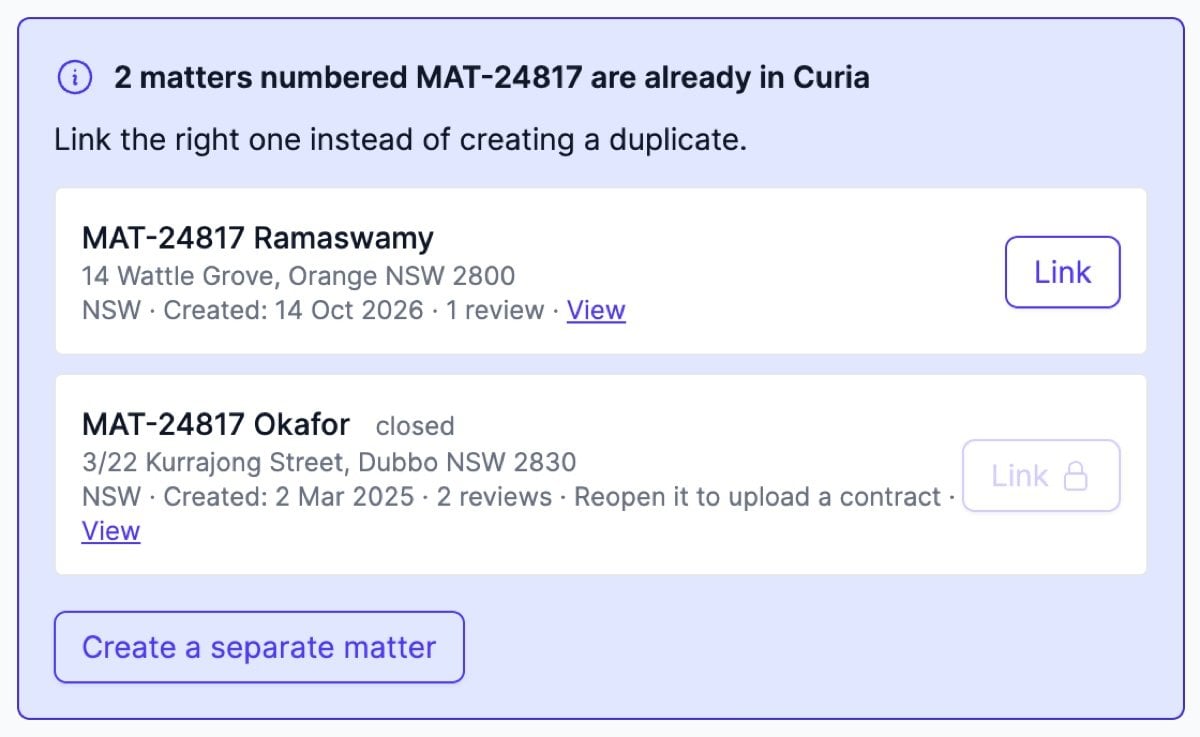
If the matter number on the screenshot is already used by one of your matters, Curia lists those matters.
On the upload, click Link to use one of them for the upload. A closed matter is marked closed and can’t be linked. Reopen it first. See Creating and managing matters.
On the New matter page, click Open to go to one of them, including a closed matter.
To create a new matter anyway, click Create a separate matter.
When a screenshot can’t be read
- No matter details found - the screenshot did not show a matter. Open the matter screen so the matter number and client contacts are visible, and try again.
- The screenshot could not be read - the read failed. Add the screenshot again, or click New matter to create the matter yourself.
On a Mac, Capture screen needs Screen Recording permission for your browser. Without it, Curia shows the steps to turn it on in System Settings. Pasting a screenshot still works in the meantime.
FAQ
Is the screenshot stored anywhere?
No. Curia reads the image to fill in the form and then discards it.
Why can’t I see the screenshot option?
It is hidden while a practice management integration is connected. Matters come from that system instead. See Importing matters from your CRM.